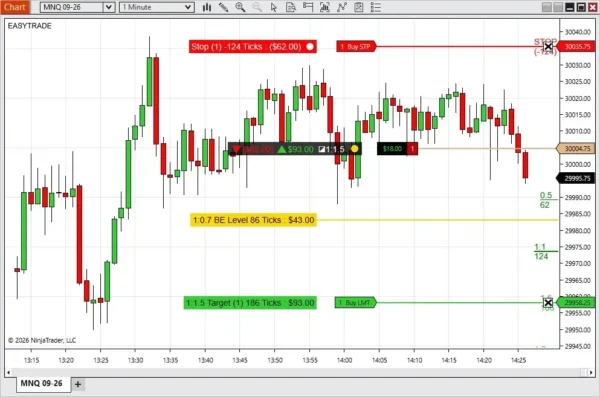
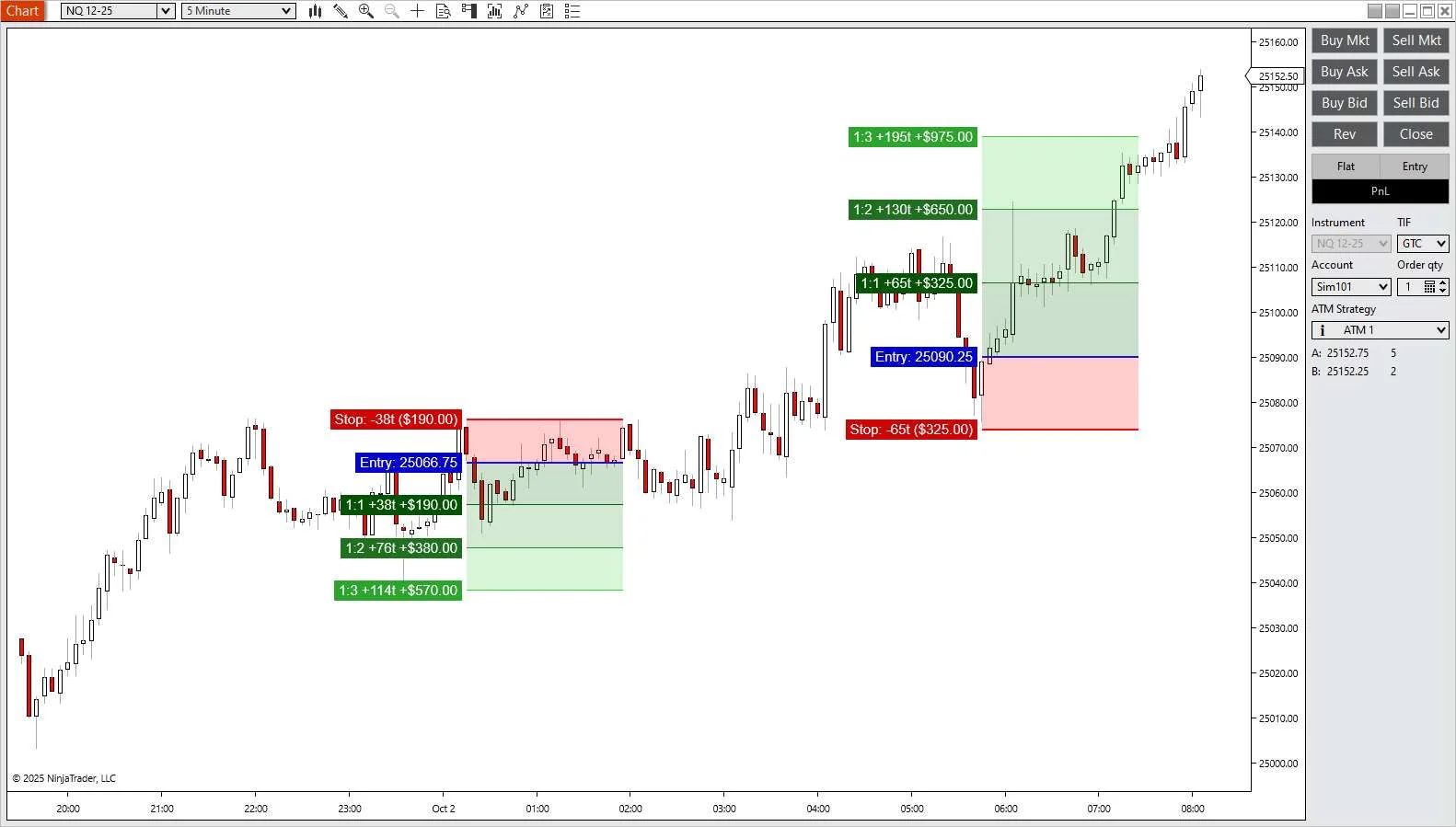
The Free Indicators Pack for NinjaTrader 8 has been updated with changes to EasyTrade and BetterBarTimer. EasyTrade now gives you a clearer check before placing an order, while BetterBarTimer works with both time and tick charts.
This update is mainly about making both indicators easier to trust during live chart work. You get clearer previews, useful warnings, and more control over what appears on the chart.
EasyTrade now does a better job of showing the order setup you are about to use. It reads the current account, quantity, and ATM selection from Chart Trader when you place the order. It also gives you clearer messages if something is missing or not ready.
BetterBarTimer has been rebuilt. It shows time remaining on time charts and ticks remaining on tick charts. You can control its size, position, colors, countdown style, and how it grows as the bar gets closer to closing.
Select the ATM you want to use, or choose None if you intentionally want an entry without an ATM.
Hold the EasyTrade long or short key and move the mouse to your planned entry.
Check the entry line and ATM preview before clicking.
Good practice: Test the updated controls on a Sim account first. EasyTrade can place orders quickly, so it is worth checking your keys, account, quantity, and ATM before using it on a live account.
The default settings are a sensible place to start:
Enable Scaling = On
Scaling Mode = Stepped
Scale Factor = 1.2
Scale Period (%) = 20
Maximum Scale = 3
Use Warning Color = On
Warning Starts At (%) = 20
On a 5 minute chart, a 20% scale period means the text changes size once per minute. With the warning set to 20%, the warning color appears during the final minute.
If the size jumps feel distracting, switch the scaling mode to Smooth. If you prefer a fixed timer, turn scaling off and keep the warning color on.
What changed in this Free Indicators Pack update?
EasyTrade received clearer ATM previews, safer order checks, and better chart messages. BetterBarTimer was rebuilt with time and tick countdowns, flexible scaling, and warning colors.
Does EasyTrade use the ATM selected in Chart Trader?
Yes. EasyTrade uses the ATM selected when you place the order. If ATM is set to None, the entry is placed without automatic stop or target orders.
Does BetterBarTimer work on tick charts?
Yes. On a tick chart, BetterBarTimer shows the number of ticks remaining in the current bar.
Can I stop the timer text from growing?
Yes. Turn off Enable Scaling for a fixed text size, or set a lower Maximum Scale to keep the growth small.
Where can I download the updated indicators?
Download the latest files from the Free Indicators Pack page on the MAS Capital website.
AdvancedTrader for NinjaTrader 8 (Download Latest Version of Advanced Trader Here) now updates stop, target, and risk/reward information while you move an order. This release also adds a chart-based break-even tool that can move working protective stops to the average entry price, with an optional tick offset.
The update removes the old save button and keyboard save controls. The main risk management actions now sit directly inside the chart information boxes.
When you pick up a stop or target order with the mouse, its AdvancedTrader box now follows the order. The displayed numbers also change before you place it.
This lets you check the new tick distance, currency value, point value, or risk/reward ratio while choosing the price. You do not need to release the order and move it again just to check the result.
AdvancedTrader saves the current stop position when a trade becomes active. A small circle inside the stop box shows whether the working stop still matches that saved position.
A filled circle means the current stop matches the saved stop.
An empty circle means the stop has moved away from the saved price.
Click the circle to save the current stop as the new risk reference.
The saved stop gives the risk/reward ruler a fixed reference even when the working stop moves. It resets when the position closes.
The new BE control is a colored circle inside the position summary box. Click it to create a BE Level line, then place that line at the price where AdvancedTrader should move the stops.
Open a position with at least one working protective stop.
Click the BE circle in the position summary box.
Move the mouse to the required trigger price.
Click the chart to place the BE Level line.
Wait for price to reach the line.
When price reaches the level, AdvancedTrader moves all valid working protective stops to the average entry price, adjusted by the selected BE Offset (Ticks).
For a long position, the offset is added above the average entry.
For a short position, the offset is placed below the average entry.
Tip: Press Esc before placing the BE line if you want to cancel.
One trigger for each placed BE level
The BE action runs once. It does not move the stops again if price pulls back and crosses the same level a second time.
After the stops move, the BE line and its information box disappear. The circle remains in the summary box, so you can place another BE level when needed.
If you place the line at a level price has already crossed, AdvancedTrader waits for price to return to the safe side and cross it again. This avoids an immediate unwanted stop move.
The BE action moves all valid working protective stops for the active position. A stop-limit order keeps its existing price gap when it moves.
AdvancedTrader also combines orders of the same type at the same price. When boxes at nearby prices would cover each other, the display stacks them vertically. This applies to stop and target boxes, the BE box, and the position summary when it is displayed on the entry line.
Stop and target boxes no longer have extra connector lines. The BE box keeps its connector because it marks the exact trigger price. Its connector and main line use the same thickness.
Test on Sim first: Check the BE offset, selected Chart Trader account, position direction, and working stop orders before using the feature with a live account.
Use a simple test position to confirm how the saved stop circle and BE trigger behave with your ATM setup. If you split a position across several protective stops, confirm that each stop moves to the expected price.
Does AdvancedTrader update while I drag an order? Yes. The stop or target box follows the moving order, and its tick, point, currency, and risk/reward values update before you place it.
What does the circle inside the stop box mean? A filled circle means the working stop matches the saved risk reference. An empty circle means the stop has moved. Click the circle to save its current position.
How does the AdvancedTrader break-even tool work? Click the BE circle, place the BE Level line on the chart, and wait for price to reach it. AdvancedTrader then moves valid working protective stops to the average entry price with the selected tick offset.
Will the BE level trigger more than once? No. Each placed BE level triggers once. Its line and information box disappear after the stops move.
Does the BE tool move more than one stop order? Yes. It moves all valid working protective stops for the active position. Stop-limit orders keep their existing price gap.
Can I cancel while placing a BE level? Yes. Press Esc before clicking the chart.
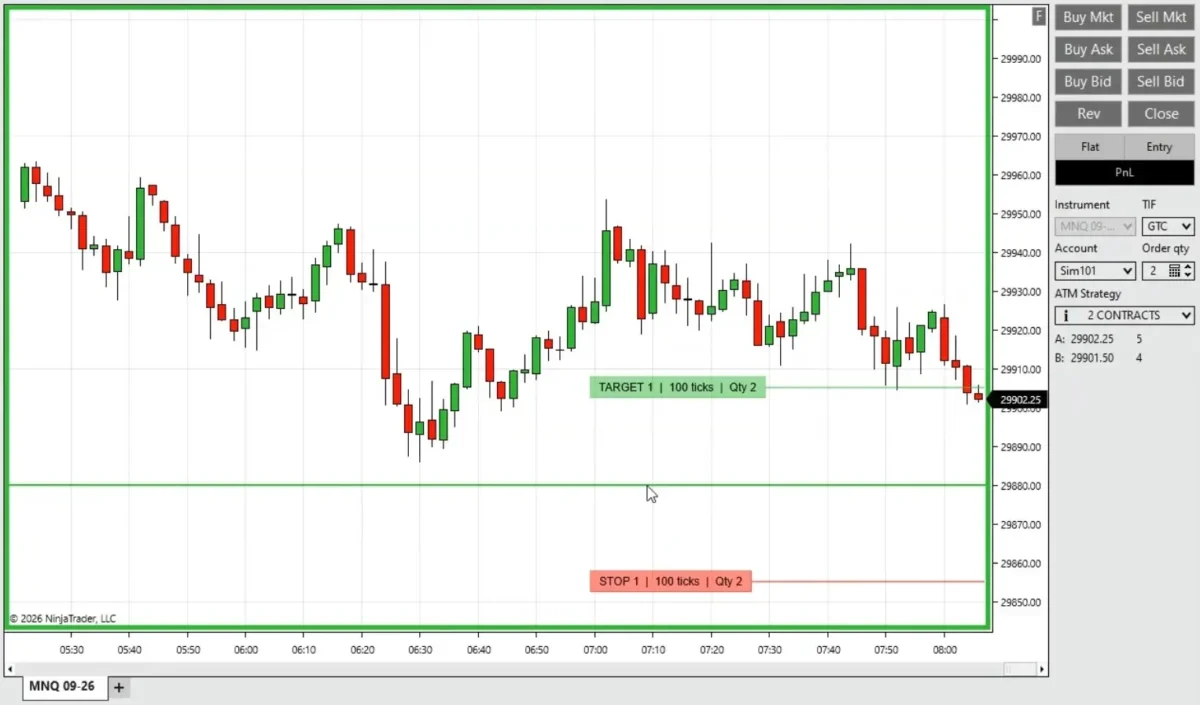
EasyTrade for NinjaTrader 8(download with the Free Pack) can now display the selected Chart Trader ATM setup before an entry order is placed. Hold your long or short entry key, move the mouse to the price you are considering, and the chart shows where the ATM stop and targets would sit.
This makes the order easier to check before the click. You can see the stop distance, target distance and quantity attached to each level without working it out in your head or placing the order first.
EasyTrade already uses a keyboard key and left mouse click for chart entries. The new preview builds on that same action.
Select your account, quantity and ATM strategy in Chart Trader.
Hold the EasyTrade long or short entry key.
Move the mouse to the planned entry price.
Check the temporary stop and target markers.
Left-click when the setup is where you want it.
The indicator reads the selected ATM brackets and calculates their position from the proposed entry. Move the mouse and the preview follows. Release the key and it disappears.
Note: The preview is visual only. It does not submit, move or cancel an order, and it does not leave permanent drawing objects on the chart.
Each stop or target has a colored information box on the left and a short line extending to the right. The complete marker uses roughly 40% of the chart width. Inside the box, EasyTrade shows:
Whether the level is a stop or target.
The bracket number when it belongs to one ATM bracket.
The shorter shape leaves the rest of the chart open, while the semi-transparent color makes it clear that these are planned levels rather than live working orders.
The ATM preview is enabled by default, but it can be turned off from the EasyTrade indicator settings. The normal entry-price line is also enabled by default.
Show ATM Ghost Preview = True
Show Order Line Preview = True
ATM Preview Opacity (%) = 50
You can also set separate colors for the stop marker, target marker and text. The defaults are red stops, lime green targets and white text. The line and colored box use 50% opacity by default, while the text remains solid so it is easy to read.
The EasyTrade ATM ghost preview works with ATM templates that calculate stops and targets in Ticks or Pips.
Compatibility: Price, currency and percent ATM calculation modes are not supported by the preview. EasyTrade order entry still works, but the ghost stop and target map requires a tick-based or pip-based ATM template.
An ATM template name does not tell you whether the selected stop makes sense at the price under your mouse. A 40-tick stop may look reasonable on one chart and far too wide on another. The preview puts that distance on the chart before the order exists.
It also gives you a quick check that the correct ATM is selected. If the targets or total quantity look wrong, stop and fix the Chart Trader settings before clicking. That is a small pause, but it can prevent a simple setup mistake from becoming a live order problem.
When does the EasyTrade ATM preview appear? It appears while the configured long or short entry key is held and an ATM strategy is selected in Chart Trader.
Does the preview place or change any orders? No. It is a temporary chart display and disappears when the entry key is released.
Which ATM calculation modes work with the preview? The preview supports ATM templates that use ticks or pips. Price, currency and percent modes are not supported.
What happens when several brackets use the same stop? EasyTrade draws one stop marker and adds the bracket quantities together. Matching targets are handled the same way.
Can the preview colors and transparency be changed? Yes. Stop, target and text colors are configurable, and marker opacity can be set from 0% to 100%.
Can the ATM ghost preview be disabled? Yes. Turn off Show ATM Ghost Preview in the EasyTrade indicator settings.
Trade Copier for NinjaTrader 8 has a new version. Before, it worked like an indicator. Now it works as a NinjaTrader 8 add-on.
Important: the master account should always be a NinjaTrader SIM account. In this version, the SIM master workflow is the correct and preferred setup. It gives Trade Copier the cleanest order source and the highest copying accuracy for every trade and order.
This is a better setup for traders who want to copy trades across multiple accounts. You can trade from one SIM master account and copy the orders to selected follower accounts, including funded accounts, evaluation accounts, broker accounts, SIM accounts, and other NinjaTrader-connected accounts.
If you trade with firms or connections such as Apex, TopStep, Bulenox, Tradovate, or similar funded account providers, this update makes the workflow easier to manage from one window.
The main change is simple. Trade Copier is now a NinjaTrader 8 add-on.
The older version was used like an indicator. That was okay for a basic setup, but a trade copier is really an account tool. It needs to watch orders, positions, account status, and follower accounts.
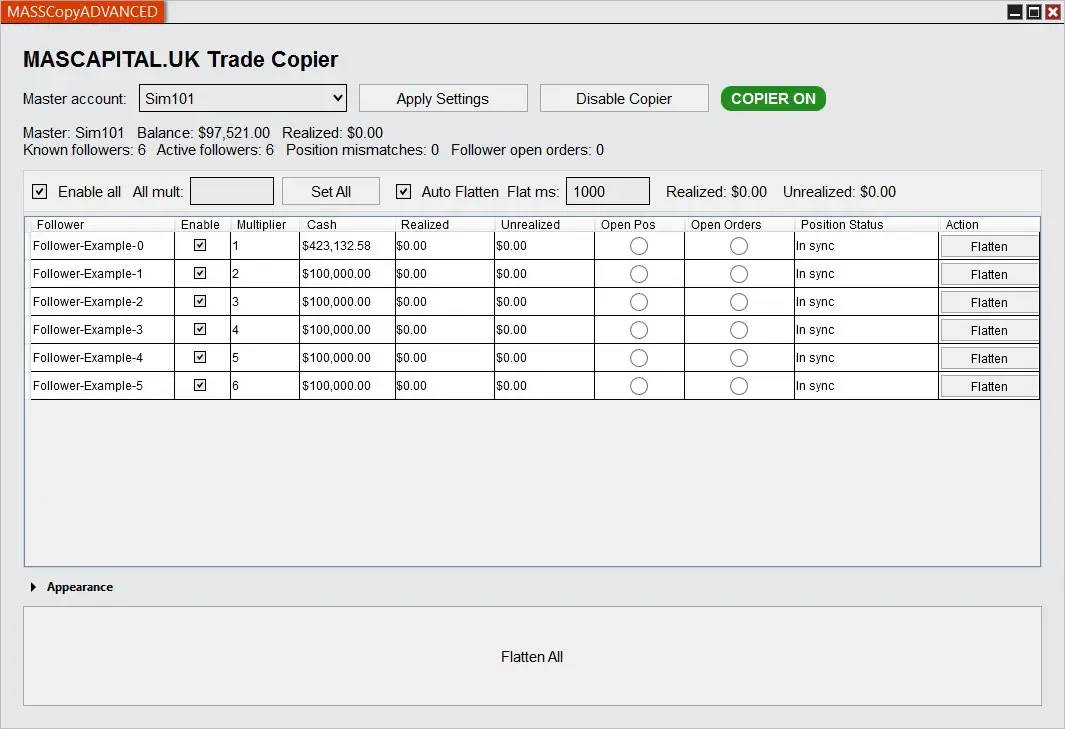
The new version opens from the NinjaTrader Control Center as MASSCopyADVANCED. You get one window for the full trade copying workflow.
Choose the SIM master account.
Choose which follower accounts should copy trades.
Set the quantity multiplier for each follower account.
Turn the copier on or off.
Watch follower account status.
Flatten one follower account or all follower accounts if needed.
A NinjaTrader trade copier should not depend on one chart. It should work around accounts.
That is why the new version is an add-on. It can sit in the Control Center and watch the SIM master account and follower accounts from one place.
This makes more sense for traders who copy orders to several accounts. You do not need to attach the copier to a chart just to manage account copying. You open the add-on window, set the accounts, and trade from the SIM master account.
Note: The core idea did not change. You still trade from one SIM master account. The selected follower accounts copy the trade.
When you place an eligible active order on the SIM master account, Trade Copier creates matching orders on the enabled follower accounts.
The copied order uses the same main order details:
instrument
buy or sell action
order type
time in force
limit price, if the order uses one
stop price, if the order uses one
The add-on also keeps a link between the master order and the copied follower orders. This is important. If the master order price changes, the follower order can be updated. If the master order is cancelled or rejected, the copied follower order can be cancelled or cleared from tracking.
Note: Trade Copier does more than send the first order. It keeps tracking the copied order while the copier is running.
This makes the new version useful for traders who need copy trading in NinjaTrader 8 across more than one account.
Many traders use Trade Copier because they trade more than one funded account or evaluation account.
For example, a trader may want to use one SIM master account and copy the same trade to several follower accounts. This is the recommended setup. The SIM master account gives Trade Copier the most accurate order source, which helps it copy trades as close to perfect as possible. The followers can be connected broker accounts, funded accounts, evaluation accounts, or other accounts available inside NinjaTrader.
This can be useful for traders working with:
Apex funded accounts
TopStep accounts
Bulenox accounts
Tradovate-connected accounts
broker accounts
evaluation accounts
SIM accounts
You still need to manage risk, account rules, and trade size yourself. Trade Copier helps with execution across accounts. It does not replace your trading plan.
Not every account should use the same size. One account may need 1 contract. Another account may need 2 contracts. A smaller account may need less exposure.
The new Trade Copier add-on lets each follower account use its own multiplier.
Example:
Master account order: 1 contract
Follower A multiplier: 1
Follower B multiplier: 2
Follower C multiplier: 3
In that example, the follower accounts copy the same trade idea but with different quantities.
Tip: Keep multipliers simple when you start. It is easier to check the copier when every account size is clear.
The follower grid is the main control area in the new add-on.
It can show useful account information while Trade Copier is running:
account name
enabled or disabled state
quantity multiplier
cash value
realized PnL
unrealized PnL
open position state
open order state
expected position state
mismatch status
flatten status
This helps when one follower account is not the same as the SIM master account. You can see the account that needs attention instead of checking every account one by one.
You can flatten one follower account from its row. You can also use the main flatten control when several accounts need cleanup.
Flatten is used to cancel open orders and close open follower positions. This is helpful when the SIM master account is flat but one follower account still has an open position or open order.
Use row-level Flatten for one follower account.
Use Flatten All when you need to clean up all follower accounts.
Use Auto Flatten when you want the copier to clean follower exposure after the SIM master account is flat and has no open orders.
Note: Flatten is a risk cleanup tool. Always check the account state before using it.
If you are new to Trade Copier, start with the product page and the setup guide. If you used the old indicator version, this new version should feel cleaner because the copier now lives in the Control Center.
What is Trade Copier for NinjaTrader 8?
Trade Copier is a NinjaTrader 8 add-on that copies trades from one SIM master account to selected follower accounts.
Can Trade Copier copy trades across multiple accounts?
Yes. You can enable several follower accounts and copy orders from the SIM master account to those accounts.
Does it work with funded accounts like Apex?
It can work with funded, evaluation, broker, SIM, and other NinjaTrader-connected accounts, as long as the accounts are available inside NinjaTrader. Many traders use this type of workflow with Apex, TopStep, Bulenox, Tradovate, and similar setups.
Is Trade Copier still an indicator?
No. The new version is a NinjaTrader 8 add-on. It opens from the NinjaTrader Control Center as MASSCopyADVANCED.
Should the master account be a SIM account?
Yes. The master account should always be a NinjaTrader SIM account. This is the preferred setup because it gives Trade Copier the cleanest order source and the highest copying accuracy.
Do I still trade from one master account?
Yes. You trade from one SIM master account. The enabled follower accounts copy the eligible orders from that master account.
Can each follower account use a different size?
Yes. Each follower account can use its own quantity multiplier.
What happens if the master order changes?
The add-on keeps a link between the master order and the follower orders. This lets it update or cancel follower orders when the master order changes, cancels, or rejects.
Can Trade Copier flatten follower accounts?
Yes. It has row-level flatten buttons, a main flatten control, and optional auto-flatten after the SIM master account is flat and clean.
Should I test it on SIM first?
Yes. Always test the workflow on SIM first before using it with live, funded, or evaluation accounts.
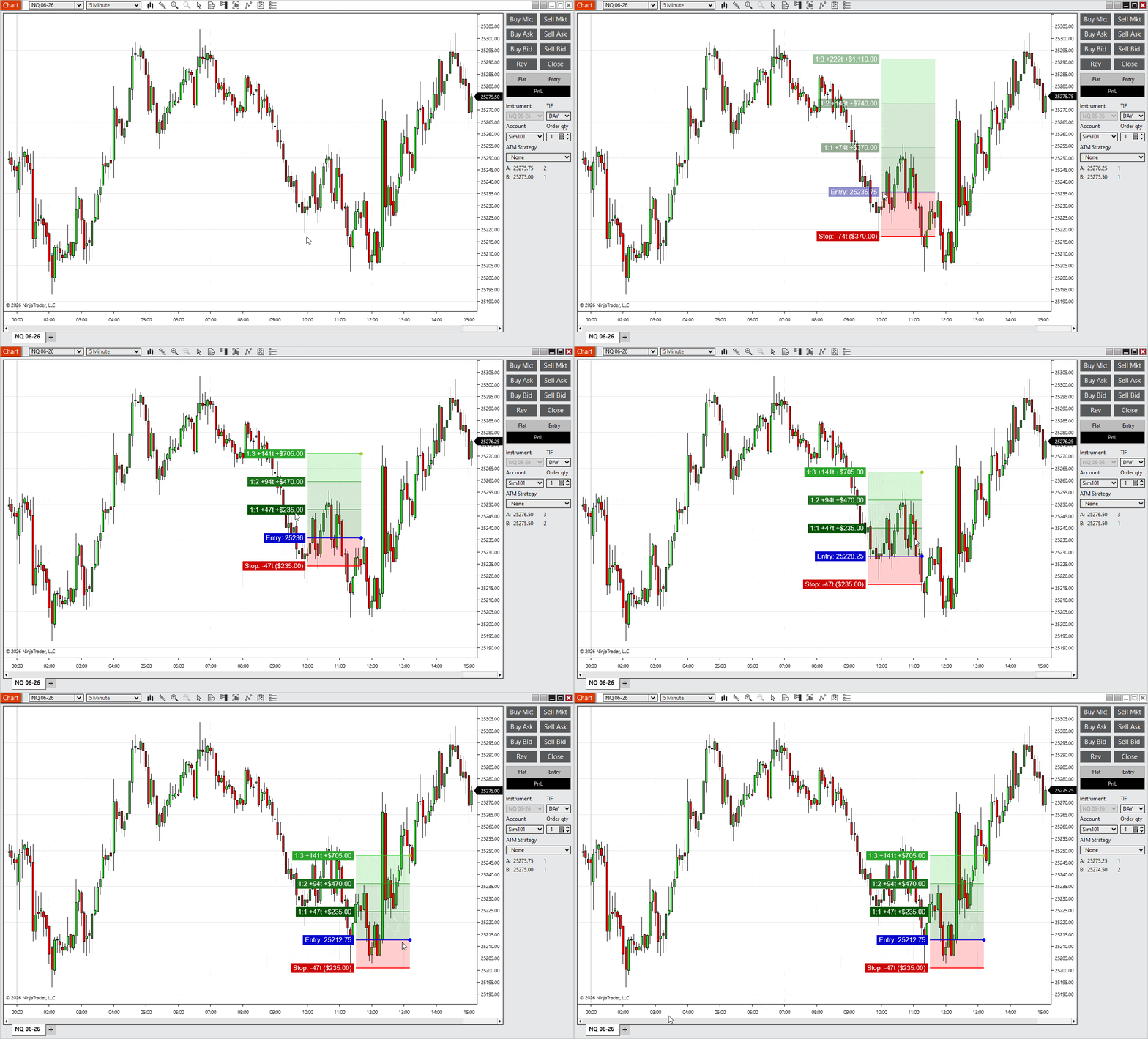
If you already use RiskRewardADV for NinjaTrader 8, the biggest change in version 10 is obvious after the first setup: you are no longer stuck with a static marker. You can place the trade, adjust it on the chart, and keep working without deleting and redrawing everything.
That makes this update more than a cosmetic change. It turns RiskRewardADV from a fast plotting tool into a more practical NinjaTrader 8 risk reward indicator for traders who adjust entries, stops, and targets as the setup develops.
The earlier version of RiskRewardADV for NinjaTrader 8 was quick to use, but once a marker was placed, your options were limited. If the entry changed, the stop had to move, or the target no longer matched the chart, the usual answer was to remove the setup and build it again.
Version 10 changes that. The marker can now be edited directly on the chart, which makes the tool much more useful in live trading and active trade planning.
Adjust the setup instead of redrawing it
Keep your analysis on the chart without interruption
Match targets more closely to real market structure
This is especially useful for intraday traders, scalpers, and futures traders who work in fast conditions where price levels change before the trade is even triggered.
Tip: Combine RiskRewardADV with Advanced Trader if you want to manage positions while keeping your risk model visible on the chart.
The upgrade is simple in theory, but it matters in practice. You spend less time rebuilding the tool and more time refining the trade idea.
This is the feature most traders will notice first. In version 10, a RiskRewardADV marker does not stop being useful after placement. You can click it and adjust the individual parts directly.
That includes the full marker as well as the key price levels.
Move the entire setup
Adjust the entry level
Move the stop level
Drag reward targets one by one
That sounds like a small change until you use it in a live session. Breakout entries move. Pullbacks get deeper. Stops tighten before the trigger. With the old workflow, those adjustments created friction. With the new workflow, they are part of the same setup.
Note: This is useful for traders who build a plan before execution but still need room to adapt as structure develops.
If you also use Easy Trade, this fits naturally into a faster execution workflow. Refine the levels first, then execute when the setup is ready.
Tip: Pre-adjust the stop with drag-and-drop before entry if you want to keep your risk tighter without recalculating the whole idea from scratch.
This is the part of the update that changes how the indicator feels day to day. It is still fast, but it is no longer disposable after the first click.
Earlier builds used a fixed ruler width. That worked well enough on a clean chart, but it was less practical when several trade ideas were visible at once or when price action was tight and crowded.
In RiskRewardADV v10, each marker can have its own width, and you can change that width after the setup has already been placed.
Make one setup compact to save chart space
Widen another setup for clearer visibility
Adjust each trade without changing the others
This helps more than it sounds. If you manage multiple setups on one chart, width control keeps the screen readable. If you focus on one setup at a time, a wider marker can make levels easier to track.
Note: Scalpers often prefer tighter visual spacing, while traders holding for larger moves may want more room for the target structure.
Tip: Use narrower rulers on busy charts and wider rulers when you want one setup to stand out clearly.
It is a practical chart-management feature, not just a visual tweak.
3. Custom reward targets beyond standard R levels 🔗
One of the most useful additions in version 10 is support for a custom reward target. Standard R levels are still useful, but not every trade exits cleanly at 1R, 2R, or 3R.
Sometimes the better target is a prior swing, a liquidity area, or the final part of a position you want to leave open for a larger move. Now the indicator can reflect that directly on the chart.
Add a custom target on top of standard reward levels
Drag that target freely into place
Use structure-based exits instead of only fixed multiples
This is especially useful for traders who scale out, leave a runner, or work with support and resistance rather than fixed R templates alone.
Note: Many strong trades do not stop exactly at a standard multiple. They react to structure. This feature gives you room to plan for that.
It also pairs well with Risk Reward Indicator if you use one tool for quick projections and another for more active trade management.
Tip: Keep standard R levels for partial exits and use the custom target for the final portion of the position.
This one feature makes RiskRewardADV easier to use across different trading styles, especially when exits are discretionary.
This update is less visible at first glance, but it matters during real use. Version 10 improves how the marker is selected on the chart, including the different areas traders interact with most often.
Cleaner selection of entry, stop, and reward lines
Dedicated hit areas for labels and the marker body
Separate handles for width changes and custom targets
In older versions, small elements could be awkward to select, especially on busy charts or when zoomed out. That may sound minor, but repeated friction like that slows down the whole process.
With cleaner hit detection, editing feels more predictable. The tool responds the way you expect it to, which is exactly what you want from a trading utility.
Note: This becomes even more useful when several setups are visible at the same time.
Tip: If you are working with overlapping trade plans, use the improved hit zones to fine-tune one marker without disturbing the others.
It is not the headline feature, but it supports every other change in the update.
When you combine drag-and-drop editing, width control, custom targets, and better hit detection, the biggest improvement is workflow.
Old workflow:
Place the setup
Market conditions change
Delete the marker
Redraw everything
New workflow:
Place the setup
Adjust entry, stop, targets, or width directly on the chart
Keep refining the same setup as the trade develops
That is the real upgrade. Version 10 removes unnecessary repetition from trade planning and keeps attention on the chart instead of on rebuilding the marker.
Note: This is especially helpful in volatile sessions where price structure changes quickly and hesitation costs time.
It also fits neatly into a broader workflow built around other tools:
If you compare the old build with version 10, the difference is not hard to spot.
Old version
Fast middle-click placement
Static after creation
Standard reward levels only
Delete and redraw when the setup changed
New version
Fast placement with editable markers
Draggable entry, stop, and reward lines
Per-marker width adjustment
Custom reward target support
Improved selection and interaction on the chart
The old version was good at getting a plan on the screen quickly. The new version still does that, but it also supports the next part of trading: refining the plan as conditions change.
Note: That balance between speed and flexibility is what makes version 10 the stronger tool.
Tip: If you were comfortable with the old workflow, the transition is light. The new controls mostly remove steps rather than add complexity.
Version 10 adds flexibility, but it does not remove the parts that already worked well in the original version.
Middle-click placement is still available for fast setup creation
Live preview still helps before the marker is finalized
Ticks, currency, or combined display options are still supported
Colors and visual settings remain customizable
Background rectangle support is still available
Hotkey-based interaction still fits fast trading workflows
That matters because good updates should not break muscle memory. RiskRewardADV v10 keeps the core logic familiar while making the indicator more capable.
Note: If your workflow already relies on speed, the added flexibility should feel like an extension of the original tool rather than a replacement.
Tip: Start by using the tool exactly as before, then add drag-and-drop adjustments and custom targets as needed.
Most traders do not need another indicator that claims to find perfect entries. What they need is a tool that helps them plan risk clearly and adjust that plan without slowing down.
That is where RiskRewardADV for NinjaTrader 8 is stronger in version 10. It cuts friction out of the planning process and gives traders a more flexible way to manage entries, stops, and targets directly on the chart.
Adjust risk in real time as the setup develops
Keep the chart cleaner during active sessions
Align exits with actual structure instead of only fixed multiples
Stay more consistent from trade idea to execution
For NinjaTrader traders working with instruments like NQ, ES, or CL, that is the part that matters. The market moves quickly. Static tools slow you down. Interactive tools keep up.
Note: This is why the update is especially relevant for futures traders, scalpers, and active day traders.
It also works naturally alongside other tools in the MASCAPITAL ecosystem:
RiskRewardADV v10 is a practical upgrade for traders who want a better risk reward indicator for NinjaTrader 8. The old version was fast. The new version is fast and editable.
Drag-and-drop editing is the standout improvement, but the update works because the smaller changes support it: width control, custom target support, and better on-chart selection all make the indicator easier to use in real sessions.
Faster adjustments during active markets
More control over how each setup is displayed
Better support for structure-based exits
Less time wasted rebuilding the same trade plan
If you already use RiskRewardADV, version 10 should feel more efficient almost immediately. If you are looking for a NinjaTrader 8 risk reward tool that does more than draw a static setup, this is the version worth using.
Note: The biggest gain is not just speed. It is keeping the trade plan flexible while the market is still moving.
Tip: Start on SIM, build your routine around the editable marker workflow, and then bring that same process into live sessions.
Can I edit a RiskRewardADV setup after placing it? Yes. In version 10, you can drag and adjust entry, stop, and target levels directly on the chart instead of deleting the marker and creating a new one.
Can I use custom targets instead of fixed R levels? Yes. The indicator now supports a custom reward target that can be placed manually to match chart structure or a discretionary exit plan.
Does RiskRewardADV work for fast markets and intraday trading? Yes. The update is especially useful for fast-moving conditions where setups need to be adjusted quickly.
Do I need to relearn the tool? No. The core workflow is still familiar. Version 10 mainly adds more control after the marker has been placed.
Who is this update most useful for? It is most useful for futures traders, scalpers, and day traders who want a more flexible risk reward tool inside NinjaTrader 8.
Can I use RiskRewardADV with other MASCAPITAL tools? Yes. It fits well alongside tools like Advanced Trader and Easy Trade as part of a broader trading workflow.
This release of MASSCopyADVANCED focuses on clearer visuals, smarter dropdown behaviour, and a cleaner workflow for live chart operation. Traders asked for more readable colours, more predictable popup lists, and a panel that stays out of the way during fast market conditions. This update delivers exactly that.
The interface is now easier to read, easier to customise, and more responsive across different chart sizes and monitor setups. Below is a complete breakdown of what changed and how to get the most out of the new version.
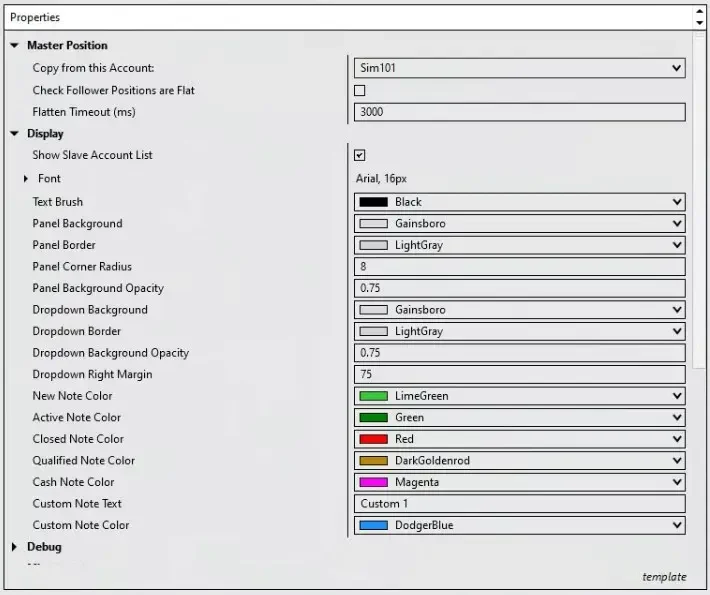
The panel now uses a simplified, unified opacity system. Choose any standard NinjaTrader colour like Colors.Black or Colors.Magenta and pair it with a single opacity value. No more editing hex codes or hunting hidden alpha fields.
This same opacity applies to the dropdown popups, ensuring menus match the panel and stay readable regardless of your chart background.
A default 200-pixel margin now keeps the interface away from the price ladder, preventing dropdowns from covering bid/ask activity or volume data. Adjust this value in the indicator settings if you prefer more or less space—the panel always realigns cleanly.
Tip: This setting is especially helpful for traders who run multiple markets or manage prop firm evaluations where visibility is crucial.
Dropdowns now automatically detect available space on the screen and rearrange themselves to stay fully visible. No more popups stretching off-screen or hiding behind unrelated UI elements.
Multipliers now show in a 2-column × 15-row grid, making it much easier to scan, compare, and select values without scrolling. Everything stays inside the chart boundaries and avoids the price column, even when expanded.
Previous versions had occasional overlaps where dropdowns sat beneath drawings or other indicators. Popups now render at a higher z-order, ensuring they always appear above the panel and remain clickable.
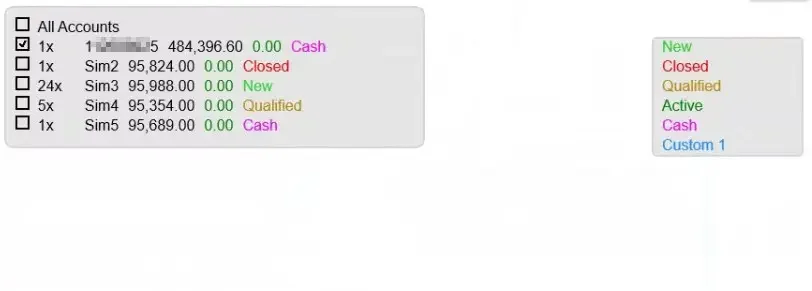
The Notes dropdown has been streamlined. All states—Closed, Qualified, Active, Cash, New, plus any custom labels—now live in a single dropdown.
To create a custom label such as “Review” or “High Priority,” simply type it into the indicator settings. It appears instantly without extra menus or formatting requirements.
Dropdowns open with a clean 5px margin for better separation and readability. The panel now supports adjustable corner radius, letting you choose between sharp or rounded edges to match your preferred chart style.
Whether you’re using ultrawide monitors, a laptop, or switching screens mid-session, the interface automatically clamps popups to the visible area. The panel stays in position, and dropdowns reorganise themselves intelligently.
By removing serialized colour data and relying on clean brush names with numeric values, template files are now far cleaner. This makes importing, exporting, or sharing workspaces more reliable across machines.
Try adjusting opacity first to find your visibility sweet spot. Add a custom note label to match your trading workflow. Then experiment with corner radius and spacing—every change updates live.
Thank you for using MASSCopyADVANCED and for the feedback that continues to improve the tool. This update aims to reduce friction, improve chart clarity, and support faster decision-making.
Advanced Risk Ruler has just received its most comprehensive update yet — version 10.0. This release focuses on speed, stability, and professional-grade customization for risk visualization on NinjaTrader 8 charts.
Every detail has been revisited: from hotkey persistence and input cleanup to fully reworked label styling and unit formatting. Whether you use it for single-bar risk plotting or multi-target mapping, this update ensures the Ruler looks cleaner, reacts faster, and adapts to your workflow.
Version 10 introduces a smarter way to trigger your Risk Ruler drawing tools. The new AdvancedRiskRulerActivationCombo parameter lets you pick from several key + mouse combinations — Ctrl, Shift, Alt, or Space — to fit your charting habits.
Once chosen, your activation combo now persists across sessions through the NinjaTrader cache and factory pipeline, so you don’t have to reselect it every time you reload or reopen the indicator. This small but critical improvement means consistent hotkey behavior even after restarting NinjaTrader.
Selectable combos: Ctrl + Middle Click, Shift + Middle Click, Alt + Middle Click, Space + Middle Click.
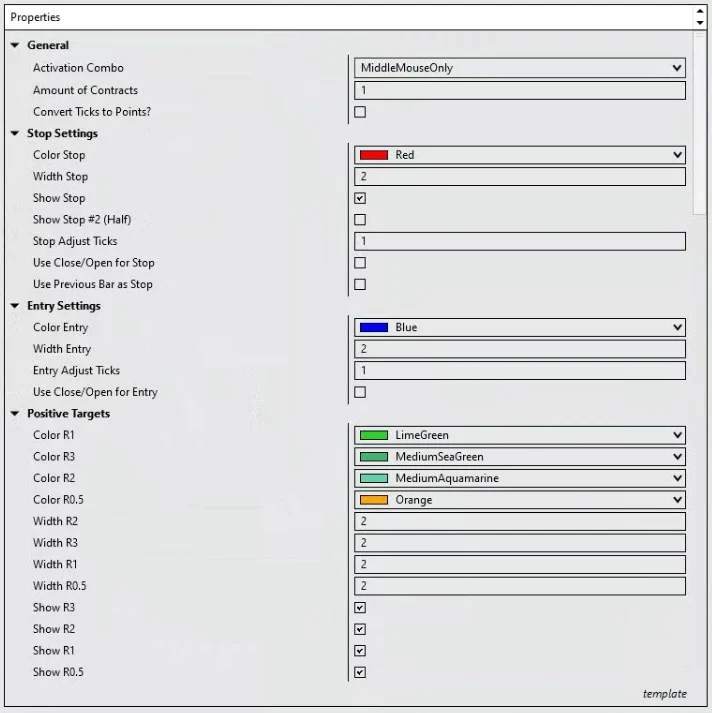
Streamlined interface: indicator parameters have been reorganized into clear categories:
General
Stop Settings
Entry Settings
Positive/Negative Targets
Ruler Appearance
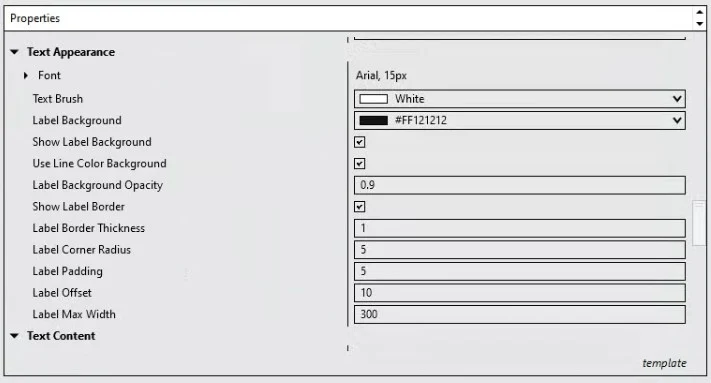
Text Appearance
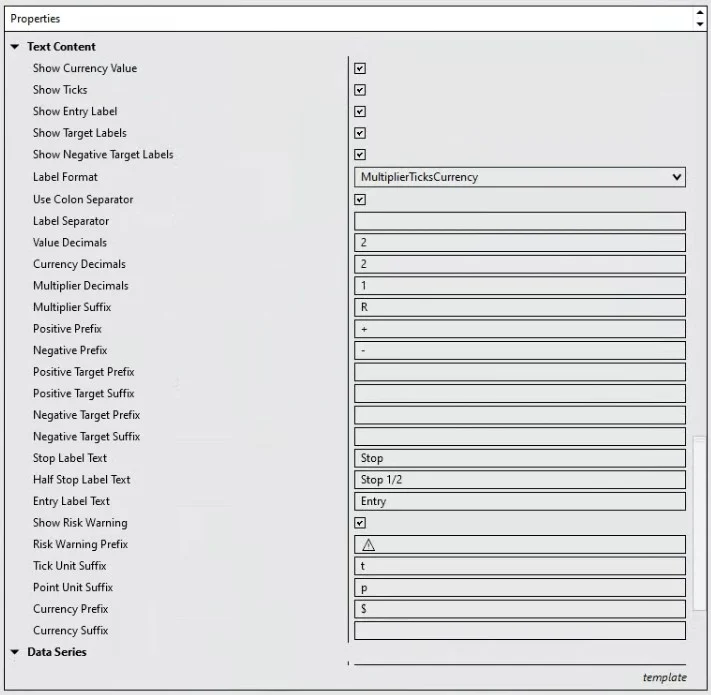
Text Content
Tip: Set your preferred combo once and save the workspace — version 10 will remember it every session, even after reloading charts or templates.
These improvements make the indicator faster to deploy and more reliable for daily use, particularly for traders who use multiple add-ons or prefer a clean workspace without conflicting key bindings.
The visual layer of Advanced Risk Ruler has been rebuilt from the ground up. Version 10 introduces a complete set of parameters that let you refine how every on-chart label looks and behaves — from color and borders to corner radius and spacing.
Traders can now create professional, publication-quality visuals directly on their charts without additional design tweaks. Whether you prefer minimal translucent labels or bold highlighted ones, the new controls give you full flexibility.
New properties:LabelBackgroundBrush, ShowLabelBackground, and LabelBackgroundOpacity — control the fill color and transparency of your annotation boxes.
Auto color sync:UseLineColorForLabelBackground lets labels inherit the exact color of their ruler lines, ensuring instant visual pairing between stop, entry, and target lines.
Border & shape controls: parameters like ShowLabelBorder, LabelBorderThickness, and LabelCornerRadius let you define clean borders or rounded edges for modern chart styling.
Layout refinements:LabelPadding, LabelOffset, and LabelMaxWidth handle fine-tuning of text spacing, horizontal alignment, and width limits for multi-line setups.
Each label can now appear as a subtle accent or a structured information box — ideal for scenarios where traders want risk/reward levels clearly visible yet visually balanced against other chart elements.
Tip: Combine UseLineColorForLabelBackground with LabelBackgroundOpacity = 40–60% for a sleek transparent overlay that remains readable on any chart color theme.
The overhaul not only improves chart readability but also brings the Risk Ruler up to institutional presentation standards — perfect for screen-sharing, teaching, or publishing analysis screenshots.
Advanced Risk Ruler v10.0 takes visibility and formatting control to a new level. You can now decide exactly which labels appear and how their values are displayed, keeping your chart focused only on what matters for the current trade.
Whether you want a minimalist stop/entry setup or a full multi-target map with precise risk multiples, the new visibility toggles and formatting options adapt seamlessly.
Selective label display:ShowEntryLabel, ShowTargetLabels, and ShowNegativeTargetLabels let you show or hide individual annotation groups instantly.
Custom label format:RiskRulerLabelFormat introduces structured templates for showing values (ticks, points, currency, or R-multiples).
Separator controls:UseLabelColonSeparator and LabelSeparator allow consistent, readable labeling between metrics (for example, “R: 2.5 | $250”).
Granular decimals: options such as LabelValueDecimals, LabelCurrencyDecimals, and MultiplierDecimals ensure precision matching your instrument type.
Multiplier customization: the MultiplierSuffix adds your preferred unit notation (e.g., “xR” or “R-mult”).
This flexibility is particularly valuable when analyzing multi-instrument portfolios where tick size and currency differ — every number on the chart can now be standardized to your preferred precision and terminology.
Note: Traders working with both futures and CFDs can standardize readouts using the new decimal and suffix parameters, ensuring consistency across all charts and markets.
With these refinements, the Risk Ruler becomes not just a drawing tool but a fully adaptable communication layer for your risk metrics — whether you’re teaching, reviewing setups, or presenting trade examples.
Version 10.0 adds a rich new layer of personalization to how your labels read and report data. Beyond colors and visibility, you can now control the exact words and units used in your stop, entry, and target annotations — making every plot instantly intuitive and aligned with your trading language.
This update helps you communicate setups clearly, whether you’re documenting trade ideas, reviewing results, or teaching risk management principles to others.
Directional messaging: new prefixes and suffixes for both positive and negative target labels — PositiveLabelPrefix, NegativeLabelPrefix, and per-target variations — make it easy to display “Take Profit +2R” or “Risk −1R” styles automatically.
Custom stop/entry captions: dedicated fields StopLabelText, HalfStopLabelText, and EntryLabelText let you rename key levels however you prefer — e.g., “Emergency Stop,” “Soft Stop,” or “Initial Entry.”
Risk awareness alerts: optional ShowRiskWarning, RiskWarningPrefix, and MaxRiskTicks automatically highlight when your stop distance exceeds a safe threshold.
Fully editable units: adjust TickUnitSuffix, PointUnitSuffix, CurrencyPrefix, and CurrencySuffix to reflect your preferred conventions (for example: “$” vs. “USD,” or “ticks” vs. “pips”).
All of these options combine to make Advanced Risk Ruler a powerful companion for structured journaling, professional reporting, or fund-style trade reviews. You can now produce consistent, branded annotations that carry your exact terminology and formatting preferences.
Tip: Enable ShowRiskWarning and set MaxRiskTicks conservatively to train discipline — the alert instantly reminds you when a setup’s stop exceeds your predefined comfort zone.
By bridging language, numbers, and style, this release transforms the Risk Ruler into a personalized visual assistant — ready for discretionary traders, prop evaluation tracking, or automated journaling workflows.
Advanced Risk Ruler v10.0 marks a major step toward professional-grade chart annotation and risk management control inside NinjaTrader 8. Every change in this release focuses on practical improvements that traders will notice in real sessions — cleaner visuals, stable hotkeys, and a smoother workflow.
Here’s a quick recap of what’s new:
Activation rebuilt: new persistent hotkey system (AdvancedRiskRulerActivationCombo) ensures consistent middle-click behavior and session-to-session reliability.
Parameter reorganization: redesigned category structure for faster navigation and easier setup.
Label styling freedom: background, opacity, border, and corner-radius controls enable high-contrast or minimal label modes.
Visibility and formatting: precise toggles and formatting controls for every label type — entry, stop, positive and negative targets.
Custom messaging and units: write your own label text, choose your currency or tick suffix, and define max-risk alerts that fit your trading discipline.
For existing users, upgrading from version 9.x or earlier is simple:
Open NinjaTrader 8 → Tools → Import → NinjaScript Add-On.
Select the new AdvancedRiskRuler_v10.zip file and confirm replacement of existing files.
After import, restart NinjaTrader to load the latest version.
Re-add the indicator to your chart and review the reorganized parameter sections.
Note: Version 10.0 will preserve your previous chart drawings, but we recommend refreshing templates after the update to ensure all new parameters are initialized properly.
These enhancements make the Risk Ruler an indispensable part of any disciplined workflow — from prop evaluations to multi-target trade management. It’s not just a measurement tool anymore; it’s a dynamic framework for communicating precision, planning exits, and enforcing risk boundaries visually.
Do I need to remove the old version before installing v10? No, the installer automatically replaces previous files. Just restart NinjaTrader after import.
Will my saved templates and color preferences remain? Yes. All pre-existing parameter values are preserved, though we recommend re-saving your templates after verifying new label options.
Can I use custom fonts or units (like pips or EUR)? Yes. Use the new CurrencyPrefix and CurrencySuffix parameters to adapt the readouts to your preferred denomination.
Does the update affect performance? Yes — positively. Label rendering and cache management are now significantly more efficient, even with multiple rulers on screen.
Will it work on old NT8 builds? v10.0 requires NinjaTrader 8.1 or newer to ensure correct label transparency and cache persistence.
Trade Analyzer combines chart-based journaling with automatic performance analytics, turning every idea you draw into measurable trading data. This guide walks you through installation, workflow, parameter settings, web-report interpretation, and troubleshooting — everything you need to master the indicator.
Whether you trade discretionary setups or run automated templates, Trade Analyzer helps verify consistency through data-driven feedback. Each trade you sketch on the chart becomes a structured entry in your CSV export, ready for review in the companion web dashboard.
Installing Trade Analyzer is simple and takes only a few minutes. You’ll import the .zip file into NinjaTrader 8, confirm the prompts, and restart the platform so the new indicator loads correctly.
Download: Get the Trade Analyzer .zip file from your MAS Capital account or support email. Do not unzip it.
Import to NT8: In Control Center → Tools > Import > NinjaScript Add-On... → select the downloaded file.
Confirm prompts: If NinjaTrader asks to replace existing files, click Yes to All so your templates and logic stay in sync.
Restart NinjaTrader: After import completes, restart the platform to compile the new indicator.
Add to a chart: Open any chart → Indicators (Ctrl + I) → select Trade Analyzer PRO → OK.
Note: Always restart NinjaTrader 8 after any import or update to refresh compiled assemblies. This avoids missing buttons or “indicator not found” errors.
Trade Analyzer is a licensed indicator distributed through the NinjaTrader vendor system. If your copy requires activation, send your Machine ID to our support team:
To: team@mascapital.uk
Subject: Trade Analyzer Activation

Hi MAS Capital Team,
Requesting activation for Trade Analyzer (NT8).
Machine ID: <YOUR NT8 MACHINE ID>.
Find your Machine ID under Control Center > Help > About → right-click → Copy Machine ID.
Tip: Machine IDs are safe to share—they only identify your NinjaTrader installation for licensing purposes and can’t access your broker account or computer.
Trade Analyzer is built around three simple actions: draw trades on chart, export to CSV, and review in the web report. Each part of the workflow is designed to keep your testing, journaling, and analysis effortless and visual.
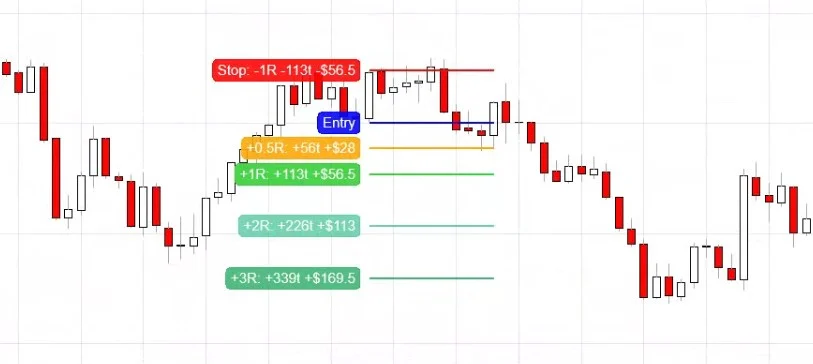
Once Trade Analyzer is added to a chart, you can plot trades directly with a quick mouse and keyboard combo. Each trade ruler includes an entry, stop, and up to four reward targets (1R–999R).
Hold your configured R/R Key Combination (e.g. Ctrl + Middle Click or only Middle Click by default) and click on the chart to create a new ruler.
The first click sets the entry and the second defines the stop.
Trade Analyzer instantly projects all reward targets, calculates risk, and labels each R level in ticks, points, or currency (based on your settings).
Click a ruler again to remove it — no need to open any menus.
Tip: Create multiple rulers to compare alternative trade ideas. Each marker tracks its own entry, stop, and R-targets independently.
Every trade you draw is automatically tracked. As historical bars load or replay runs, Trade Analyzer records whether each setup hit a target or stop and when it happened.
When finished reviewing or replaying, click the Report button on the chart panel.
The indicator exports all trade data to a .csv file located in Documents → NinjaTrader 8 → TradeAnalyzerReports.
Each record includes trade direction, entry/stop prices, R-multiple, tick/point distance, hit timestamps, and USD result.
Note: CSV files can be opened in Excel, Google Sheets, or directly uploaded to the Trade Analyzer web report for instant visualization.
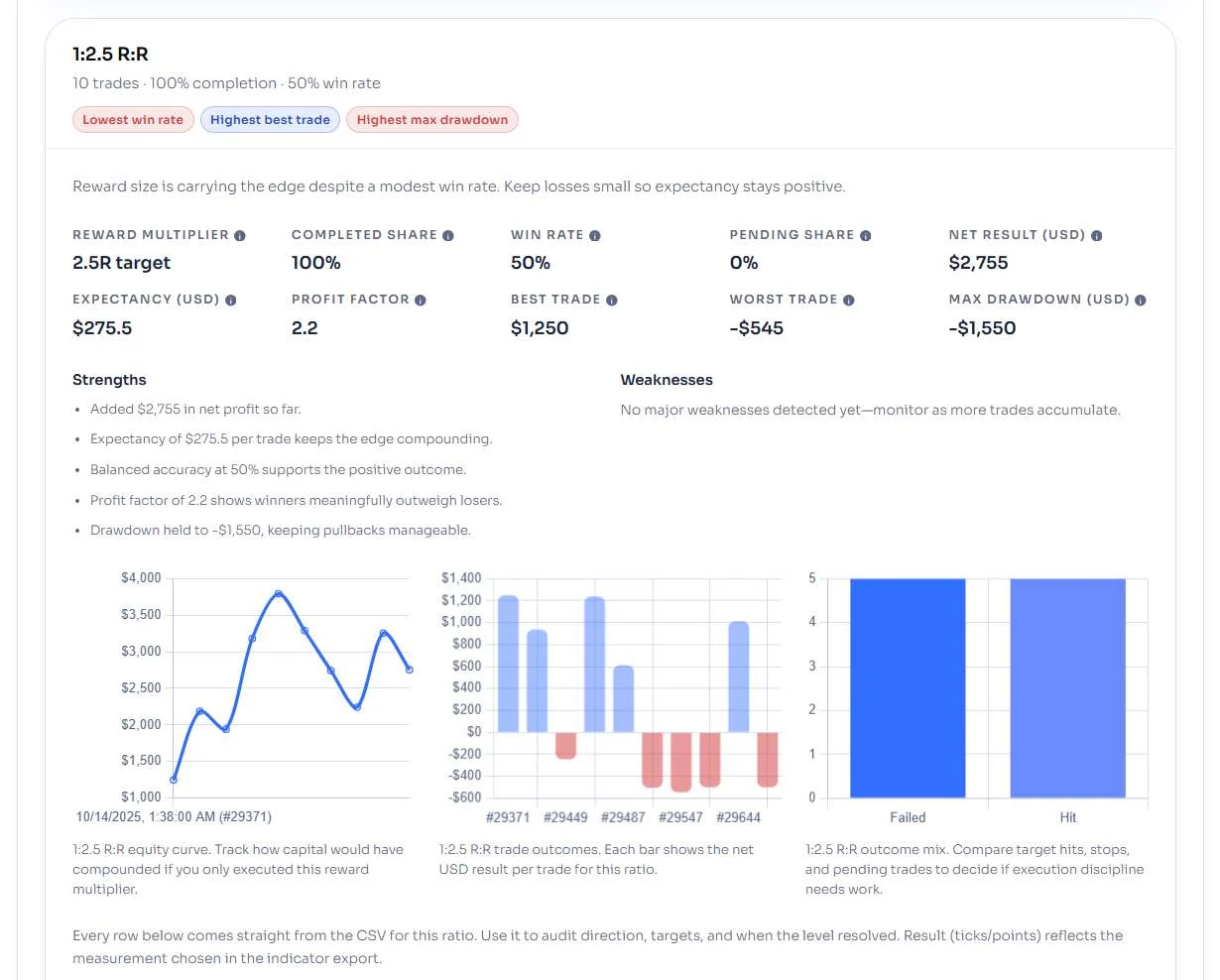
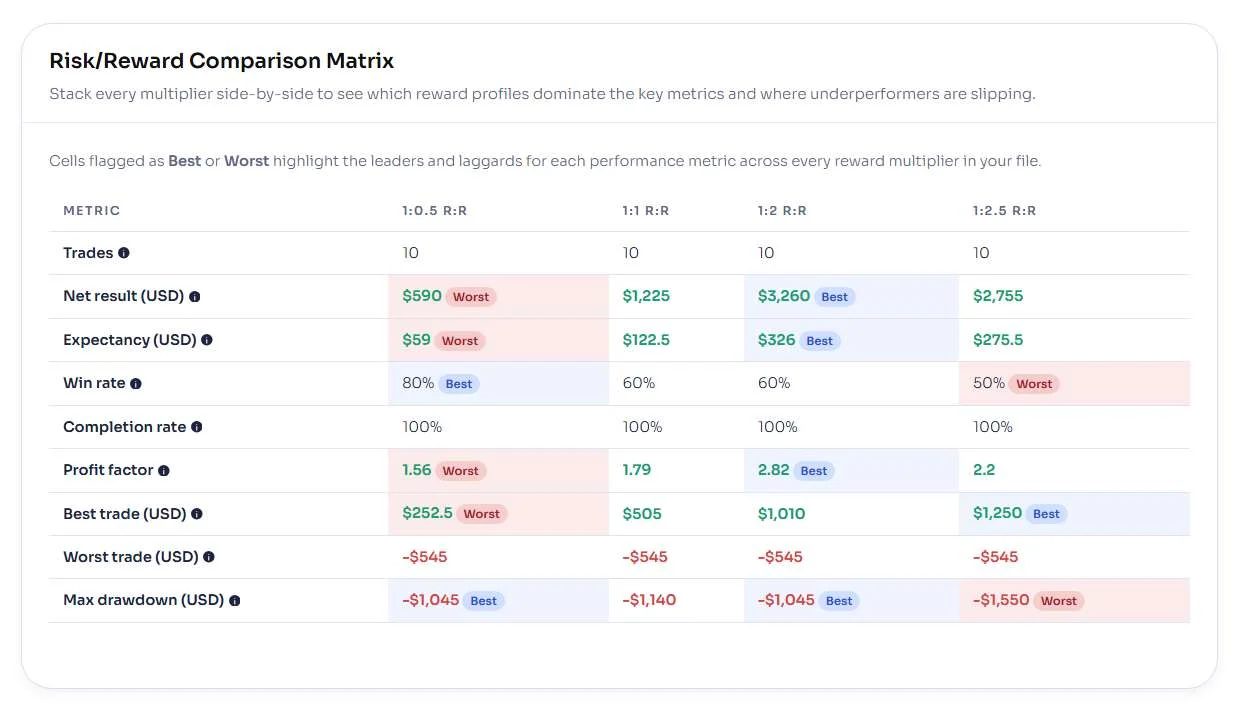
The companion Trade Analyzer Web Report turns raw CSV data into a structured performance dashboard. It provides summary cards, expectancy calculations, equity curves, and comparison tables across all tested R-multipliers.
Visit the Trade Analyzer Web Report link.
Drag your exported .csv file into the browser window.
The dashboard will load automatically — no installation or login required.
View overall results and per-R multiple panels.
Compare win rate, expectancy, and profit factor across each reward level.
Hover over metrics for quick definitions and visual highlights of strengths and weaknesses.
Tip: Save each CSV after a session to track performance over time — weekly or monthly comparisons reveal your consistency curve.
Trade Analyzer offers full control over behavior, appearance, and calculation style. These settings determine how trades are drawn, how they look on the chart, and what data is logged to your report.
The Trade Analyzer web report transforms your exported CSV into a structured dashboard of performance metrics. Every number helps you evaluate how each reward-to-risk setup behaves across trades, revealing where consistency and expectancy truly lie.
Below the panels, the report highlights the best and worst performers across all reward levels. The comparison matrix makes it easy to see where your edge is strongest and where it needs improvement.
Top / Lowest Net Performer — identifies which reward ratio produced the highest or lowest total profit.
Highest / Lowest Profit Factor — shows how efficiently each R multiple converts risk into reward.
Highest / Lowest Win Rate — which ratio wins most often.
Highest / Lowest Expectancy — reveals the most reliable average return per trade.
Highest Best Trade — the biggest single winner across all ladders.
Lowest Worst Trade — smallest single loss (a sign of good control).
Highest Worst Trade — largest single loss; use this to check risk boundaries.
Lowest / Highest Max Drawdown — how stable or volatile each equity curve feels.
Note: Each row compares one performance metric across all R columns. Scan horizontally to instantly spot your best-performing R-multiple and its weakest link.
Trade Analyzer is designed for reliability, but a few small configuration issues can cause missing drawings, empty reports, or data mismatches. Use this checklist to quickly identify and resolve the most common problems.
No drawings appear? Verify you’re holding the correct R/R Key Combination when clicking on the chart. If in doubt, open Indicators → Trade Analyzer → Parameters and re-assign a fresh shortcut.
Nothing exported to CSV? Ensure you’ve drawn at least one trade ruler, and let enough bars pass for a stop or target to trigger. Only completed trades are logged.
“Indicator not found” after update? Restart NinjaTrader 8 to recompile all assemblies. Imports without restarts often cause missing references.
Web report not loading? Check that your CSV file isn’t renamed or edited. The header row must remain unchanged. Re-export directly from the indicator if unsure.
All trades show pending? The indicator only finalizes outcomes when price revisits stop or target zones. Run Replay or allow live data to complete each setup.
Note: CSV files from older versions of the indicator may differ in structure. Always use the latest indicator and web report together.
Does Trade Analyzer work in both live and Replay mode? Yes. You can use it on live charts or NinjaTrader’s Replay feature. During Replay, it automatically records completed trades once a target or stop is hit.
Where are my exported CSV files saved? All exports are stored inside your Windows Documents folder under Documents → NinjaTrader 8 → TradeAnalyzerReports. Each file is timestamped for easy tracking.
Why is my web report empty or showing zero trades? Make sure the CSV file includes completed trades. The indicator logs only setups that have either hit a target or stop. Also confirm that you haven’t edited or renamed the CSV columns.
Do I need a license or Machine ID activation? Yes, Trade Analyzer uses the NinjaTrader vendor system for licensing. Email your Machine ID to team@mascapital.uk to activate or transfer a license.
Can I change the default key combination for drawing trades? Yes. Open the indicator settings and modify R/R Key Combination to any mouse and keyboard combo you prefer (e.g., Ctrl + Middle Click).
Can I compare Trade Analyzer results with my automated strategies? Absolutely. Many traders use Trade Analyzer to test manual setups before automating them with systems like M Trader or J Strategy.
The latest update to RiskReward Advanced for NinjaTrader 8 expands the familiar risk‑to‑reward ruler into a multi‑marker system. You can now draft, compare, and refine several trade ideas on the same chart without losing sight of price action.
This post summarizes what changed, why it matters for rapid trade planning, and how to start using the new workflow in minutes.
The latest release (v7.0) of the RiskReward ADV indicator for NinjaTrader 8 introduces a powerful upgrade: multi-marker rulers. Instead of being limited to a single risk/reward line, traders can now add multiple rulers directly onto their charts — making it easier to compare scenarios, document trade ideas, and track multiple entry/exit options at once.
Multiple Risk/Reward Markers — plot as many rulers as you need. Each marker stores its own entry, stop, and target levels so you can model parallel trades or alternative strategies on the same chart.
Quick Marker Management — middle-click now not only creates r/r, but also removes an old marker instantly; repeat the entry-drag-release motion to add fresh ones. Updates appear with zero lag thanks to an optimized rendering engine.
Consistent Visual Formatting — all markers use a shared drawing style, ensuring entry/stop lines, reward bands, and labels look uniform. Charts remain clear and screenshot-ready for journals or trade reviews.
Improved Stability — under the hood, memory handling and chart repaint triggers were refined. This means smoother performance when using multiple rulers across intraday or swing charts.
Trade planning is rarely linear. Markets evolve quickly, and serious traders often want to test multiple hypotheses at the same time. The multi-marker upgrade gives you the freedom to sketch, compare, and refine different trade paths directly on your chart without losing context.
Scenario planning: Visualize multiple long vs. short ideas side-by-side before committing real capital.
Journal integration: Use markers as a lightweight trade journal — perfect for screenshots, replay sessions, or coaching notes.
Collaboration: Share annotated charts with colleagues or community groups, showing not just one plan but the alternatives you considered.
Replay & strategy testing: Pair multi-marker rulers with NinjaTrader’s replay or Strategy Analyzer tools to validate which setups worked best.
Tip: Treat each marker as a self-contained “what-if” scenario. Even if one setup fails, others may still align with the unfolding market.
Installing the updated RiskReward ADV indicator follows the same workflow as any other NinjaScript add-on in NinjaTrader 8. If you’ve used our Free Indicators Pack, the steps will feel familiar.
Download the .zip package for RiskReward Advanced.
Open NinjaTrader 8 → Control Center.
Go to Tools → Import → NinjaScript Add-On… and select the .zip.
Confirm any prompts to overwrite existing files.
Restart NinjaTrader to load the latest version.
Note: Always restart NinjaTrader after importing updates so assemblies reload properly and new features become active.
Once applied to a chart, you can create a risk/reward ruler with a simple click-drag-release motion:
Step 1: Middle-click (mouse wheel) on the intended entry/stop price (based on indicator configuration).
Step 2: Drag your mouse to the stop/entry level price (based on indicator configuration).
Step 3: Middle-click (mouse wheel) to finalize the ruler with risk/reward levels plotted automatically.
Repeat the process to add additional markers. To remove any existing ruler, just click on it once with Middle-click (mouse wheel) — the marker clears instantly.
The new multi-marker system in RiskReward Advanced is designed for speed and clarity. Whether you’re stacking entries across different instruments or comparing multiple stop/target levels on the same chart, management is simple and intuitive.