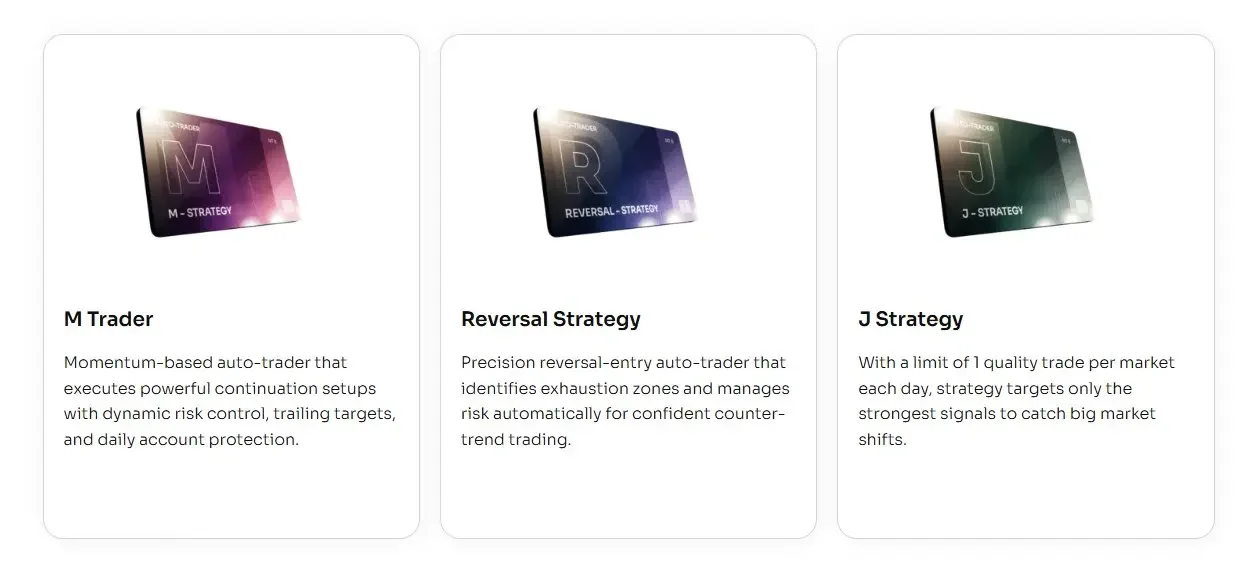
M Trader and Reversal Strategy have a new daily trade limit system for NinjaTrader 8. The old PnL-based strategy limits are gone. The new version stops new entries based on finished trade results: wins, losses, and breakeven trades.
This is a cleaner setup for traders who use automated strategies and want the strategy to stop after a certain number of losing trades, winning trades, or consecutive outcomes.
The important part is simple: the trade limit blocks new entries only. It does not force-close an open position just because a limit is reached.
M Trader and Reversal Strategy used to rely on daily PnL-style limits. That worked, but it could create awkward behavior.
For example, a good open trade could cross a daily target or account PnL threshold before the trade was actually finished. In an automated strategy, that is not always the cleanest way to decide whether the system should keep taking new entries.
The new limit system waits for completed trade outcomes. A finished trade is counted as a win, loss, or breakeven trade. From there, the strategy decides whether it should allow another entry.
Note: This update applies to both M Trader and Reversal Strategy. The goal is to make daily strategy limits easier to understand, test, and repeat.
These settings give you two ways to stop a strategy for the session. You can stop after a total number of wins or losses, or only after wins or losses happen in a row.
Tip: If you are testing this for the first time, start with small and obvious values. It is easier to confirm the strategy is counting trades the way you expect.
When a trade limit is reached, M Trader or Reversal Strategy stops taking new entries.
It does not force-close an open position.
That matters. If the strategy is already in a trade, the position can still be managed by the normal trade management rules, including:
stop loss
profit target
trailing stop
break-even logic
news exits
pre-close exits
The trade limit is only an entry filter. It decides whether the strategy can start another trade after the configured outcome limit has been reached.
Note: The strategy still protects and manages trades according to the loaded settings. The new limit system is not designed to interrupt an active position.
Trade-count limits are easier to read when you are reviewing an automated strategy session.
Instead of asking whether floating account PnL crossed a number during an open trade, you can look at finished outcomes. The strategy had one loss, two losses, one win, or two wins. That is easier to test and easier to explain.
It also gives more control over bad streaks. If the market is choppy and the strategy takes 2 losses in a row, you can stop new entries for the session. If you want to stop after a set number of wins, you can do that too.
M Trader and Reversal Strategy still write trade logs only during real-time trading. Historical processing is used to rebuild the win and loss counters, but it does not write duplicate log lines.
This keeps the log clean while still allowing the trade limit system to work after reloads and during Strategy Analyzer testing.
Tip: When checking a new setup, compare the visible strategy behavior with the trade log after the session. The log should stay readable because historical processing does not duplicate entries.
There is no single correct daily trade limit for every market or template. The right setting depends on how you test the strategy and what you want the session to do.
Common starting points are:
Stop after 2 total losses in the session.
Stop after 2 consecutive losses.
Stop after 1 or 2 wins if the goal is to protect a strong session.
Keep the default breakeven threshold first, then adjust after reviewing real examples.
Test changes in a SIM or test environment before using them on a live, funded, or evaluation account. Automated strategy limits are part of the risk setup, so they should be tested with the same care as stops, targets, and trade times.
What changed in M Trader and Reversal Strategy?
The strategies now use trade-count daily limits instead of the older PnL-based limits.
Which old daily limit settings were removed?
Daily Loss Limit, Daily Target Limit, and Account PnL Limit were removed.
What replaced the old PnL limits?
The new settings are Use Loss Trade Limit?, Loss Trade Limit, Loss Consecutive?, Use Win Trade Limit?, Win Trade Limit, Win Consecutive?, and Breakeven Threshold Ticks.
Does the strategy close an open trade when a limit is reached?
No. The limit only blocks new entries. An open trade can still be managed by the strategy stop, target, trailing stop, break-even logic, news exits, or pre-close exits.
How does a consecutive loss limit work?
If Loss Consecutive? is on, the strategy stops after the configured number of losses in a row.
How does a total loss limit work?
If Loss Consecutive? is off, the strategy counts total losing trades during the session, even if they are not back to back.
Do win trade limits work the same way?
Yes. Win limits can count total winning trades or only consecutive winning trades, depending on the Win Consecutive? setting.
What is Breakeven Threshold Ticks?
Breakeven Threshold Ticks decides how close to entry a finished trade can be and still count as breakeven. The default value is 5 ticks.
Do breakeven trades count as wins or losses?
No. Breakeven trades are ignored by the win and loss counters.
Do breakeven trades reset a consecutive streak?
No. A breakeven trade does not reset a consecutive win or loss streak.
Does the trade log format change?
No. The trade log format stays the same. Logs are still written only during real-time trading, while historical processing can rebuild counters without adding duplicate log lines.
Our automated trading systems are built to run unattended, even during fast and volatile market conditions. In this December update, all MASCapital auto-traders received a focused reliability upgrade aimed at one thing: keeping every trade protected at all times.
This update applies across our three core systems — J Strategy, M Trader, and Reversal Strategy.
Faster temporary stop cleanup All temporary stops and targets now react on a 1-tick data stream instead of waiting for a higher-timeframe bar to close. Protective placeholders are removed almost instantly, reducing the risk of accidental fills during fast spikes.
Stronger order pairing Each strategy continuously verifies that stops and targets match the actual open position size — including partial fills. If anything goes missing after volatility or a brief connection issue, the strategy automatically rebuilds protection.
Cleaner flat state When an account is flat, any leftover stops or targets are immediately canceled. This keeps charts clean and prevents dormant orders from triggering unexpectedly.
Session-close safety window A configurable no-trade window now activates one hour before the session close (adjustable in settings). Open positions are closed, and no new trades are submitted during this period.
Smarter error handling If an order is rejected for being above or below market, the strategy now intelligently adjusts the price or switches to a safer order type instead of disabling itself.
Lower slippage risk Tick-based cleanup ensures temporary protective orders are removed before fast moves can hit them on higher timeframes.
Reliable protection on partial fills Scaling in or out no longer creates mismatched risk. Every fill is tracked so stops and targets always reflect the true position size.
Cleaner charts, cleaner logic Flat means flat. No hidden or forgotten orders remain in the market.
Defined end-of-day behavior The pre-close halt avoids thin liquidity, late-session volatility, and unexpected news moves as the trading day winds down.
Welcome to the ultimate guide for implementing and maximizing the M Trader automated strategy within NinjaTrader 8.
The M Trader strategy is designed for traders seeking an efficient, automated approach to trading. With a focus on simplicity and effectiveness, it offers an easy setup process with minimal configuration. Thanks to biweekly template updates, you can follow our guide and quickly start testing the strategy with confidence.
By following the steps in this guide, you’ll gain a solid understanding of how to run and evaluate the M Trader strategy effectively, setting the stage for your trading success. This guide provides a complete walkthrough for setting up and using the M Trader automated strategy in NinjaTrader.
M Trader with all the templates can be imported from the NinjaTrader Control Center using the following steps:
Download M Trader: Begin by downloading the M Trader from our website. Save the file in a location that is easily accessible.
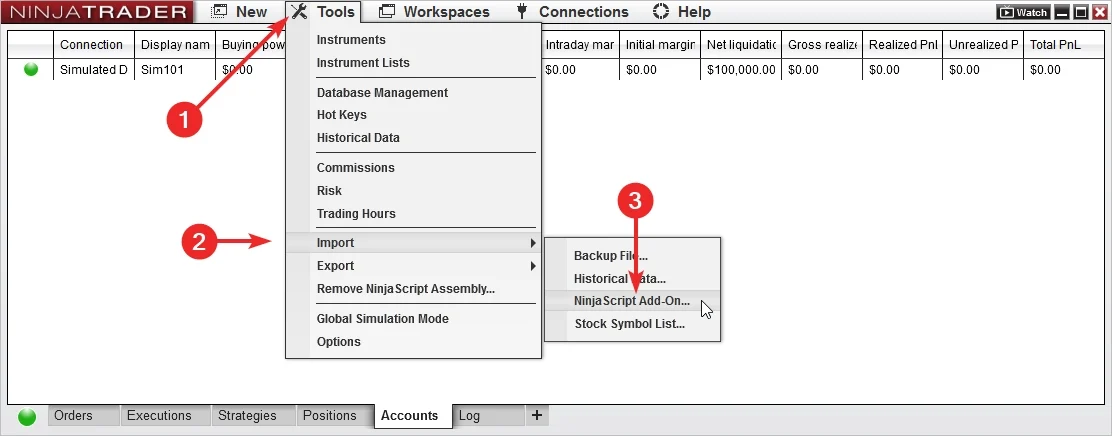
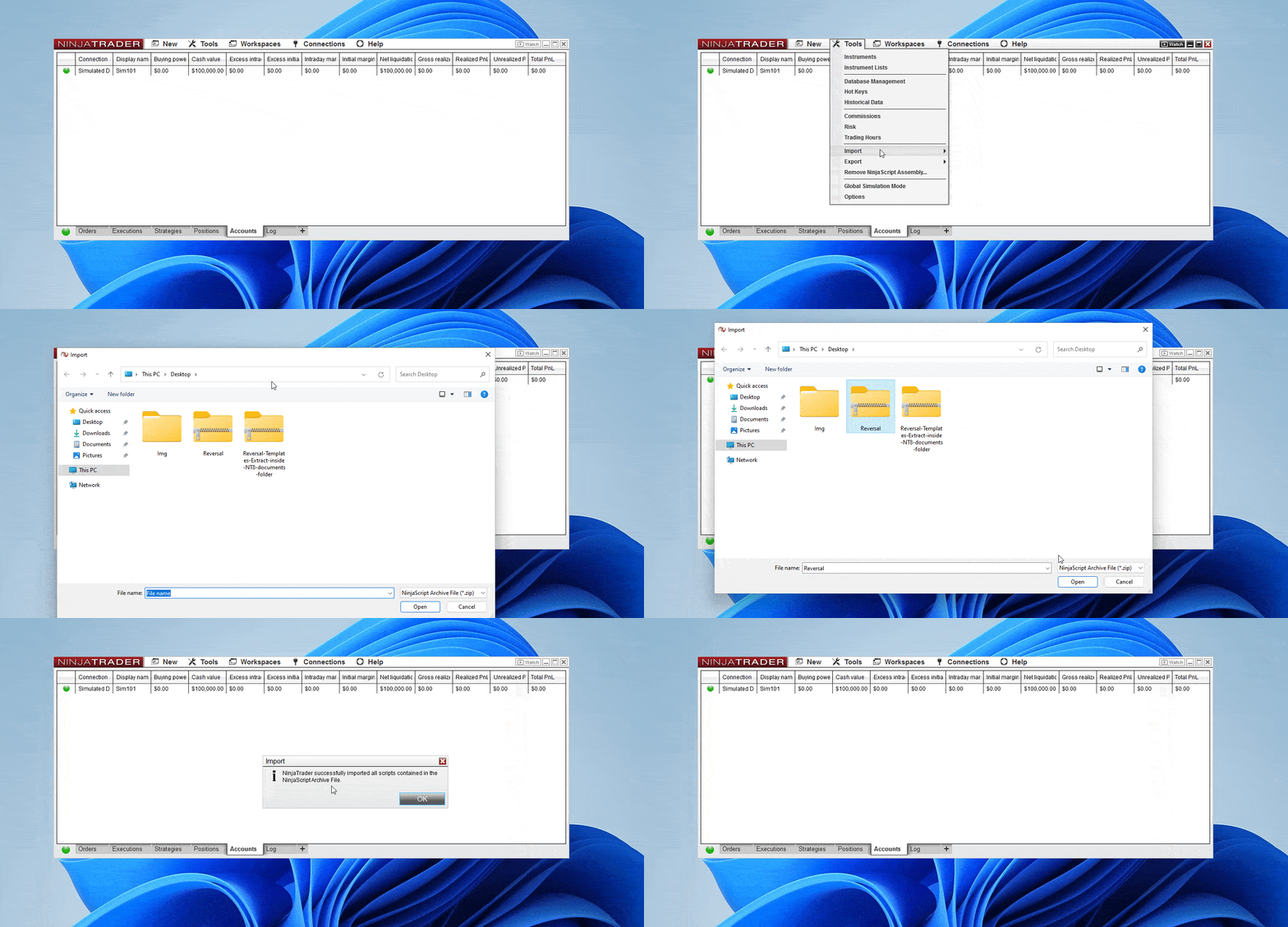
Import the strategy: Open the NinjaTrader Control Center and navigate to Tools > Import > NinjaScript Add-On.... This opens the Import dialog window. Select the downloaded M Trader file and click Import.
Confirm import messages: During the process, you may encounter multiple confirmation messages. Click Confirm for each one to replace any existing templates or files with the new ones.
Restart NinjaTrader: After successfully importing M Trader, restart NinjaTrader to ensure you are running the latest version.
Tip: During import you may encounter multiple confirmation prompts. Always click Confirm to ensure the newest templates are in place.
Note: Always restart NinjaTrader after installing an update to make sure the most recent code is active.
To successfully set up the M Trader, it is important to perform the necessary steps from the Control Center, as it requires the use of a special trading hours template. Follow the guide below to ensure smooth implementation.
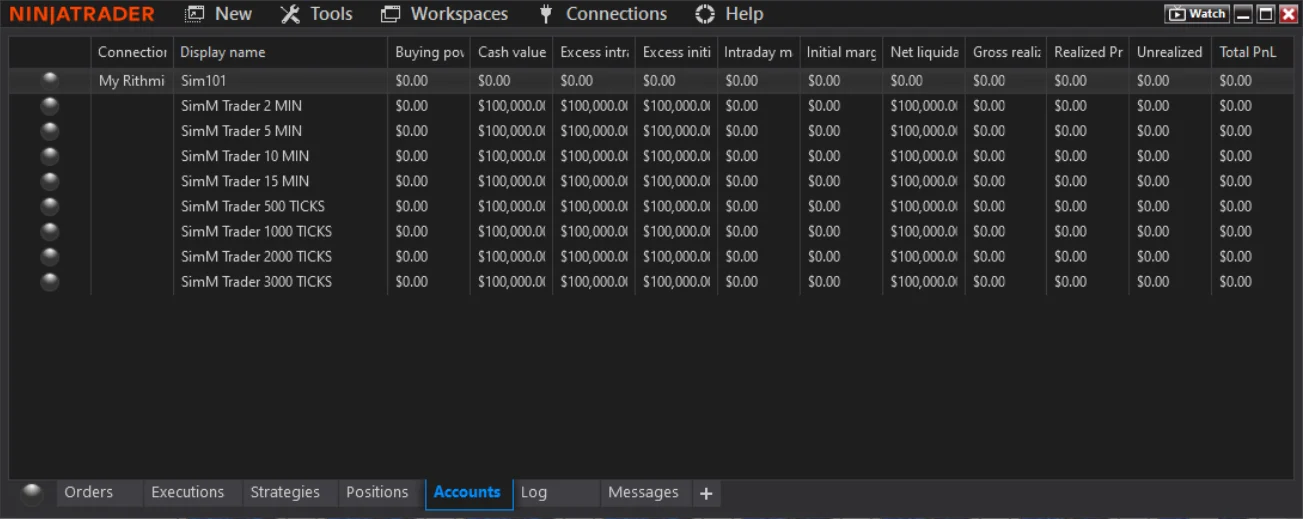
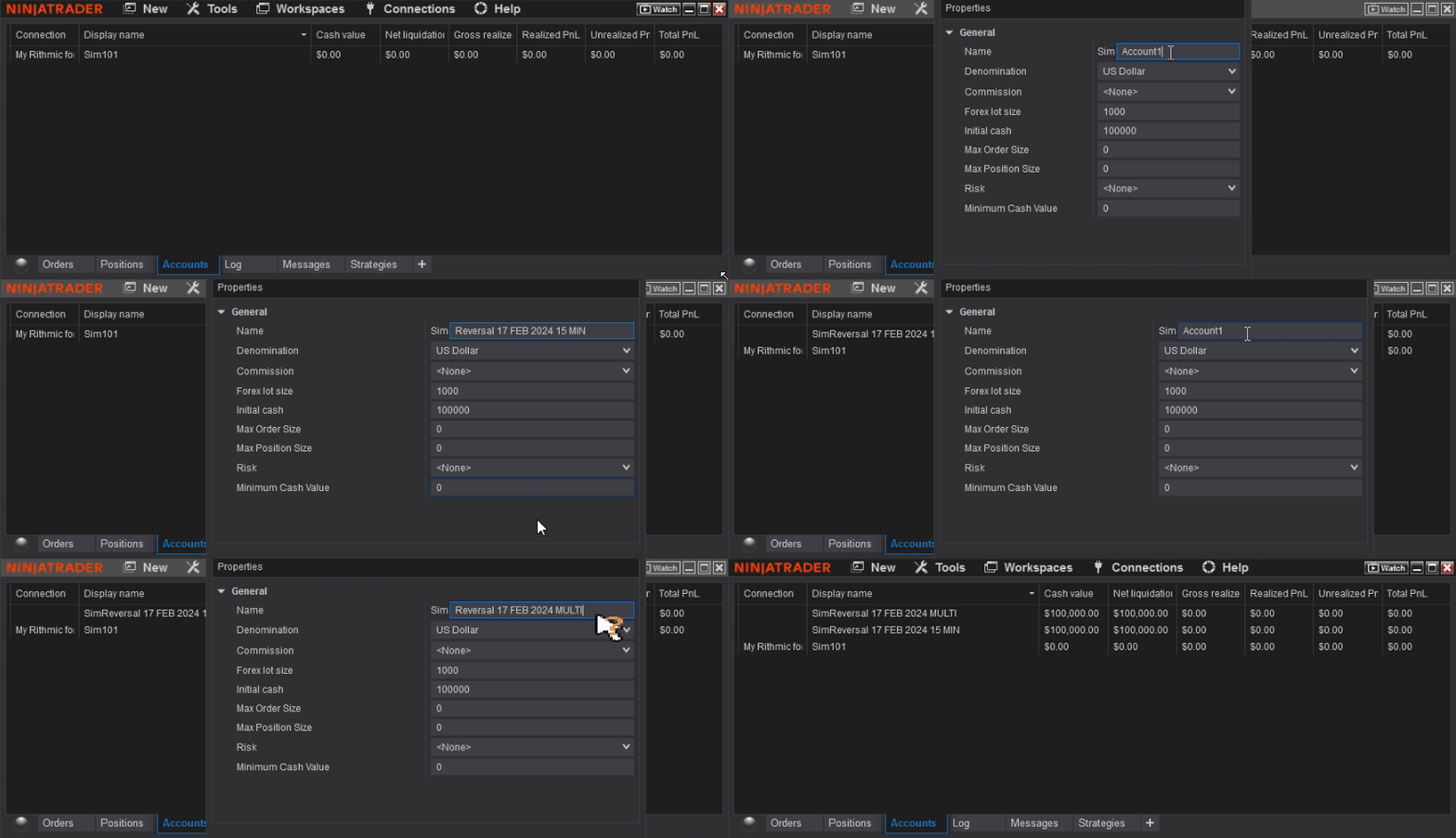
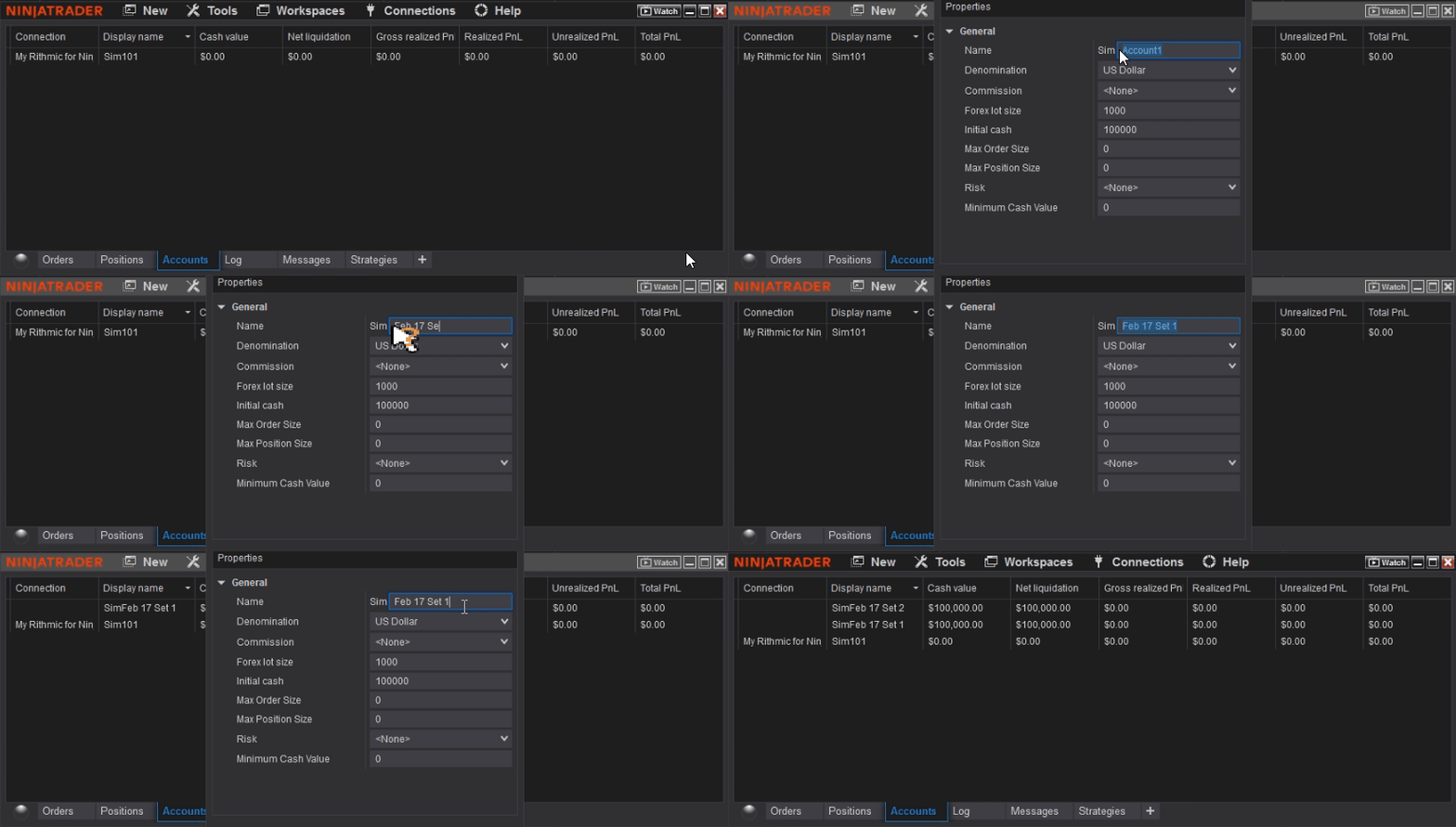
It is crucial to create SIM accounts with specific names for each template set. This keeps accounts organized and makes performance tracking easier during strategy testing.
Open the NinjaTrader Control Center.
Disable your current connection (if one is active).
Select the Accounts tab.
Right-click inside the Accounts tab and select New SIMulation account....
Name the new account according to the template set (e.g., Sim M Trader 2 MIN, Sim M Trader 5 MIN, etc.).
Configure the account and click OK.
At the end, you should have a separate simulation account for each template set you plan to test.
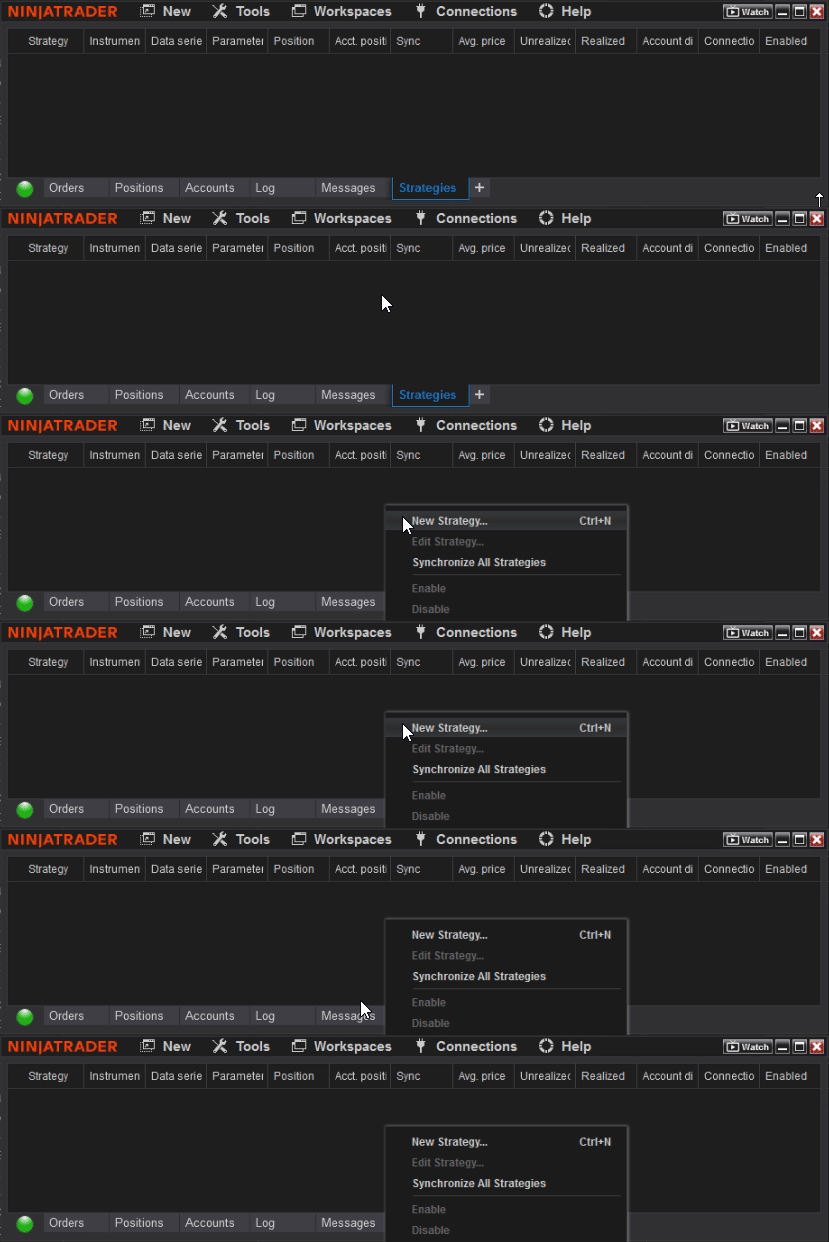
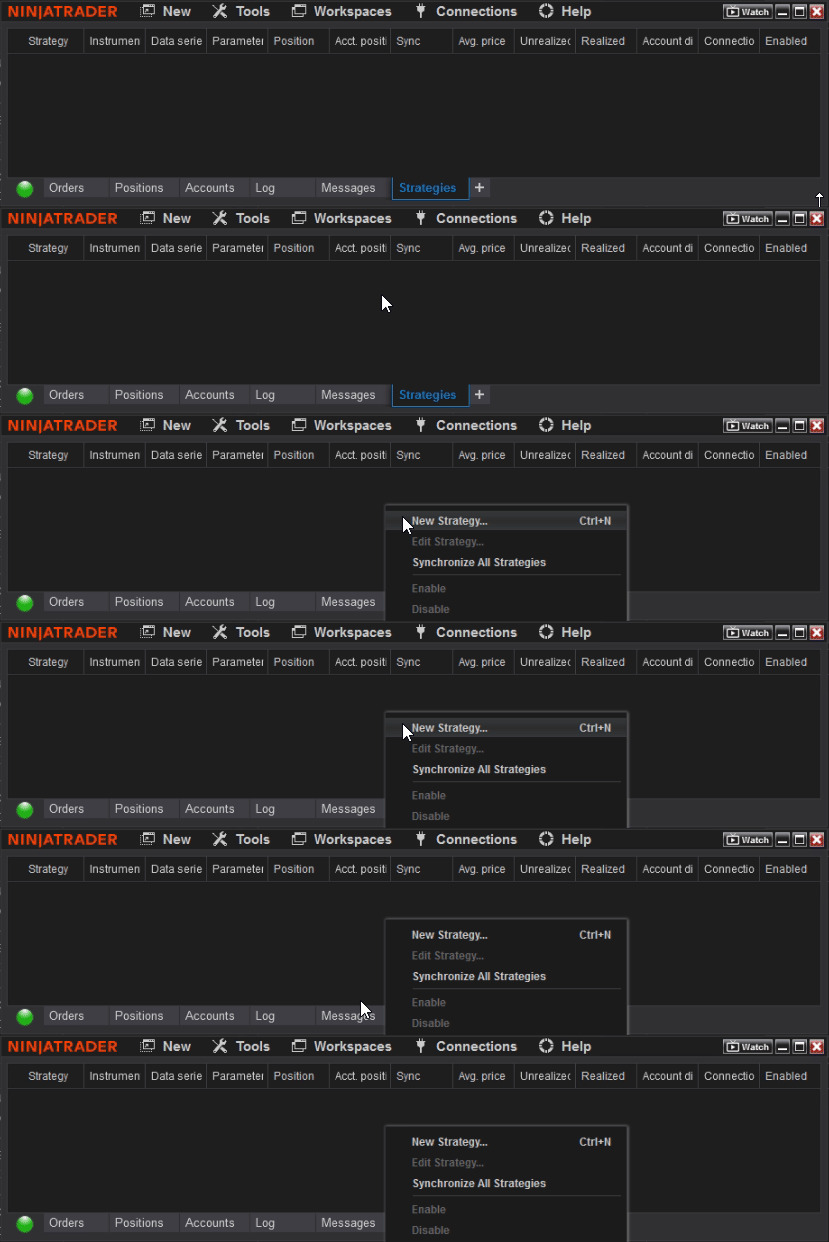
Next, create a new strategy in the Strategy tab. Repeat this process for each template located in the template set.
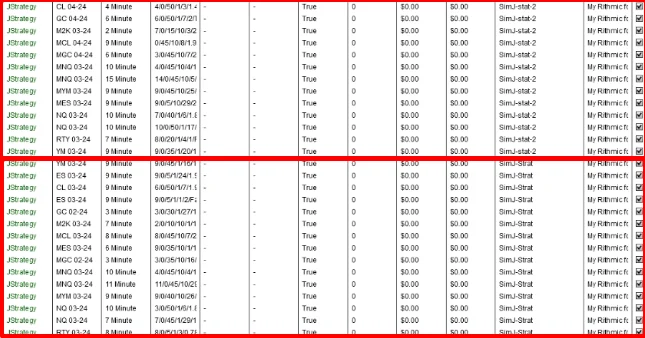
In our example, a new strategy is created for each template inside the template set and connected to the corresponding account. This process should be repeated for every template set.
Use the setup above as your testing field. Observe its performance and confirm positive results before moving to a live account. Remember to maintain only ONE template per market per account.
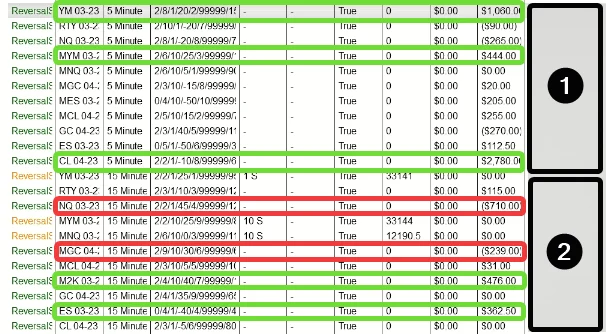
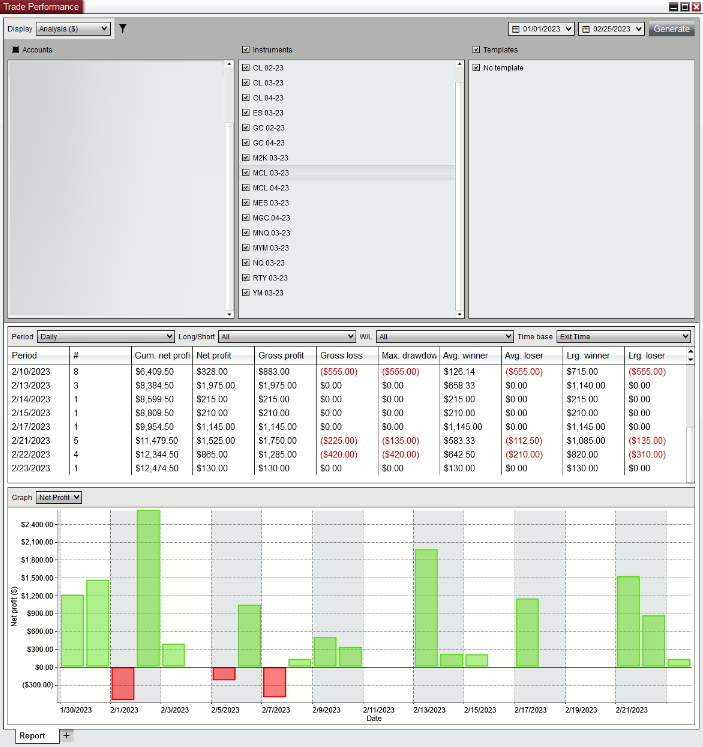
After approximately 2 days of SIM account testing, identify which templates performed best using the Trade Performance feature in NinjaTrader. Transfer those templates to the account you want to use.
You may transfer either the best-performing templates or an entire set. Do this by repeating the setup procedure described earlier, or by simply adjusting the connected account inside the Strategy tab.
If the strategy is not working, first verify if your license is active. Go to the Log Tab in NinjaTrader Control Center and check for errors related to your license. If there are no errors or messages linked to your Machine ID, proceed to the next possible cause.
5.2 Strategy is ON but Not Taking Any Trades / Unable to Enable Strategy 🔗
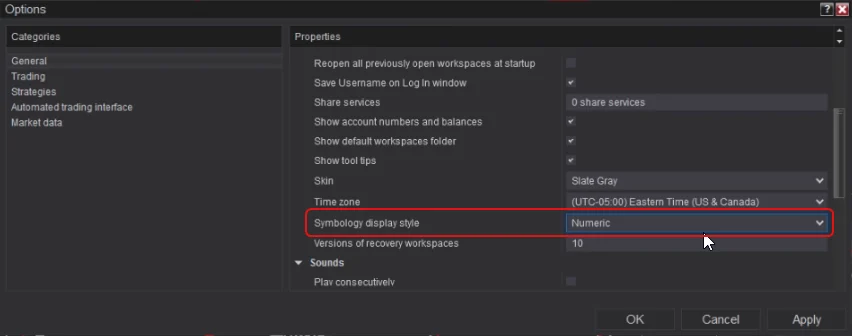
This is often a market symbol problem. To fix it:
Open NinjaTrader Control Center.
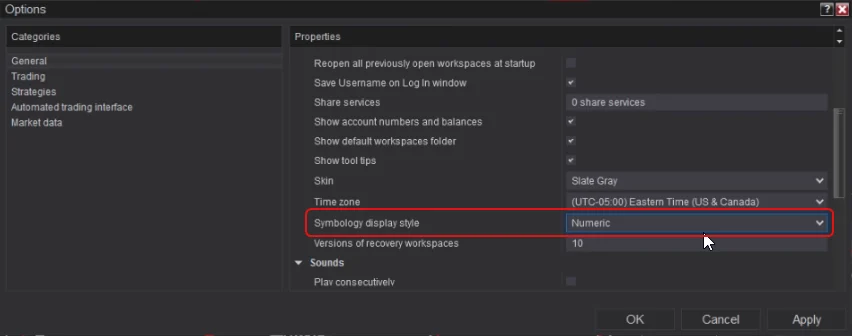
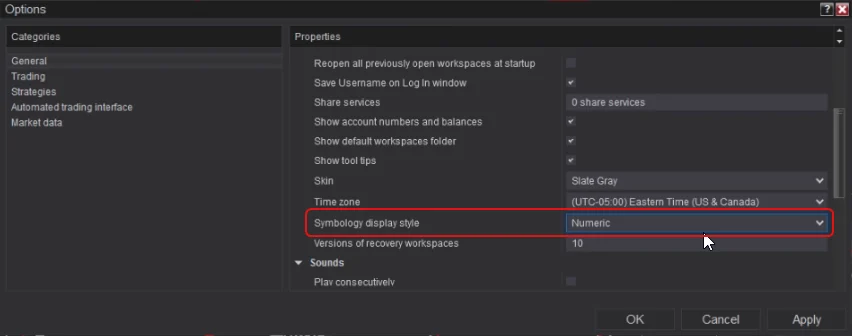
Go to Tools > Options.
Find Symbology display style and set it to Numeric style.
Apply the changes and restart NinjaTrader.
After restarting, open the Strategies tab and enable the strategies again.
5.3 Strategy is ON but Not Taking Trades (Expired Contract) 🔗
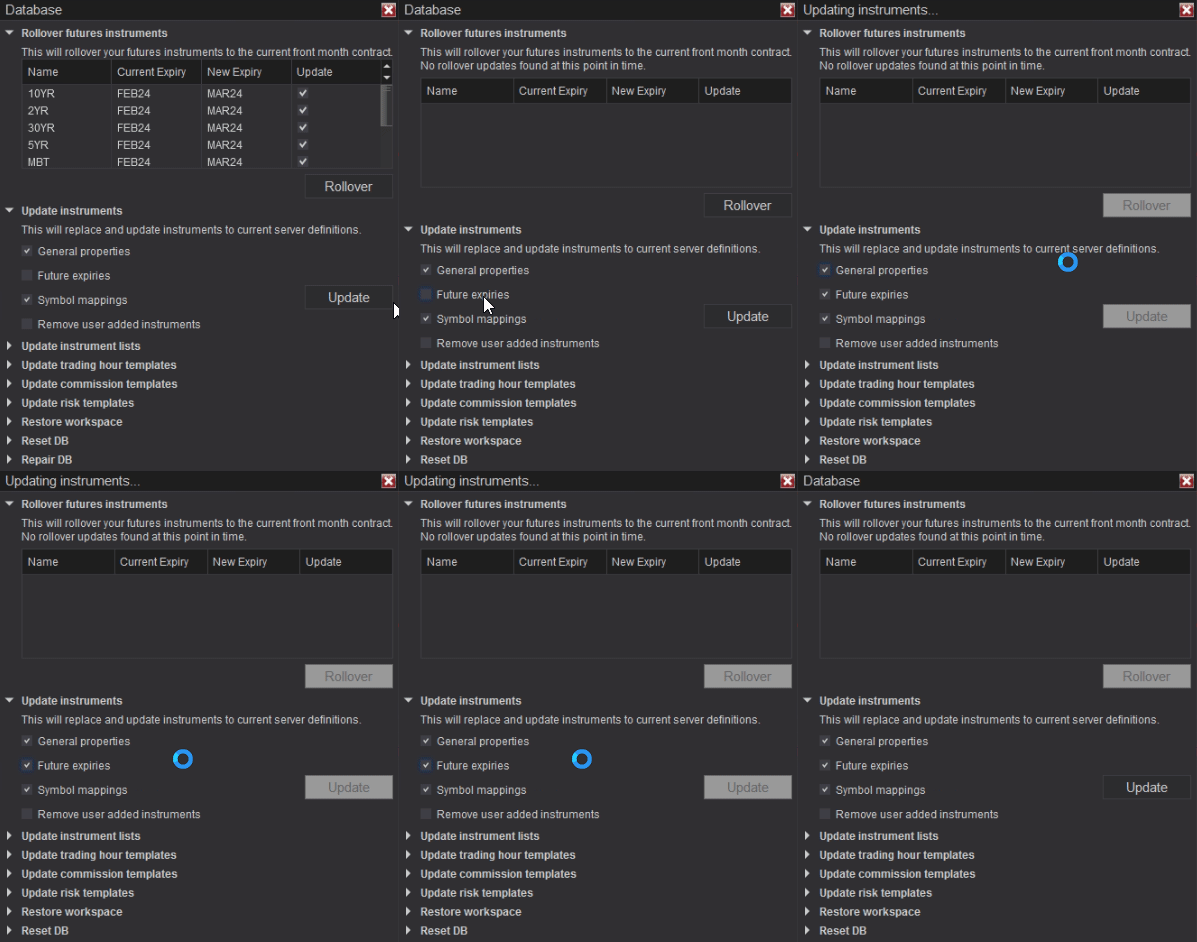
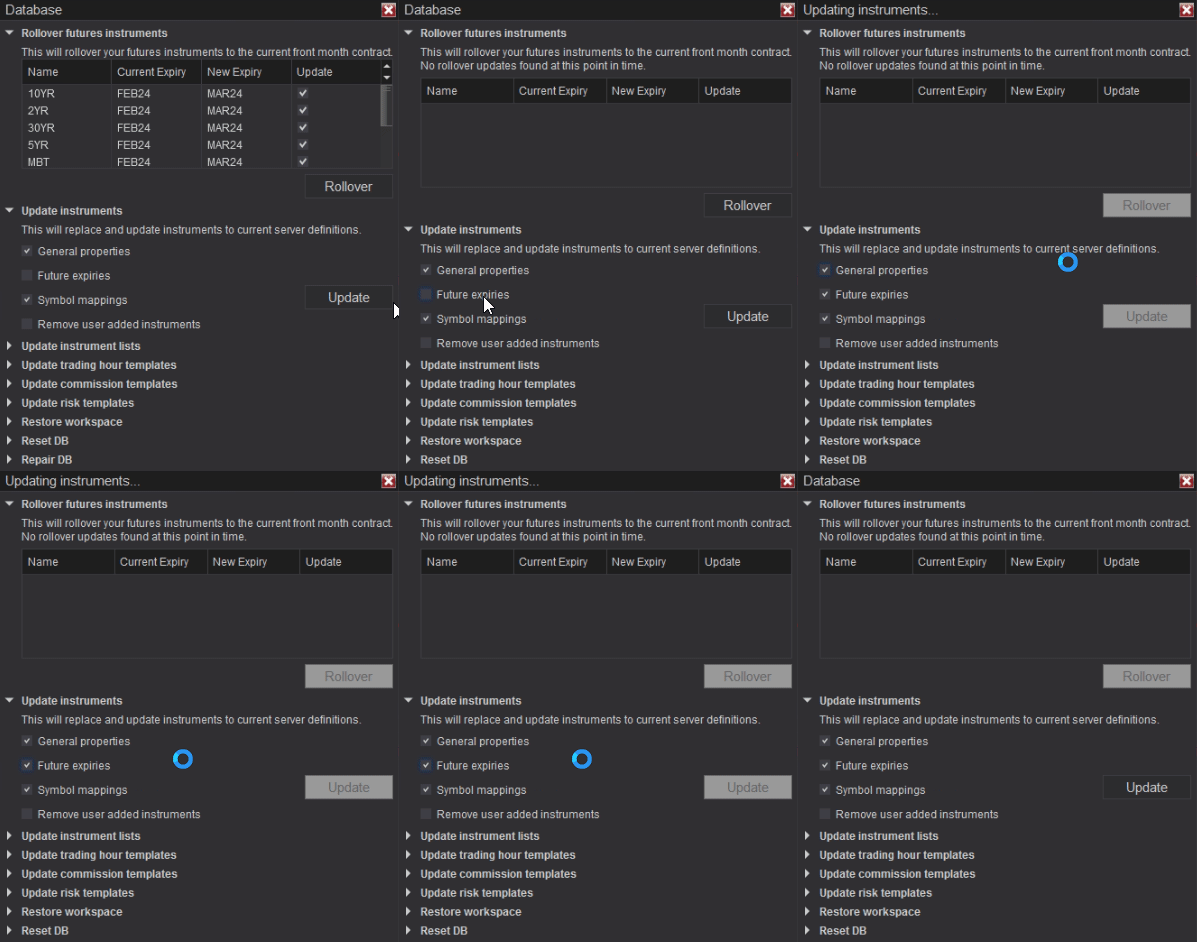
Ensure the strategy is running on the latest futures contract. Example: Current CL expiration is CL 04-24 (CL APR24). If your strategy is on an expired contract, do the following:
We can provide remote support to help with installation and setup issues. Please download AnyDesk, then send your connection ID to: team@mascapital.uk.
Include details about your issue in the email, and be available at your computer so our technician can connect and assist you.
General Testing Approach: We refrain from conducting backtesting or historical data testing on our strategies, as order filling is often inaccurate and results are unreliable. Backtesting is not recommended for evaluating strategy performance.
Live Market Testing: Instead, we recommend testing strategies in simulated environments using live market data. This ensures performance is aligned with expectations. Our guidelines emphasize using simulated accounts with live data for the most accurate assessment.
Requesting Recent Performance Data: If you would like recent performance data for M Trader, please email us and we will provide live market results for the requested timeframe.
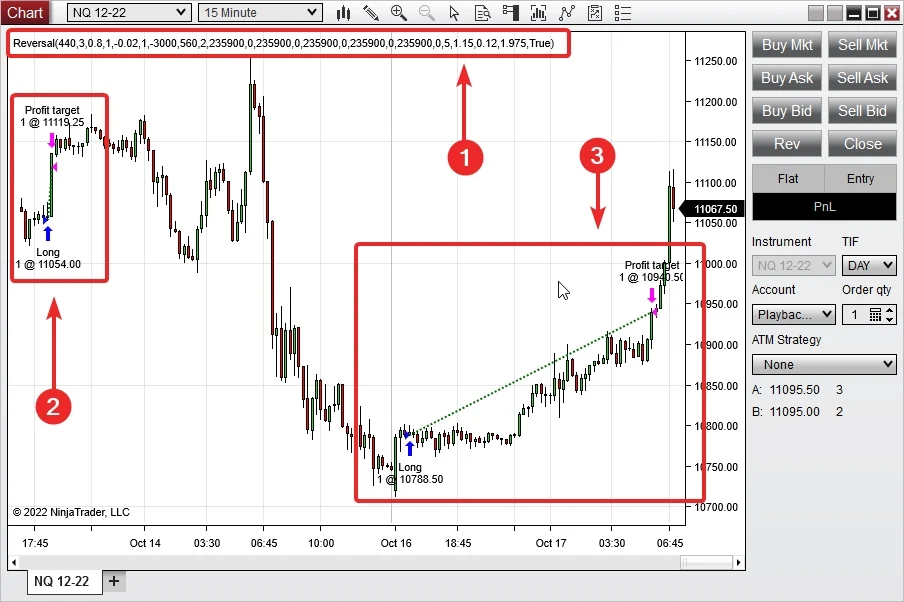
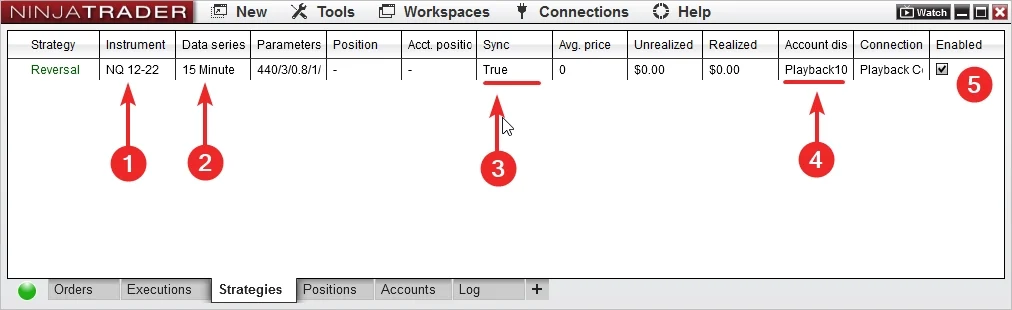
Yes, you can test the strategy using playback. However, make sure to follow the same setup rules as live testing. Incorrect setup (e.g., adding the strategy directly on a chart) may give inaccurate results.
Why is it not advisable to test a strategy directly on an open chart? 🔗
Data Limitations: Charts may not provide all the historical data required for complete testing.
Wrong Session Time Setup: Each bundled template uses its own trading session template, optimized for its market.
Data Manipulation: Interacting with charts during testing can distort results.
Platform Interference: Other indicators or chart settings may interfere with strategy performance.
Ease of Use: M Trader requires loading multiple templates onto the same account. This is only possible in the Strategy tab, allowing hundreds of strategies to run simultaneously without overloading your system (unlike separate chart setups).
The M Trader automated strategy for NinjaTrader 8 simplifies trading with ready-to-use templates, SIM testing methods, and structured setup guidelines. By following the steps in this guide, you can evaluate the strategy, test multiple template sets, and confidently decide which ones to use in live trading.
Always begin with simulation testing before live deployment. For support, licensing issues, or performance updates, contact our team at team@mascapital.uk.
The Reversal Strategy is a rules-based automated trader for NinjaTrader 8 that looks for exhaustion and snap-back moves, then manages the entire position with predefined risk controls. It’s built for disciplined execution: entries, stops, and targets are placed instantly and adjusted by the engine, not emotions.
Out of the box, it supports both long and short reversals, configurable session windows, optional break-even and trailing logic, daily PnL limits, and scheduled “news pause” windows. You can test it safely on SIM, compare template sets, and only then migrate to live once you’re comfortable with performance.
Tip: Start on a clean SIM account per template set. This keeps reports tidy and helps you compare apples to apples before going live.
Note: The strategy writes a simple trade log and follows your toggles (Long/Short, session times, etc.). You control the rules; the engine executes them consistently.
Installing the Reversal Strategy in NinjaTrader 8 is quick and follows the same process as other MAS Capital add-ons. Make sure you’ve downloaded the provided .zip file before starting.
Open the NinjaTrader 8 Control Center.
Go to Tools > Import > NinjaScript Add-On…
Select the Reversal Strategy .zip file and click Import.
Accept any overwrite/confirmation prompts. This will not affect unrelated indicators or strategies.
Restart NinjaTrader to finalize installation.
Tip: If you previously tested another version, always remove old templates from the Strategies list before importing. This avoids conflicts.
Note: Your license will be tied to your NinjaTrader Machine ID. If you change computer or reinstall Windows, you’ll need to re-activate.
After importing the Reversal Strategy, the next step is to configure it correctly in the NinjaTrader 8 Control Center. This ensures that testing, performance tracking, and live deployment all run smoothly. Think of this as “wiring up” the engine to the account you want it to trade on.
If you plan to test multiple templates at once, you’ll need one SIM account per template. This avoids mixing results together, which makes it easier to review the individual performance of each configuration.
Template Set #1 = SIM account #1 (e.g., SIM101 for Template A)
Template Set #2 = SIM account #2 (e.g., SIM102 for Template B)
Template Set #3= SIM account #3 (SIM103, and so on)
Tip: Keeping one account per template set prevents trade history overlap and keeps performance metrics accurate for optimization.
NinjaTrader comes with a default simulation account (SIM101), but you can add as many as you need:
In Control Center, click on the Accounts tab.
Right-click anywhere inside the Accounts grid and choose Add Account.
Select Simulation as the account type.
Name the account (e.g., SIM102 or SIM103 for clarity).
Repeat this process until you have enough accounts for your template testing.
Note: You can rename SIM accounts later if needed, but it’s best to pick a clear naming convention from the start (e.g., “SIM-Reversal-15MIN” vs “SIM-Reversal-5MIN”).
Once SIM accounts are ready, link each Reversal Strategy template to the correct account:
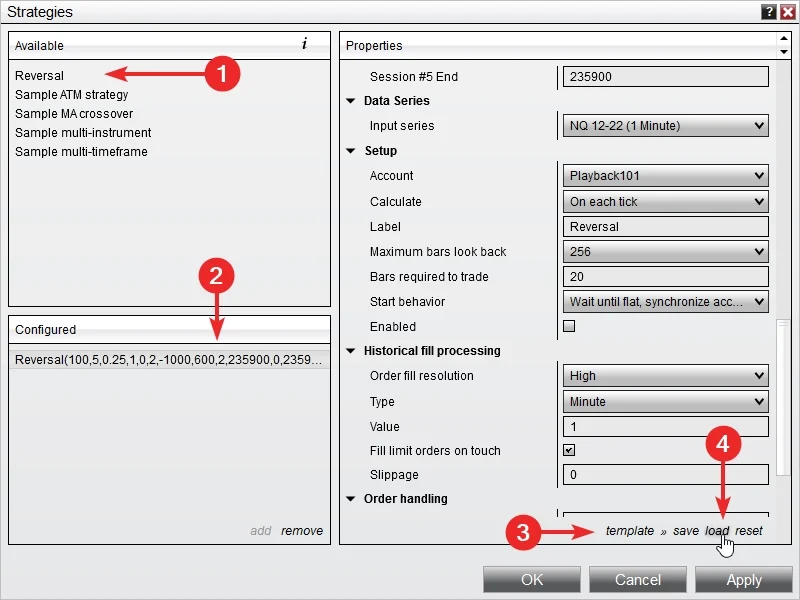
Open the Strategies tab in Control Center or right-click on a chart and choose Strategies….
Locate Reversal Strategy in the list of available strategies.
Load your template file.
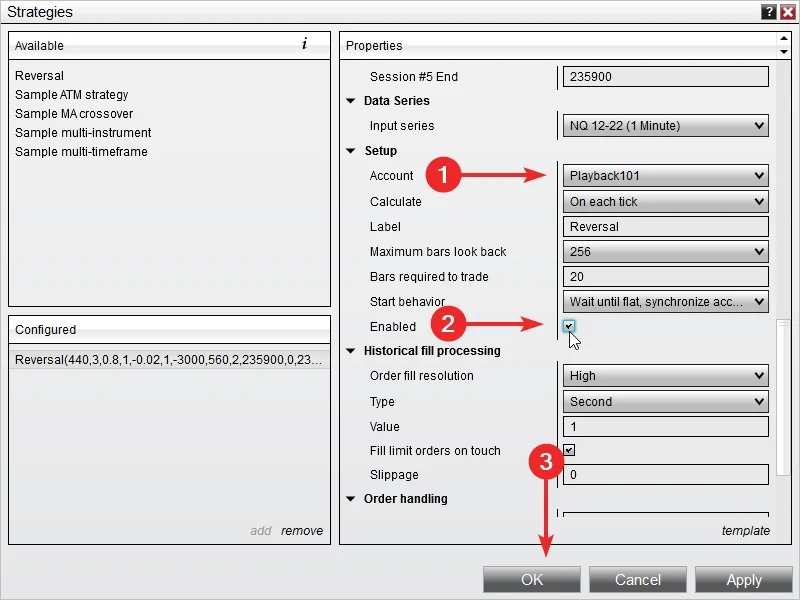
From the Account dropdown, select the SIM account that corresponds to this template (e.g., SIM102).
Set Enabled to True to activate the strategy.
Tip: Double-check that you’re not running multiple templates in ONE market (eg NQ) on the same SIM account unless you want them combined in one report.
Thorough testing is the bridge between theory and live deployment. The Reversal Strategy is designed to be rules-driven, but how it performs depends heavily on the templates, markets, and session times you select. By testing methodically, you avoid surprises when moving into live trading.
Always begin on simulation accounts. This gives you real-time order flow and fills without financial risk.
Load the Reversal Strategy through the Control Center.
Select the appropriate SIM account (e.g., SIM101, SIM102).
Enable the strategy and allow it to run during live market hours.
Monitor how entries, stops, and targets are placed automatically.
Tip: Watch how the strategy behaves around high volatility times (news releases, market open/close). This is when reversals can be strongest—or most dangerous.
Use multiple tools to evaluate how the strategy behaves over time:
NinjaTrader Performance Reports: Run reports per SIM account to check win rate, average trade, max drawdown, and daily PnL.
CSV Trade Log: The strategy automatically writes trades into your Documents folder. This file can be opened in Excel or imported into Google Sheets for deeper analysis.
The Reversal Strategy includes a flexible set of parameters so you can adapt it to different markets, times of day, and risk preferences. Understanding these options is critical for aligning the system with your trading goals.
You can define when the strategy is active. For example, limit trading to 09:30–11:30 EST for the U.S. session, or test evening windows for lower volatility setups.
Tip: Restricting trading hours often improves consistency by avoiding low-liquidity times.
Choose whether the strategy takes only long trades, only short trades, or both. Adjust contract size per market to align with your account risk.
5.7 News Release Auto-Stop Windows (08:30, 10:00, 10:30, 14:00) 🔗
The strategy includes predefined “pause windows” around major U.S. economic releases. No new trades will be taken during these times to avoid slippage.
Tip: You can manually adjust or disable these news filters depending on your risk tolerance.
Even with a clean setup, you may encounter issues when enabling or running the Reversal Strategy. Below are the most common problems and how to resolve them quickly.
Your license is tied to your NinjaTrader Machine ID. If you reinstall Windows, switch computers, or reset NinjaTrader, your Machine ID will change and the license may stop working.
Check your Machine ID under Help > About in NinjaTrader.
Contact team@mascapital.uk with your new ID for reactivation.
The Reversal Strategy is designed to execute consistently, but your results depend on how you manage risk and apply trading discipline. These practices help ensure smoother performance and protect your account from unnecessary drawdowns.
Simulation is your safety net. Test every new template, parameter tweak, or market setup in a SIM account before moving to live. This gives you a clear view of how the system behaves in real-time without risking capital. We suggest to always have sim account running alongside with your main account to compare the results.
Tip: Keep at least one SIM account dedicated to ongoing experiments. This way, your live strategy isn’t disrupted when you want to try new settings.
Running multiple templates from the same market on the same account muddies performance data. Assign each template set its own SIM or live account for clarity. This way, you can instantly see which ones are performing well and which should be paused or adjusted.
Index Futures roll quarterly. If you forget to update symbols, the strategy will stop trading because it’s running on expired contracts. Always check contract months in Control Center and roll forward when prompted.
Automation doesn’t remove psychology completely. The temptation to override the strategy or disable it mid-trade can harm results. Trust your templates, and let the system execute.
Does the Reversal Strategy work on all markets?
Yes. It can run on futures like NQ, ES, CL, and GC, as well as Forex and CFDs, but each market requires parameter adjustments for volatility and session times.
Can I run multiple templates at once?
Yes. Each template set should be connected to a separate SIM or live account for clear reporting and performance tracking.
What happens if I restart NinjaTrader?
The strategy will re-load, but trades are not re-attached automatically. Always confirm that strategies are enabled after restarting.
Does it include break-even and trailing stop logic?
Yes. Both can be enabled or disabled in the parameters depending on your risk management style.
Can I use it with a prop firm account?
Yes. Daily PnL limits and account-wide risk controls make it compatible with prop firm evaluation rules.
Where can I find trade logs?
All trades are saved to a CSV file in your Documents folder, which you can open in Excel or Google Sheets.
How do I get support if something doesn’t work?
You can reach out to team@mascapital.uk. If needed, remote support via AnyDesk can be arranged.
What account size do I need?
That depends on your contract size and daily loss limit. Starting with micro contracts (MNQ, MES) allows testing with smaller accounts. Full contracts require higher margin.
How do I update to a new version?
Uninstall the old version from NinjaTrader, then import the new .zip file. Always restart NinjaTrader after updating. Templates can be re-applied without reconfiguration.
Will it conflict with other MAS Capital strategies?
No. You can run Reversal Strategy alongside M Trader, J Strategy, or other add-ons, as long as each has its own instance.
Does the strategy trade overnight?
By default, trading hours are limited to your configured session window. If you want overnight activity, expand the session times, but always test this first in SIM.
Can I manually close trades?
Yes, but it’s not recommended. Manual overrides may interfere with the strategy’s trade management logic. If you close trades early, the system won’t re-enter until the next signal.
This table covers all configurable parameters of the Reversal Strategy, grouped by category. Use it as a quick reference when setting up or optimizing templates.
Parameter
Group
Default
Explanation
Example Use
⏰ Trading Hours
OpeningRangeStart
Trading Hours
03:00
Time the strategy starts accepting trades.
Set to 09:30 for U.S. cash market open.
OpeningRangeEnd
Trading Hours
10:00
Time the strategy stops accepting new trades.
Extend to 16:00 for full NY session coverage.
📉 Strategy Limits
LossLimit
Strategy Limit
1000
Daily maximum loss allowed before trading halts.
Reduce to $300 for prop firm accounts.
TargetLimit
Strategy Limit
1000
Daily profit target. Strategy halts once reached.
Lock in profits at $500/day.
AccPnLLimit
Strategy Limit
false
When true, uses total account PnL to enforce stop.
Enable for prop firm risk rules.
📑 Template
TemplateName
Template
—
Custom name for your template set.
“NQ Reversal 5 Min”.
⚙️ Parameters
BarsLookBack
Parameters
5
How many bars back to check for pivot/reversal.
Decrease to 3 for wider pattern detection.
SignalValidBars
Parameters
2
How many bars after signal trigger it remains valid.
Use 1 for stricter entries.
KeepAlive
Parameters
2
Bars to keep pending order alive after confirmation.
Set to 5 for slower-moving markets.
WaitBars
General Configuration
1
Bars between trades to prevent back-to-back entries.
Increase to 3 to reduce clustering.
EntryCandleSizeLimit
Parameters
999
Maximum candle size for entry signal.
Lower to 100 ticks for NQ to avoid big spikes.
MovingAverageDirection
Parameters
false
Require MA slope alignment for trade entry.
Enable to filter only trades in trend direction.
MovingAverageSide
Parameters
false
Require price to be on correct side of MA.
Only long if price is on general trend side.
MarketSide
Parameters
false
Optional hard-coded bullish/bearish bias.
Use true to force one-direction trading.
TradeLog
Parameters
true
Enable/disable CSV trade log.
Keep on for performance tracking.
LongTrades
Parameters
true
Allow long entries.
Disable if testing shorts only.
ShortTrades
Parameters
true
Allow short entries.
Disable if bullish-only strategy.
📈 ATM Parameters
ContractQuantity
ATM Parameters
1
Number of contracts per trade.
Start with 1 micro contract.
RRratio
General Config
1.0
Risk/reward ratio (stop vs target).
Set to 2.0 for 1:2 RR.
⚡ ATM Setup
UseBEfeature
ATM Setup
false
Enable/disable break-even stop feature.
Turn on for funded accounts.
BETriggerAfterLevel
ATM Setup
25
Profit threshold (%) to activate BE.
Set to 20 for tighter safety.
BETicks
ATM Setup
0
Number of ticks stop is moved past entry on BE.
+2 ticks to cover fees.
UseTrailfeature
ATM Setup
false
Enable/disable trailing stop feature.
Enable for trending markets.
TrailingStep
ATM Setup
10
Steps (%) before stop trails forward.
Tighten to 5 for scalping.
TrailingProtection
ATM Setup
5
Trailing buffer distance behind price.
Keep at 5 for balanced exits.
📰 Exit & Stop During News Releases
Stop0830
News
false
Pause trades around 8:30 AM news (CPI, NFP, PPI).
Enable when trading U.S. indices.
Stop1000
News
false
Pause trades at 10:00 AM (ISM, Consumer Confidence).
If you’re looking to streamline your trading and optimize your profits, automated trading using NinjaTrader 8 can be a game changer. With the right templates and strategies, you can leverage automation to execute trades consistently while you focus on risk and market context.
This guide walks you through a field-tested workflow to import, test, evaluate, and use templates. From setting up simulation accounts to rotating top performers, everything you need to get started is here.
Create simulation accounts that mirror your live conditions (balance, commissions, slippage). Group them by idea/timeframe so you can compare apples-to-apples.
Control Center → Accounts tab.
Right-click → Add Simulation Account.
Name them by use (e.g., SimReversal5min, SimTrend15min).
Configure starting balance and Commission template to reflect reality.
Attach all candidate templates to their designated sim account and run them at the same time. Leave the test uninterrupted for at least 3 trading days to capture a fair sample under the same market regime.
Open the Strategies tab and enable the templates you want to test.
Assign each template to the correct sim account (e.g., all 5-minute templates → SimReversal5min).
Group by timeframe to compare cleanly: account #1 = 5m, account #2 = 15m, etc.
Why batch-test? Running everything at once exposes relative strength immediately and avoids bias from changing conditions.
How long should I run template tests?
Run at least 2–3 full trading days for the first filter, then continue monitoring in Sim while promoting only clear winners.
Should I optimize parameters before going live?
Yes, but lightly—and always validate with out-of-sample data or walk-forward to avoid curve fitting.
Can I run multiple templates on the same account?
You can, but during testing keep them grouped by timeframe/idea on dedicated sim accounts. In production, ensure combined risk is within limits.
What commission/slippage settings should I use?
Use your broker’s schedule and typical slippage for your instrument/liquidity. Test a range to see sensitivity.
What if market regime changes quickly?
Bench laggards and promote fresh sim winners. That rotation keeps your basket aligned with current conditions.
Using templates for automated trading with NinjaTrader 8 is a practical way to systematize execution and compound small edges. Import your templates, run simultaneous tests for a few days, promote the consistent gainers, and rotate as conditions change. Keep risk controls tight and assumptions realistic (commissions, slippage, sessions) to ensure Sim-to-live continuity.
J Strategy is an automated trading system for NinjaTrader 8 that runs once per day per template, blending price‑action logic with a diversified, multi‑market approach. It’s designed to be simple to deploy (biweekly template updates) and robust to operate from the Control Center, with minimal chart overhead.
Welcome to the definitive guide to implementing the J Strategy in NinjaTrader 8. The system executes once per day per template and is kept current with biweekly template updates. Follow this guide to install, configure, test, and troubleshoot your setup.
Important: Set up J Strategy from the Control Center → Strategies tab. J Strategy uses a special Trading Hours template and is intended to run without loading multiple heavy charts.
Use the two‑account setup as your testing field. Keep only one template per market per account. After 2–3 days of SIM testing, open Trade Performance and identify the best performers. Move those templates (or the whole set) to your main account by either re‑creating them or changing the Account binding in the Strategies tab.
Template updates: we publish biweekly updates. Re‑import and bind them to your SIM accounts first; promote winners to your main account after the usual test window.
One trade/day behavior: J Strategy executes once per day per template by design. Seeing no additional entries is expected once the daily logic has fired.
Session alignment: use the Trading Hours template shipped with each set. Mixing RTH/ETH can mute signals.
Commissions/slippage: set realistic values in Tools → Options → Commissions so Sim ≈ Live.
Workspace hygiene: save your workspace after enabling/disabling or rolling contracts to avoid losing bindings.
We can assist remotely. Install AnyDesk and send your connection ID with a brief issue description to team@mascapital.uk. Please be at your PC to grant access when we connect.
We generally avoid historical backtests due to fill inaccuracies and bias. Instead, we recommend SIM tests on live market data. If you need recent performance, email us and we’ll share live results for the requested timeframe.
Can I use Playback?
Yes. You can test with Playback as long as you follow the same setup rules used for live‑data SIM testing. Do not move J Strategy to charts; manage it from the Strategies tab to preserve accuracy.
Why shouldn’t I test directly on a chart?
Data limitations: Charts may not load all the history the logic needs.
Wrong sessions: Each template ships with a tailored Trading Hours session.
Data manipulation risk: Interacting with charts can skew test context.
Interference: Chart indicators/overlays can conflict with strategy logic.
Scale: The Strategies tab lets you run hundreds of templates without heavy chart loads.
If your automated strategy in NinjaTrader 8 isn’t taking trades or won’t enable, the cause is usually simple: data series settings, template mismatch, insufficient history, or license/activation. This guide shows you exactly what to check and how to fix it fast.
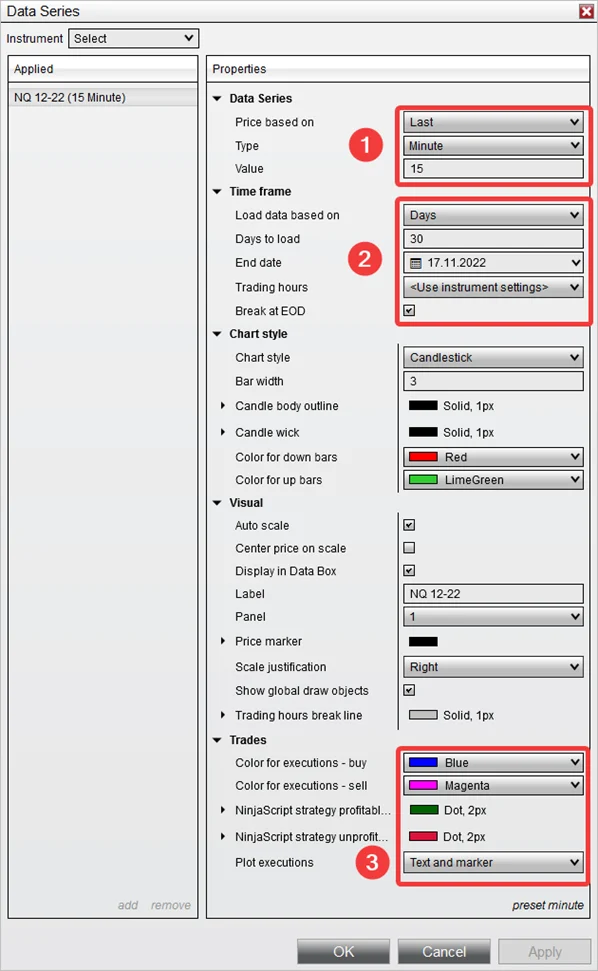
Incorrect Data Series settings are the #1 reason strategies don’t work. Each template defines a market and timeframe you must match on the chart or in the Strategies tab.
Value: 5–60 (we do not recommend below 5; signals can be unreliable)
Load data based on: Days
Days to load:30 (minimum 10–15 to initialize correctly)
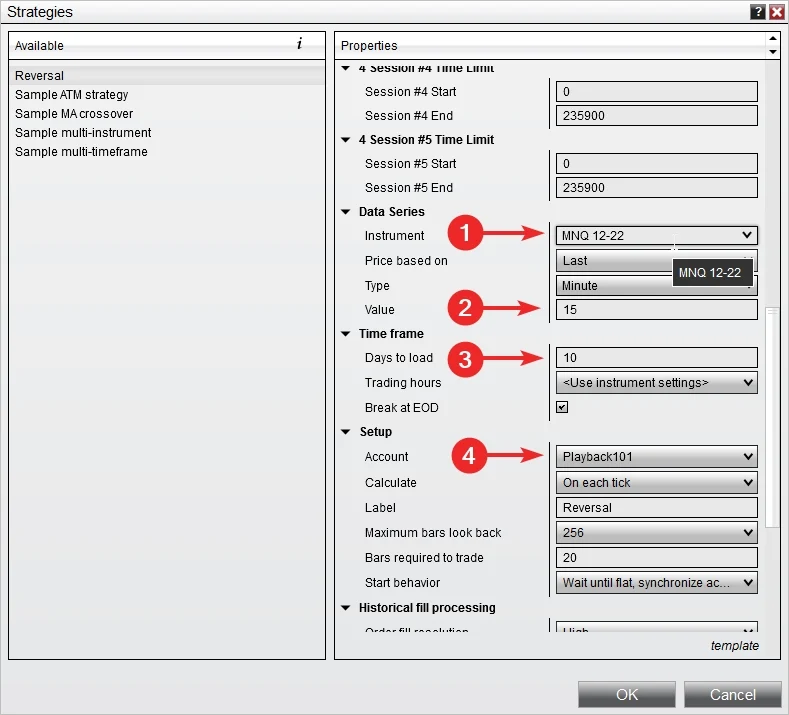
Why it matters: If the chart timeframe doesn’t match the template (e.g., the template says MNQ 15 MIN BARS (#112) but your chart is 5 minutes or wrong instrument), the strategy won’t behave as intended and may not trade.
Strategies need a minimum data window to calculate indicators and filters. If you don’t load enough history, the strategy may not initialize or fire entries.
Set Days to load to at least 15 (we recommend 30).
Confirm data connection is live and historical data is available for your instrument.
4) Other Common Causes (Account, Hours, License) 🔗
Wrong account selected: Start in Sim and confirm orders route to the intended account.
Trading Hours mismatch: If your strategy/template expects RTH or ETH, use the matching Session template. A mismatch can prevent signals.
Commissions & slippage: For realistic performance (and some filters), set them in Tools → Options → Commissions.
License/activation: If NT8 shows the add‑on isn’t licensed, activate it first (see Support).
Why isn’t my strategy taking trades right after I enable it?
Entries are rule‑based. Even if historical signals show, live trades only occur when the setup happens in real time. Ensure instrument/timeframe and session match the template.
How many days of data do I need?
At least 15 days; we recommend 30 to initialize indicators and filters correctly.
Can I use Tick or Range bars instead of Minute?
Not for templates that specify Minute (e.g., Reversal). Use the bar type defined by the template.
Will the wrong instrument or timeframe break the strategy?
It won’t break NT8, but it can invalidate logic and prevent signals. Always mirror the template name (e.g., MNQ 15 MIN).
I see a license error—what now?
Contact team@mascapital.uk. We’ll activate or reissue your license and check your Machine ID if needed.
This step‑by‑step guide shows two reliable ways to add an automated trading strategy in NinjaTrader 8: via the Control Center (Strategies tab) and directly on a chart. We’ll use the Reversal automated strategy and its templates as an example, but the process is the same for most strategies.
Method #1: Add a Strategy from the Control Center (Strategies Tab) 🔗
Use this when you want a central view of all strategies across instruments and accounts.
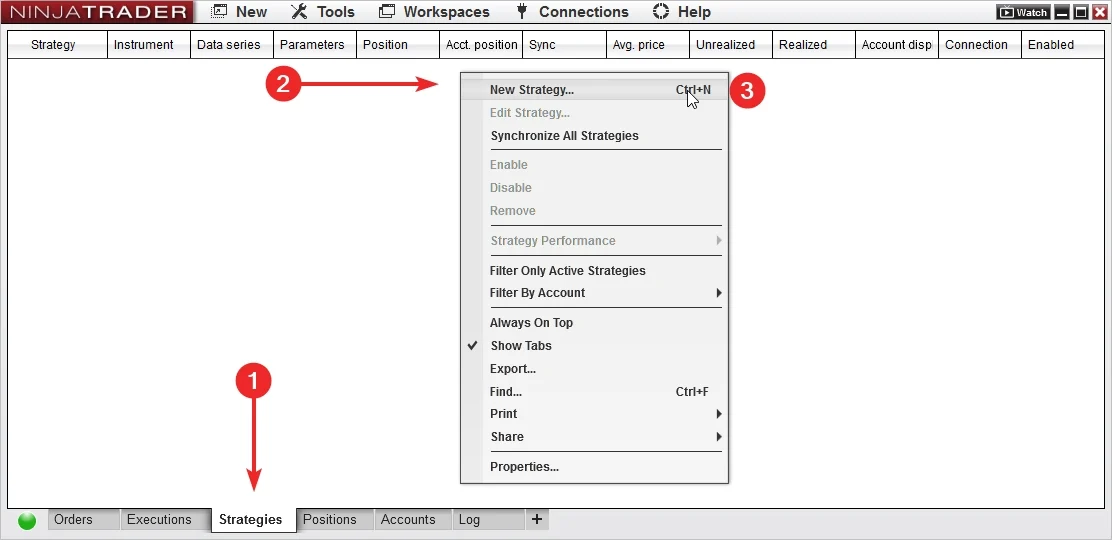
Open Control Center → go to the Strategies tab, then right‑click and choose New Strategy….
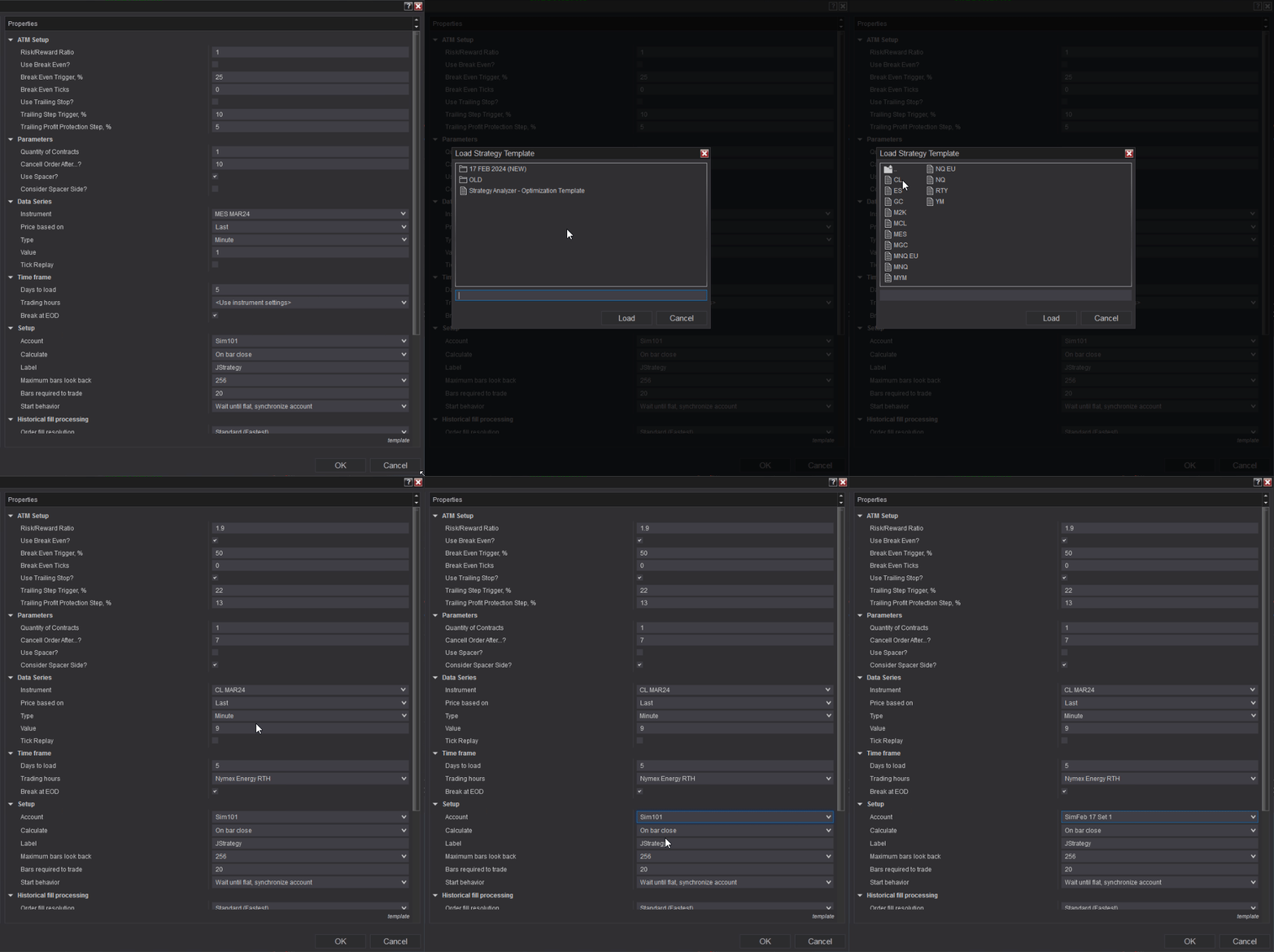
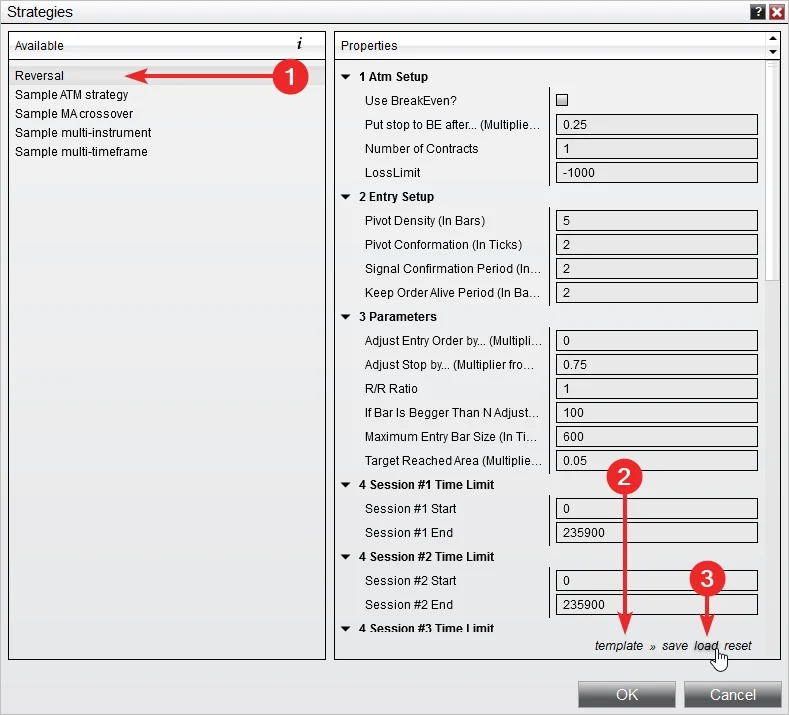
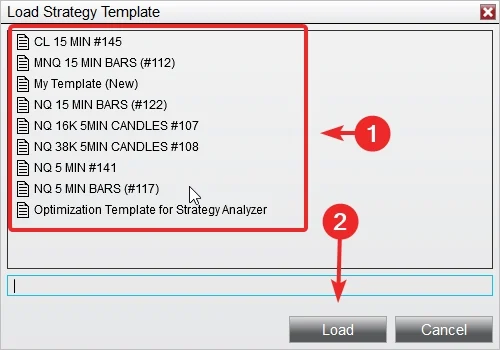
Select the Reversal automated trading strategy you previously imported, then click Load templates.
Choose the template you want to try. Templates auto‑fill the correct parameters for a specific market/timeframe.
Example template used here: MNQ 15 MIN BARS (#112).
Confirm Data Series matches the template. For MNQ 15 MIN BARS (#112) set: Instrument: MNQ, Type: Minute, Value: 15, Days to load: at least 10. Select your Account, then click OK.
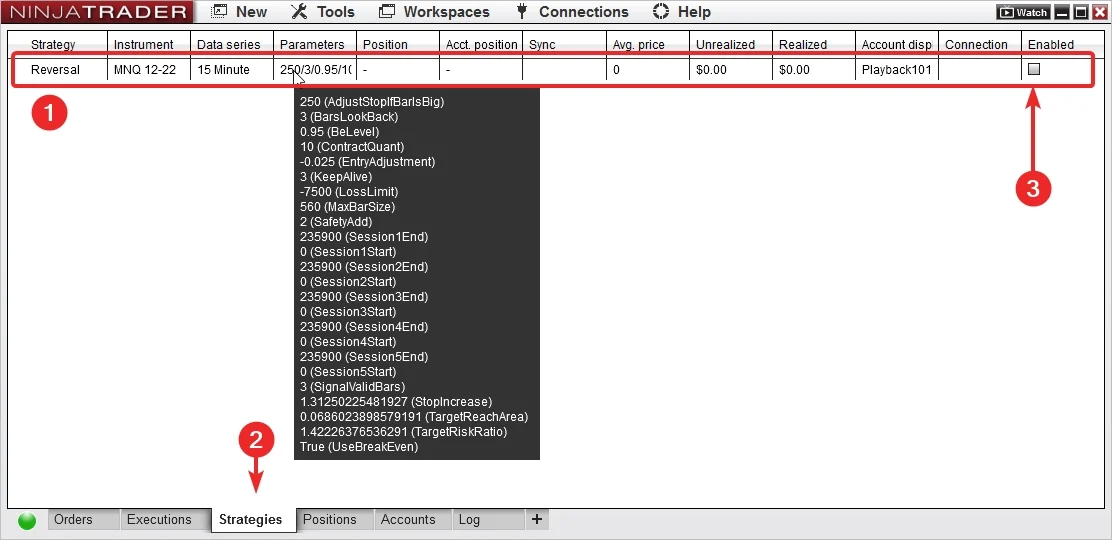
Your strategy is now added. You’ll see it listed in the Strategies tab.
How to add a strategy in NinjaTrader 8 Control Center (video)
Short walkthrough of adding a strategy from the Control Center.
Use this when you want to monitor signals, entries, and performance on the chart and manage the strategy visually.
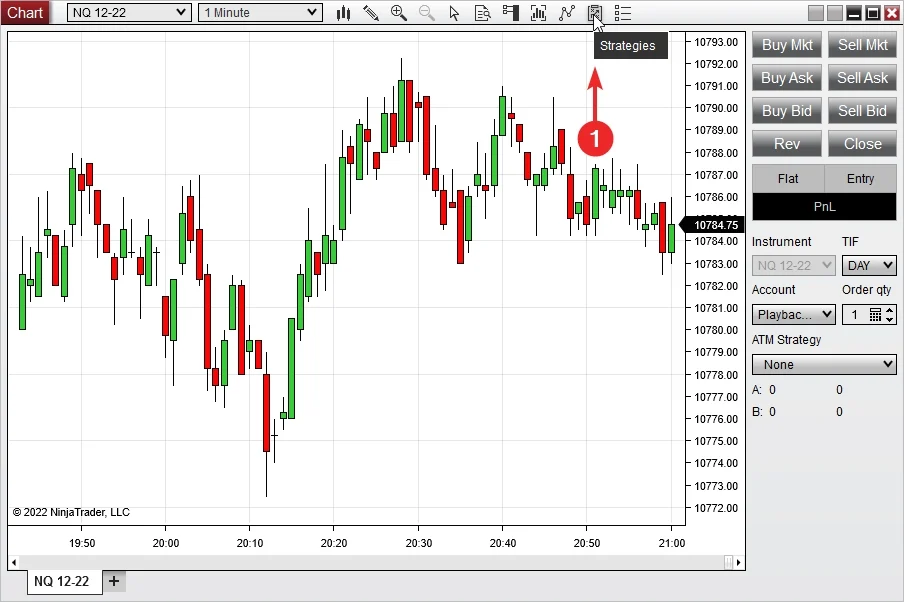
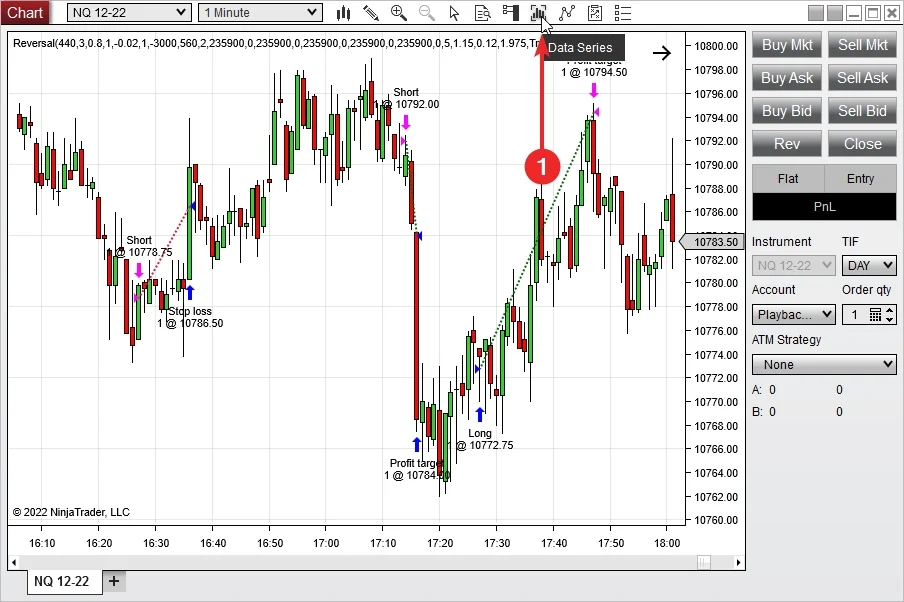
On your chart, open the Strategies panel by clicking the Strategies button.
Select Reversal and import/load your strategy templates.
Example template here: NQ 15 MIN BARS (#122).
Choose your Account and click Enable to turn the strategy on.
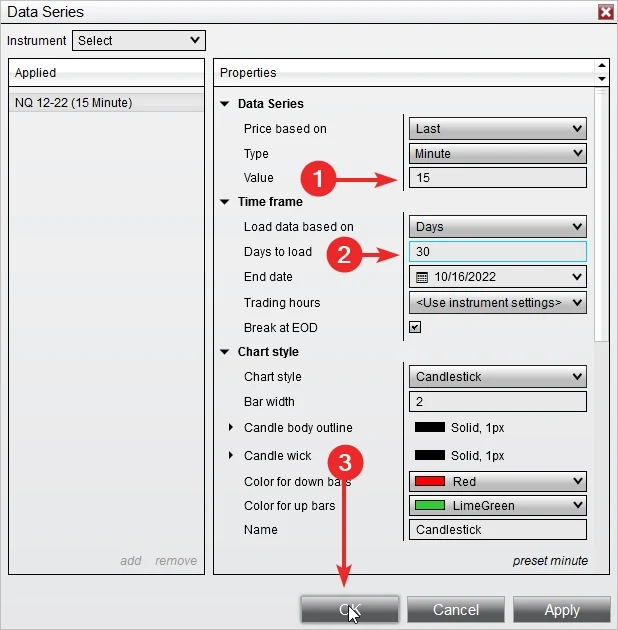
Set the Data Series to match the template: for NQ 15 MIN BARS (#122) use Instrument: NQ, Type: Minute, Value: 15, Days to load: 30 (minimum 10).
If the strategy is enabled and configured correctly, you’ll see the strategy label at the top of the chart and historical trades plotted.
The strategy also appears in your Control Center Strategies tab automatically.
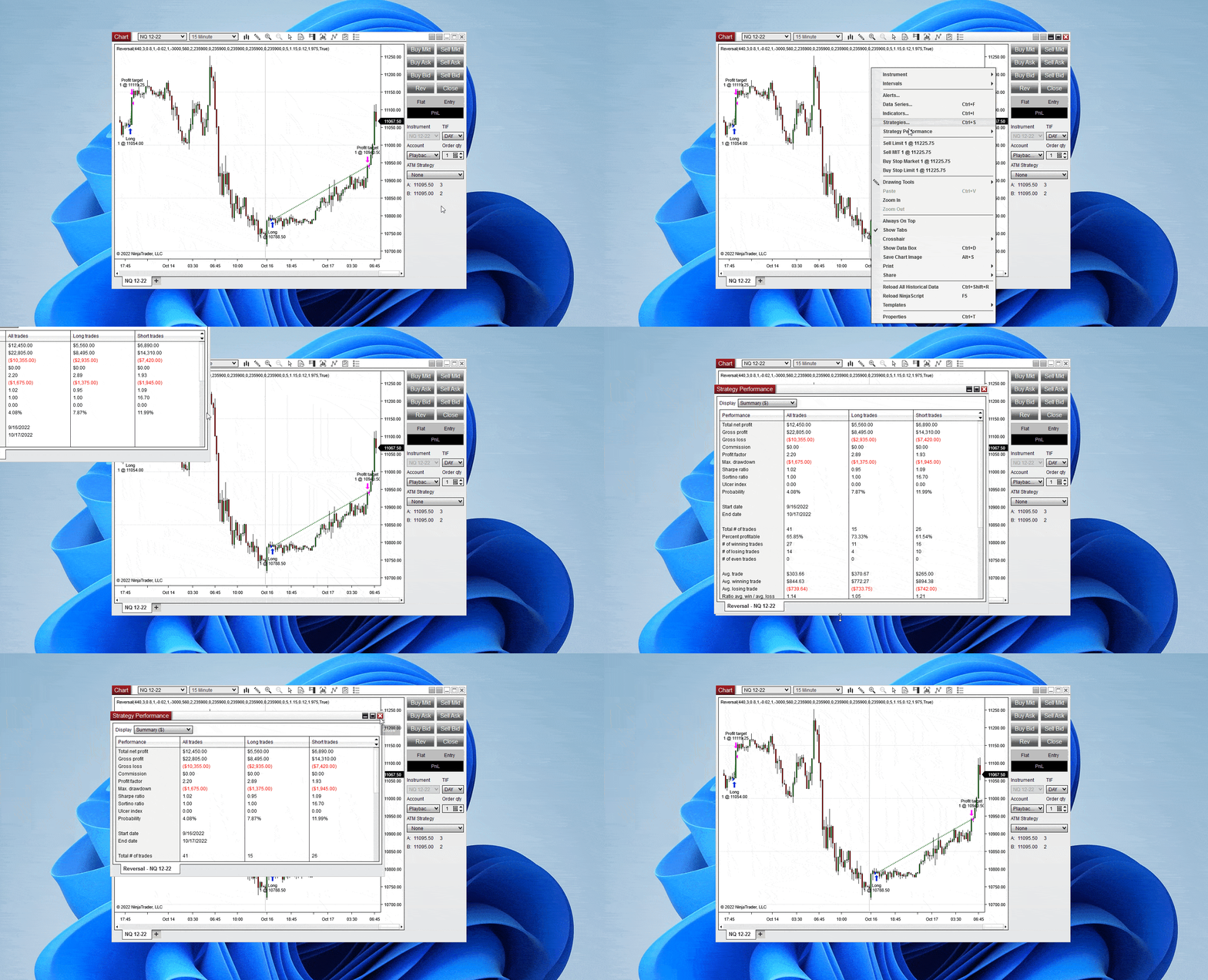
To verify the strategy is active and study its history, open the Trading Performance window from the Control Center, or use the chart’s performance tools. Here’s a quick clip on accessing historical performance:
Video: Add a Trading Strategy to a Chart in NinjaTrader 8
Where do I get the Reversal strategy and its templates? From the product page: Market Reversal Auto‑Trader (NT8). Install the strategy, then import templates.
Can I add multiple strategies to the same chart? Yes, but keep risk simple while testing—start with one per chart, then scale up.
How many days of data should I load? At least 10 days (30 recommended for 15‑minute templates) unless the template specifies otherwise.
Why don’t I see immediate entries after enabling? Entries are rule‑based; the strategy must see its setup. Historical plots appear instantly, but real‑time entries occur only when signals trigger.
Where do I change commissions? Control Center → Accounts Tab → Right Click → Edit Account → Commission (select commission template).
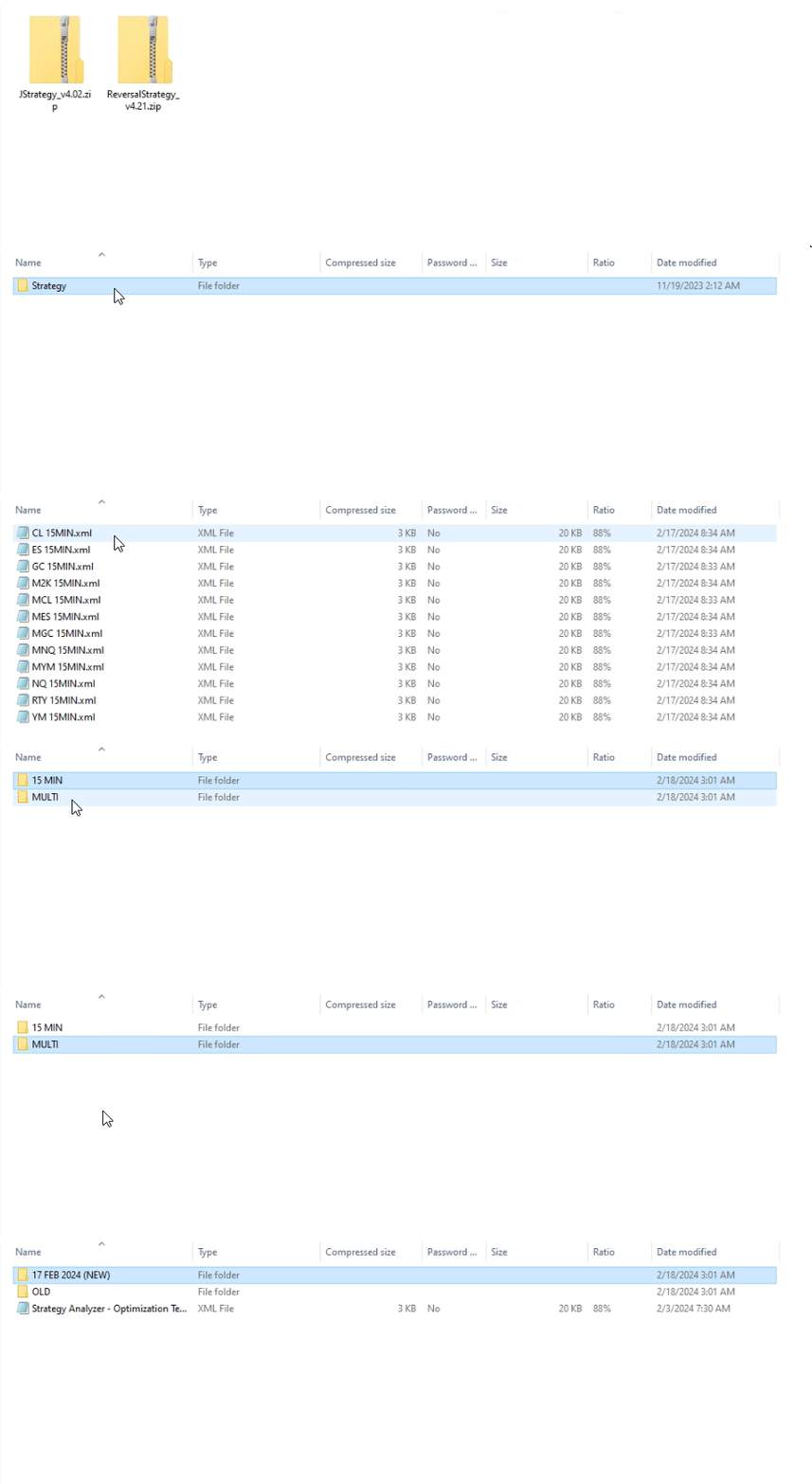
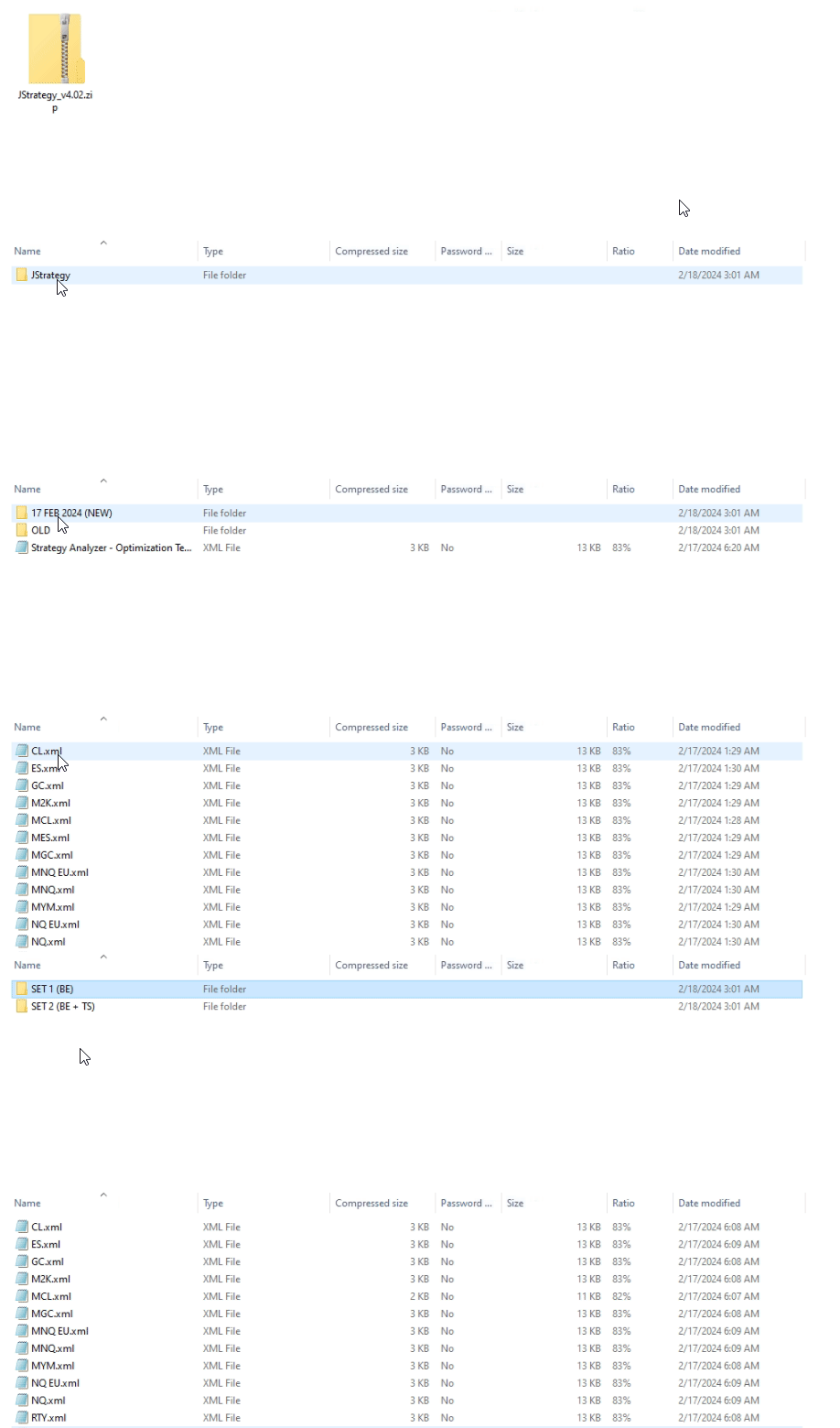
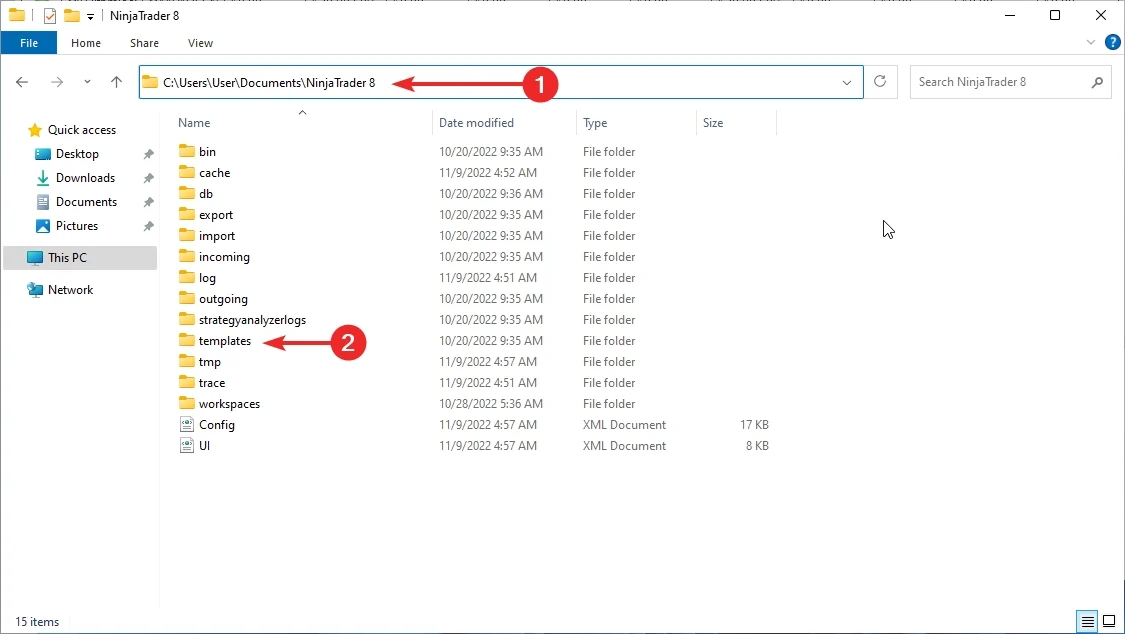
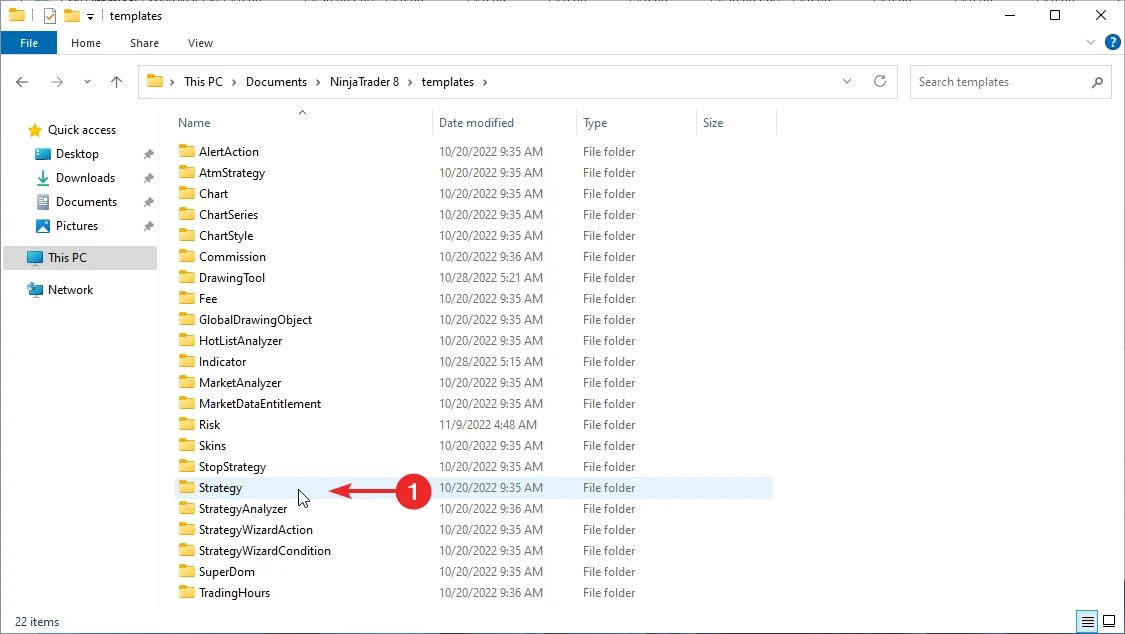
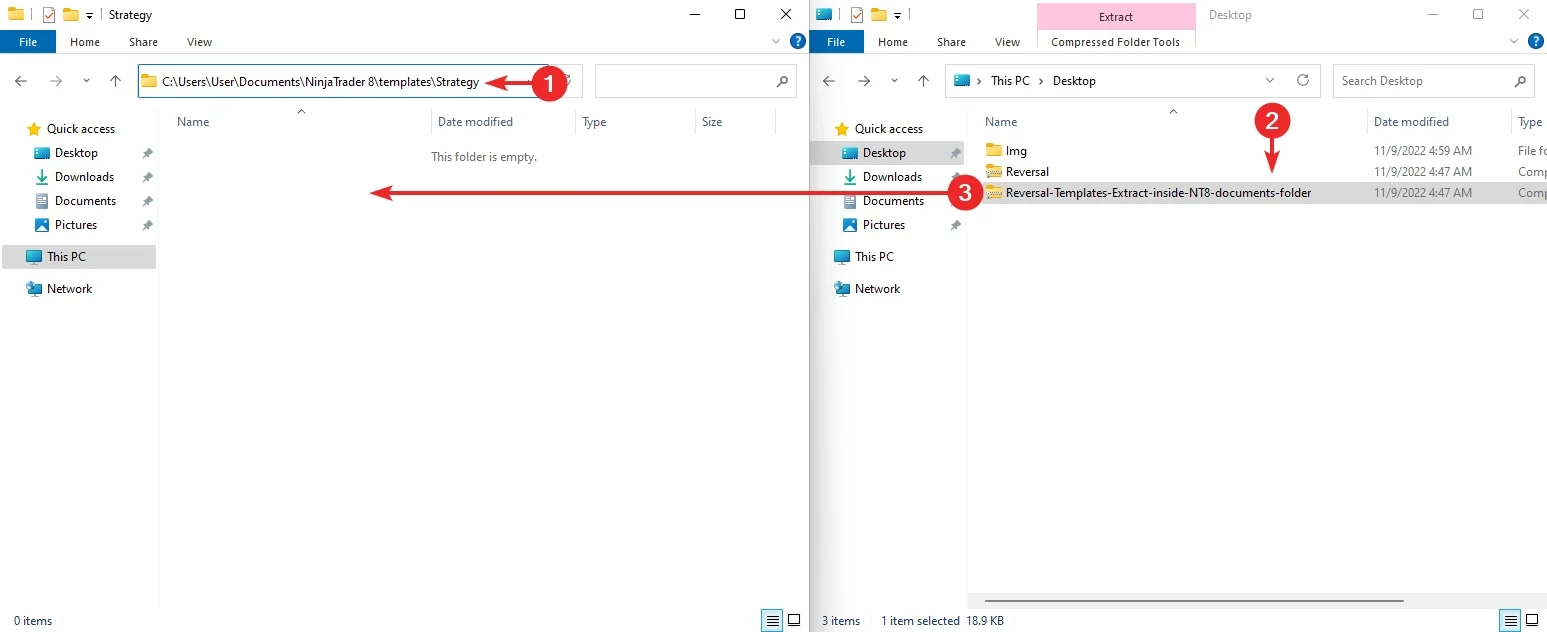
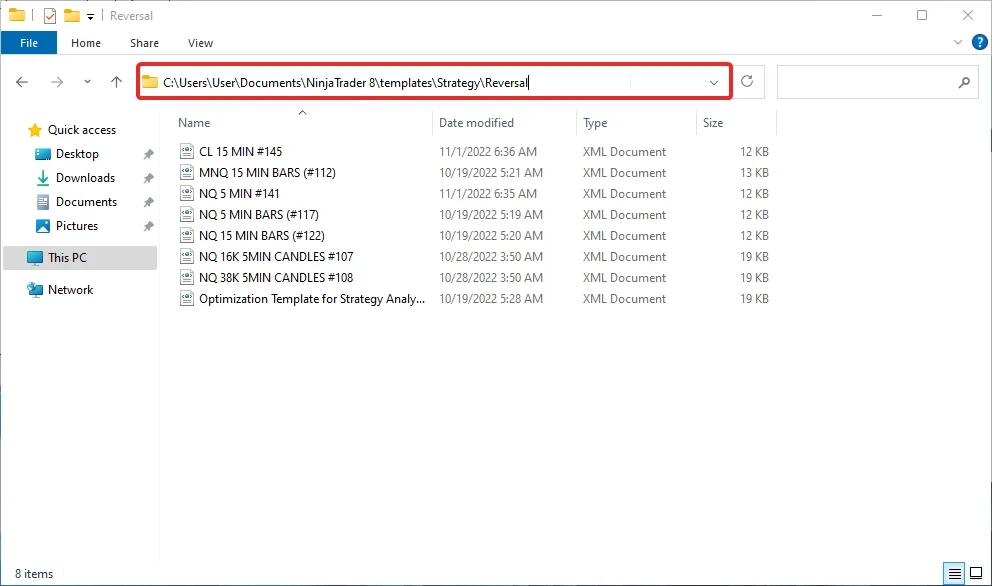
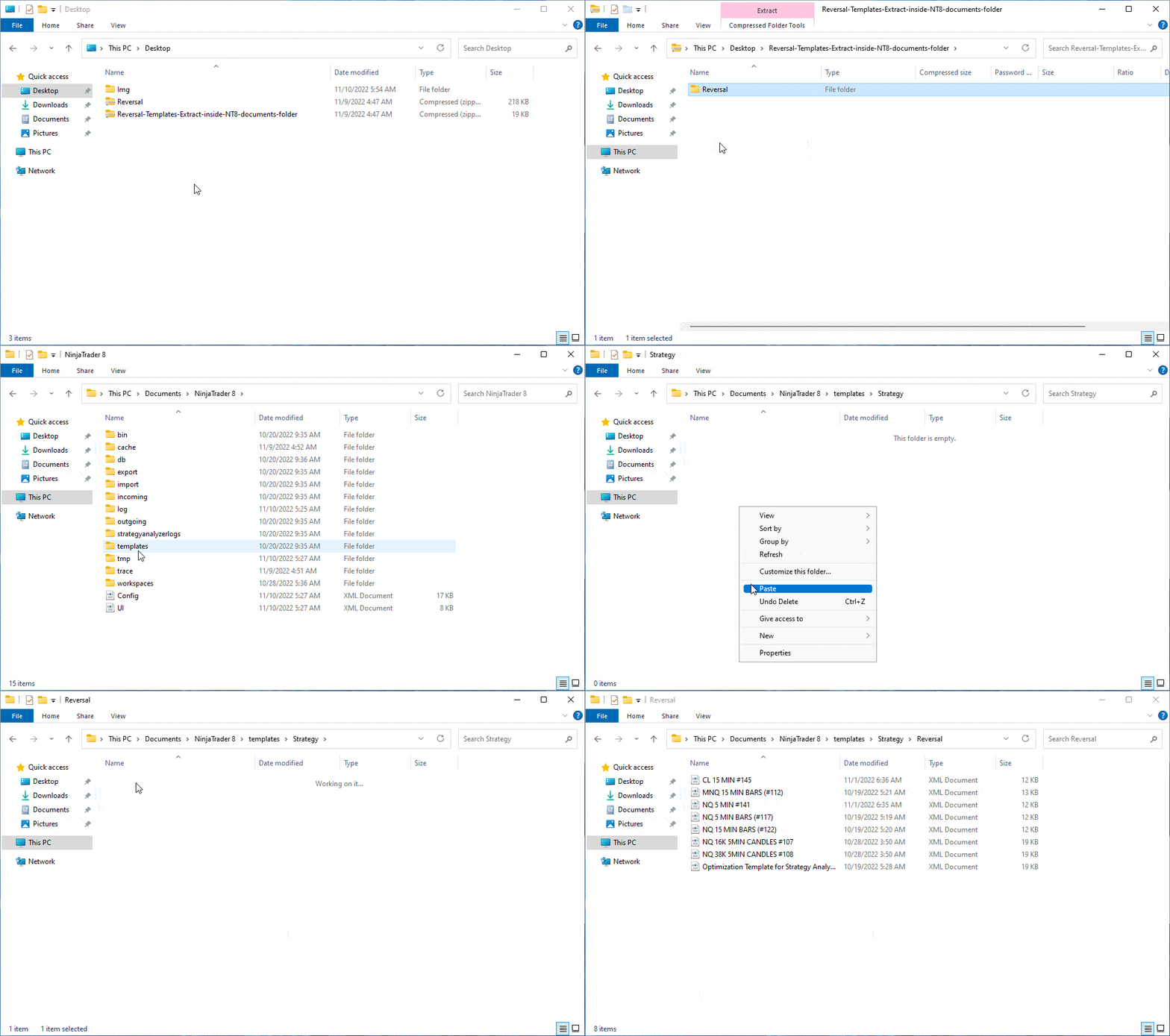
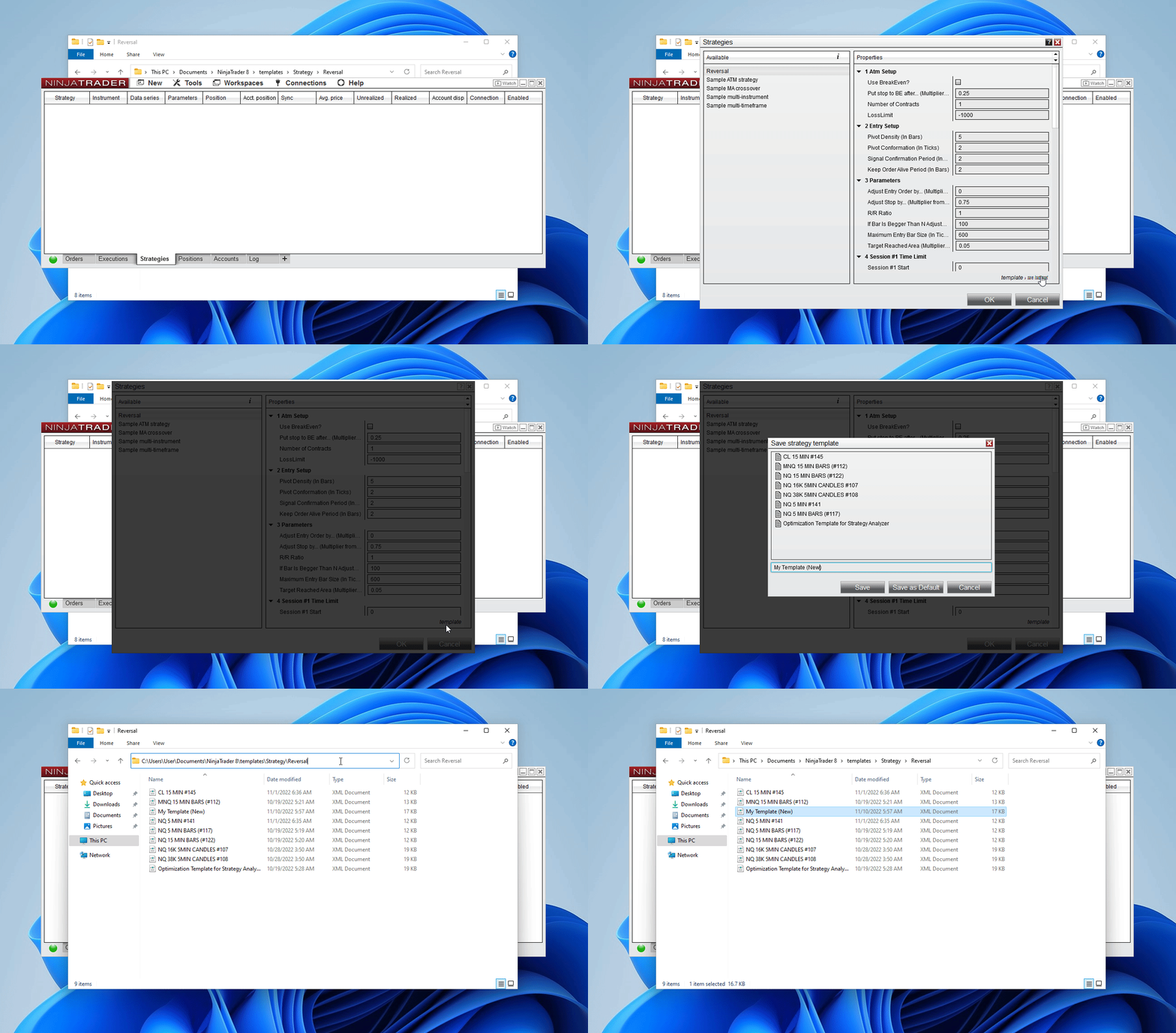
In order to import settings templates for strategies, you need to put them directly into the document’s folder of NinjaTrader 8. The strategy templates should be placed in a folder that has the name of the strategy you are using. For example, the folder with the strategy templates “Reversal” will be named “Reversal”. If you don’t see the folder, then NinjaTrader hasn’t created it yet. You can do it instead, as shown below. To do this, go to:
PC —> Documents —> NinjaTrader 8 —> Templates —> Strategy
Below is an example of how to import settings templates into the “Reversal” strategy from mascapital.uk:
Installing an automated trading strategy is the first step to running algorithmic systems on NinjaTrader 8. This guide shows you exactly how to import a strategy .zip, confirm the install, and get ready to load optimized templates for your markets. We also cover optimization basics, reliable testing workflow, troubleshooting, and a short FAQ.
Download the Reversal strategy .zip from the product page.
Control Center → Tools → Import → NinjaScript Add‑On…
Select the Reversal .zip and press Open.
Wait for the installer to finish (you’ll see a success message).
Open a chart or the Strategies tab, pick Reversal, and Load templates to apply market‑specific parameters.
Next steps: After install, load a template that matches your instrument/timeframe (e.g., NQ 15 MIN) and verify your Data Series, Trading Hours, and Commissions match the template notes.
Reliable results come from a solid workflow and diversified testing. We publish templates inside each strategy to reflect current market conditions—use them as your starting point.
Batch testing: create a separateSim account per template/timeframe and run them simultaneously for 2–3 days. Promote consistent winners.
Stay current: periodically re‑import updated templates aligned with the latest market regime.
Do I need to unzip the strategy file? No. Import the original .zip via Tools → Import → NinjaScript Add‑On.
Where do strategies appear after install? In the Strategies list (on the chart or in the Control Center’s Strategies tab), depending on where you enable them.
Can I uninstall a strategy? Yes. Use Tools → Remove NinjaScript Assembly and restart NT8.
How do I set commissions? Control Center → Accounts Tab → Right Click → Edit Account → Commission (select commission template).
Should I go live right away? No—start in Sim, run for several sessions, then size up gradually once results are consistent.