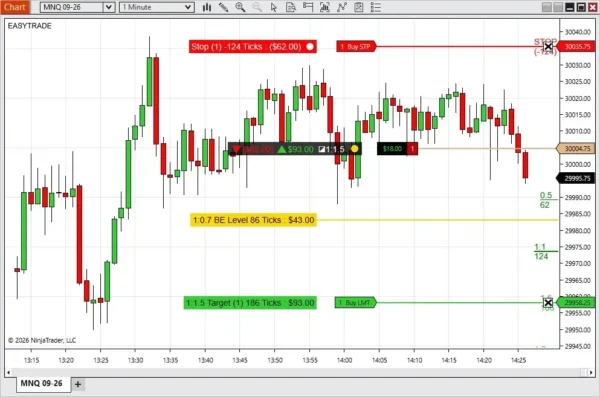
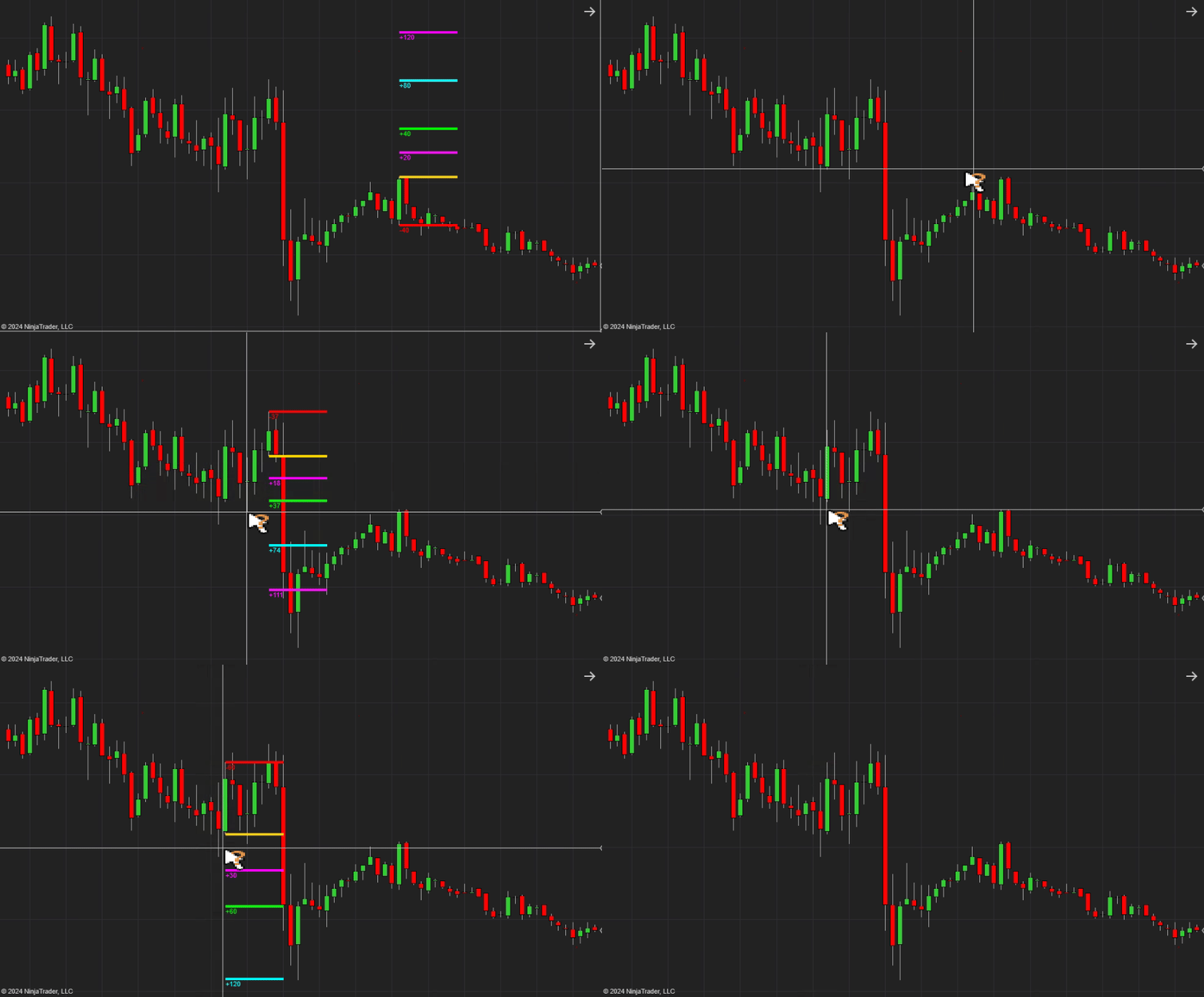
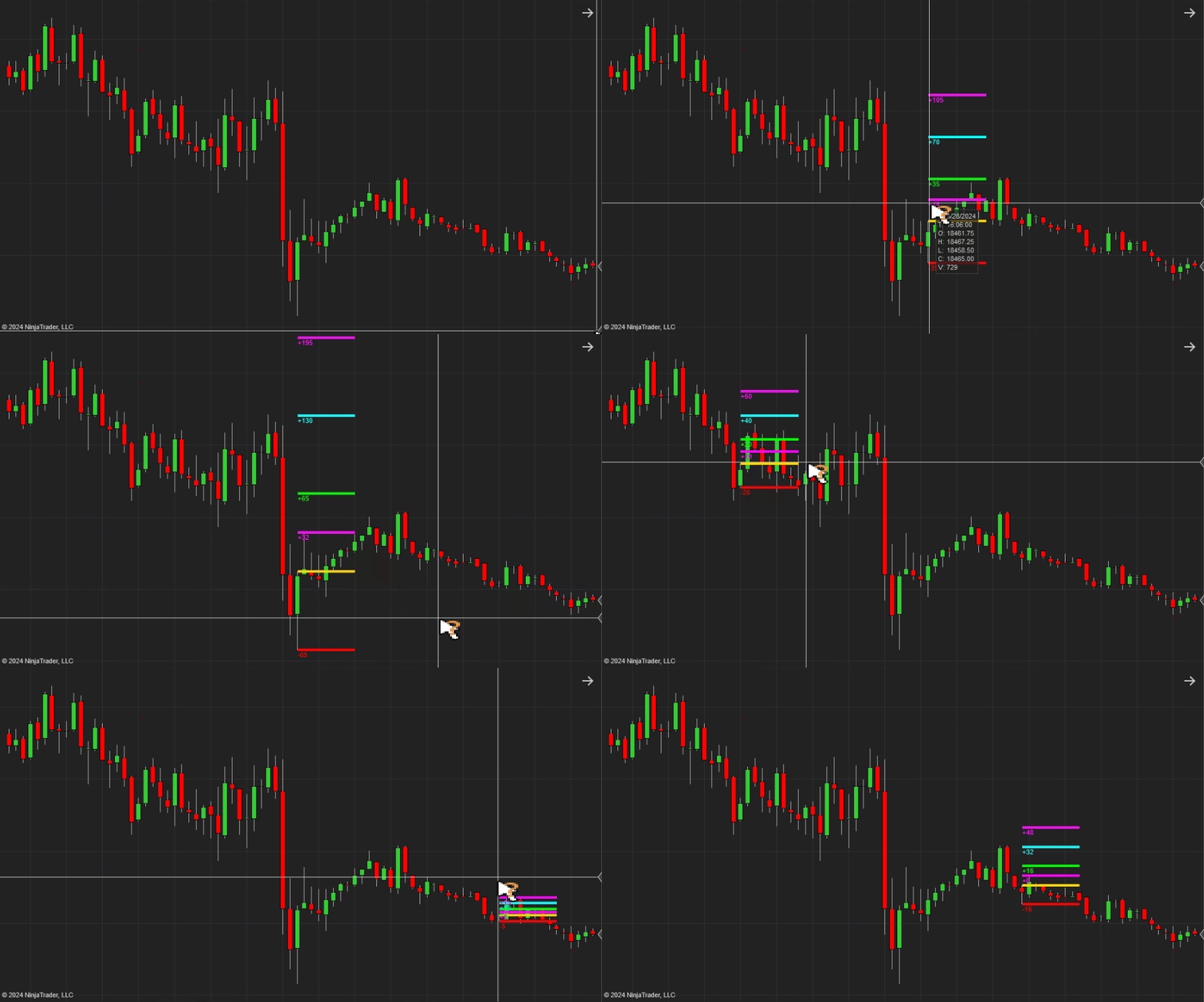
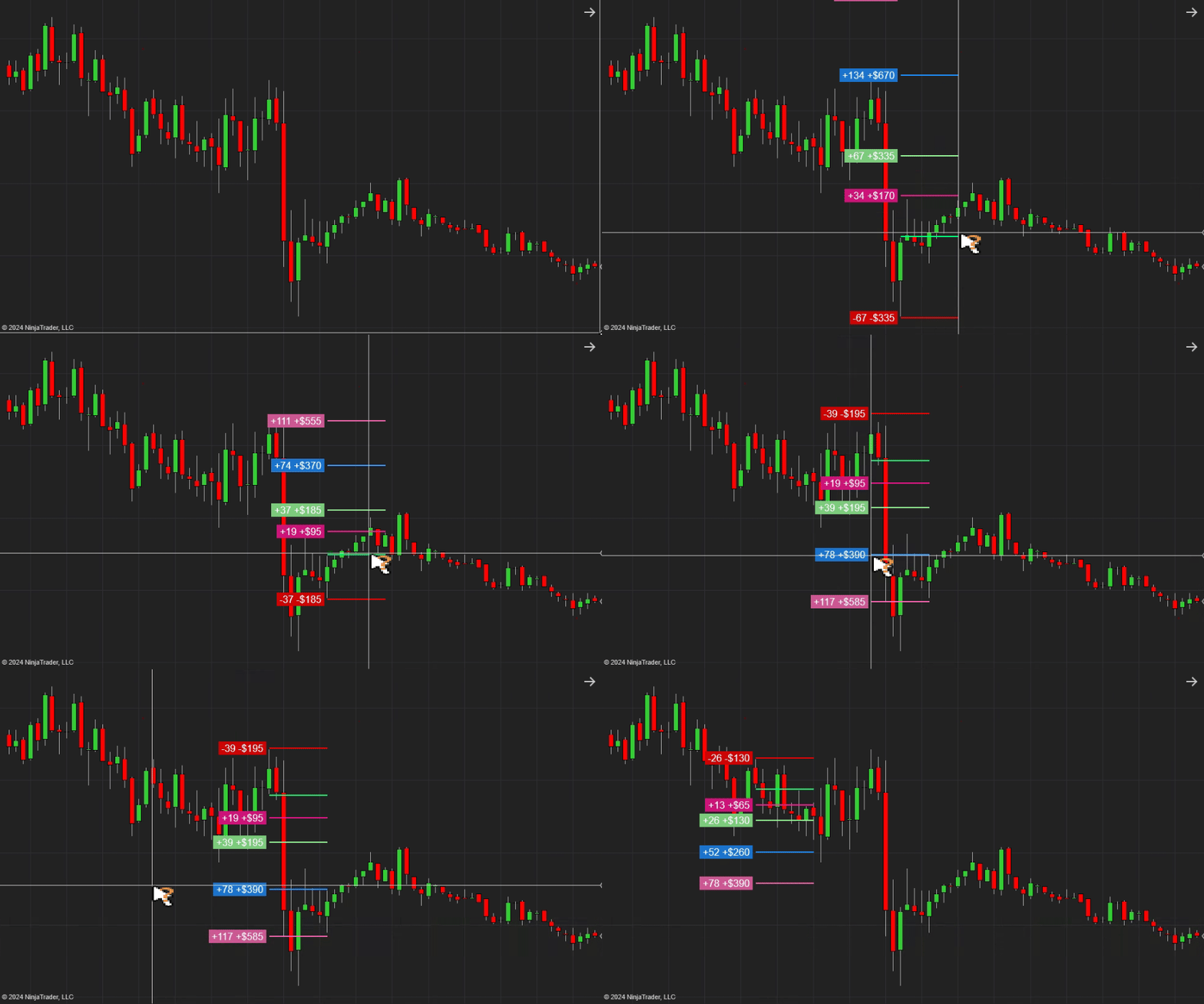
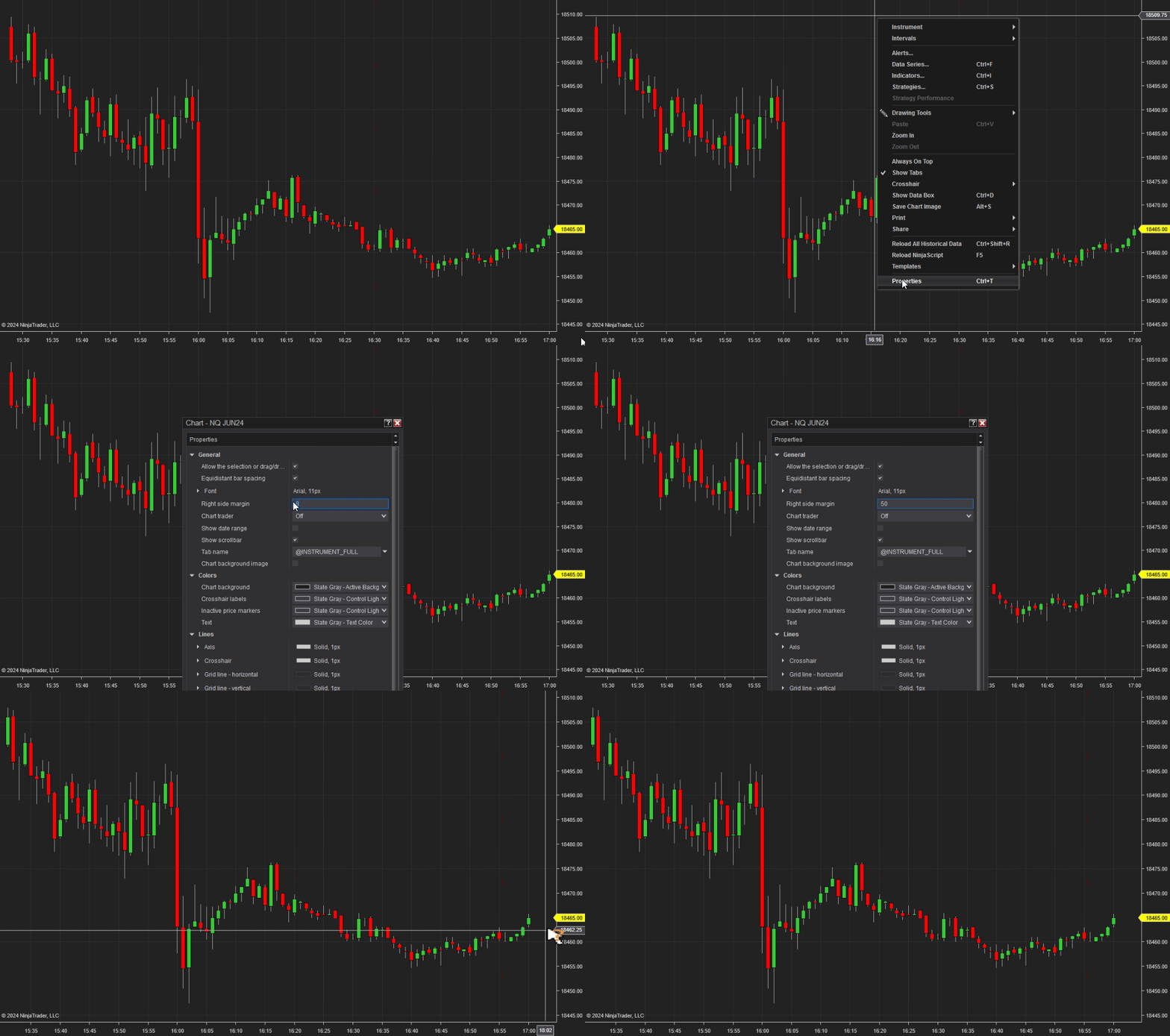
AdvancedTrader for NinjaTrader 8 (Download Latest Version of Advanced Trader Here) now updates stop, target, and risk/reward information while you move an order. This release also adds a chart-based break-even tool that can move working protective stops to the average entry price, with an optional tick offset.
The update removes the old save button and keyboard save controls. The main risk management actions now sit directly inside the chart information boxes.
When you pick up a stop or target order with the mouse, its AdvancedTrader box now follows the order. The displayed numbers also change before you place it.
This lets you check the new tick distance, currency value, point value, or risk/reward ratio while choosing the price. You do not need to release the order and move it again just to check the result.
AdvancedTrader saves the current stop position when a trade becomes active. A small circle inside the stop box shows whether the working stop still matches that saved position.
A filled circle means the current stop matches the saved stop.
An empty circle means the stop has moved away from the saved price.
Click the circle to save the current stop as the new risk reference.
The saved stop gives the risk/reward ruler a fixed reference even when the working stop moves. It resets when the position closes.
The new BE control is a colored circle inside the position summary box. Click it to create a BE Level line, then place that line at the price where AdvancedTrader should move the stops.
Open a position with at least one working protective stop.
Click the BE circle in the position summary box.
Move the mouse to the required trigger price.
Click the chart to place the BE Level line.
Wait for price to reach the line.
When price reaches the level, AdvancedTrader moves all valid working protective stops to the average entry price, adjusted by the selected BE Offset (Ticks).
For a long position, the offset is added above the average entry.
For a short position, the offset is placed below the average entry.
Tip: Press Esc before placing the BE line if you want to cancel.
One trigger for each placed BE level
The BE action runs once. It does not move the stops again if price pulls back and crosses the same level a second time.
After the stops move, the BE line and its information box disappear. The circle remains in the summary box, so you can place another BE level when needed.
If you place the line at a level price has already crossed, AdvancedTrader waits for price to return to the safe side and cross it again. This avoids an immediate unwanted stop move.
The BE action moves all valid working protective stops for the active position. A stop-limit order keeps its existing price gap when it moves.
AdvancedTrader also combines orders of the same type at the same price. When boxes at nearby prices would cover each other, the display stacks them vertically. This applies to stop and target boxes, the BE box, and the position summary when it is displayed on the entry line.
Stop and target boxes no longer have extra connector lines. The BE box keeps its connector because it marks the exact trigger price. Its connector and main line use the same thickness.
Test on Sim first: Check the BE offset, selected Chart Trader account, position direction, and working stop orders before using the feature with a live account.
Use a simple test position to confirm how the saved stop circle and BE trigger behave with your ATM setup. If you split a position across several protective stops, confirm that each stop moves to the expected price.
Does AdvancedTrader update while I drag an order? Yes. The stop or target box follows the moving order, and its tick, point, currency, and risk/reward values update before you place it.
What does the circle inside the stop box mean? A filled circle means the working stop matches the saved risk reference. An empty circle means the stop has moved. Click the circle to save its current position.
How does the AdvancedTrader break-even tool work? Click the BE circle, place the BE Level line on the chart, and wait for price to reach it. AdvancedTrader then moves valid working protective stops to the average entry price with the selected tick offset.
Will the BE level trigger more than once? No. Each placed BE level triggers once. Its line and information box disappear after the stops move.
Does the BE tool move more than one stop order? Yes. It moves all valid working protective stops for the active position. Stop-limit orders keep their existing price gap.
Can I cancel while placing a BE level? Yes. Press Esc before clicking the chart.
The NinjaTrader 8 Auto-Login & Auto-Cleaner tools by MASCapital UK simplify and maintain your NinjaTrader environment. The Auto-Login automates credential entry every time NinjaTrader starts, while the Cleaner removes unused or temporary data to keep performance optimal. Follow this guide to download, configure, and safely run both utilities.
The NinjaTrader 8 Auto-Login feature streamlines the login process by automatically entering credentials each time the platform starts. It eliminates manual input and allows traders to focus directly on their market activity. By automating login, it saves time and ensures consistent access — particularly valuable in fast-paced trading environments or for users operating multiple accounts.
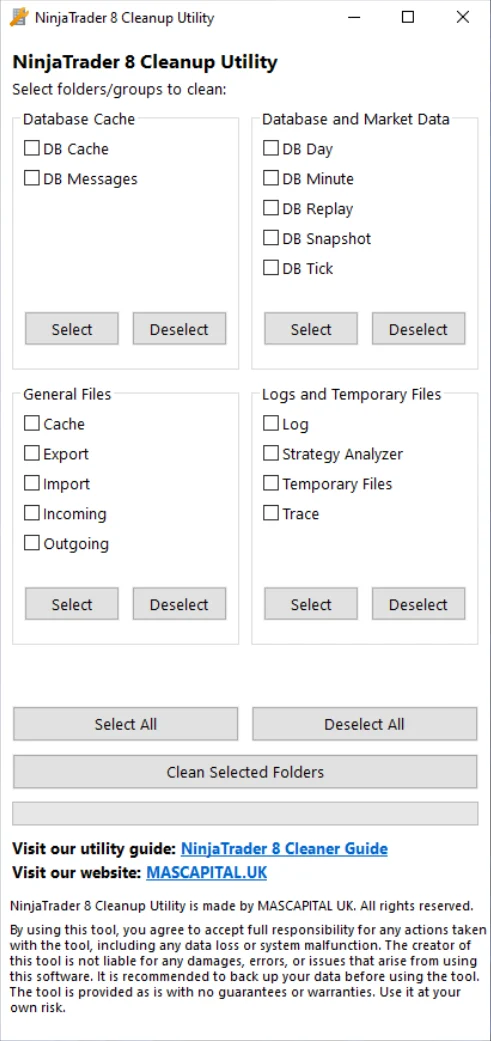
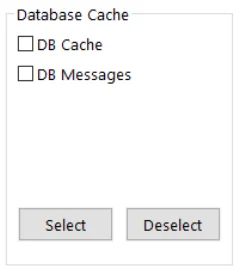
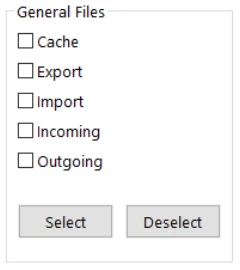
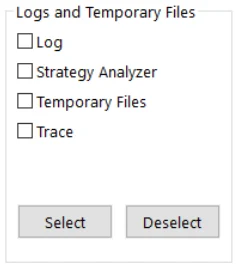
The NinjaTrader 8 Cleaner is designed to maintain optimal platform performance by removing unnecessary or temporary files stored within NinjaTrader directories. It allows users to select specific data types to delete — including cache files, database logs, and historical data — helping reduce clutter, prevent data issues, and improve loading speed. Regular cleaning keeps NinjaTrader stable and responsive, especially for traders who work with large datasets or replay data.
Double-click the NinjaTrader 8 Cleaner shortcut on your Desktop.
The tool will execute a cleaning script that removes all files from your selected categories.
This process optimizes NinjaTrader by clearing redundant data and refreshing its directory structure.
Cleaning NinjaTrader 8 Directories – Line by Line Explanation 🔗
The Cleaner targets key directories associated with NinjaTrader 8 to enhance performance by removing unnecessary or temporary files. By executing this script, users maintain a clean and efficient environment where charts and data load faster. You can customize which folders are cleaned to preserve important information while removing clutter.
List of NinjaTrader 8 Folders That Can Be Cleaned 🔗
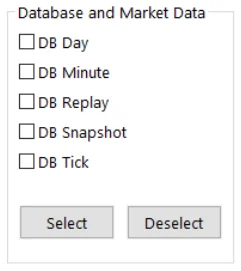
2.2 DB Day — Cleaning Daily Database Files [REMOVE IF REQUIRED] Removes all files from the day data directory. If you wish to retain day data, disable this option. Otherwise, keep it enabled to clear and refresh all historical daily bars. NinjaTrader will automatically reload this data when restarted.
%USERPROFILE%DocumentsNinjaTrader 8dbday
2.3 DB Minute — Cleaning Minute Data Files [REMOVE IF REQUIRED] Removes all files from the minute data directory. This ensures clean and accurate historical minute bars after restart.
%USERPROFILE%DocumentsNinjaTrader 8dbminute
2.4 DB Replay — Cleaning Replay Data Files [WARNING] Deletes all Market Replay files. Replay data consumes large disk space; remove only if you don’t plan to use playback.
%USERPROFILE%DocumentsNinjaTrader 8dbreplay
2.5 DB Snapshot — Cleaning Snapshot Files [SAFE] Clears snapshot data for faster NinjaTrader loading.
%USERPROFILE%DocumentsNinjaTrader 8dbsnapshot
2.6 DB Tick — Cleaning Tick Data Files [REMOVE IF REQUIRED] Removes tick-level data from the database. Re-enable if you want NinjaTrader to refresh all tick data on restart.
Trade Analyzer combines chart-based journaling with automatic performance analytics, turning every idea you draw into measurable trading data. This guide walks you through installation, workflow, parameter settings, web-report interpretation, and troubleshooting — everything you need to master the indicator.
Whether you trade discretionary setups or run automated templates, Trade Analyzer helps verify consistency through data-driven feedback. Each trade you sketch on the chart becomes a structured entry in your CSV export, ready for review in the companion web dashboard.
Installing Trade Analyzer is simple and takes only a few minutes. You’ll import the .zip file into NinjaTrader 8, confirm the prompts, and restart the platform so the new indicator loads correctly.
Download: Get the Trade Analyzer .zip file from your MAS Capital account or support email. Do not unzip it.
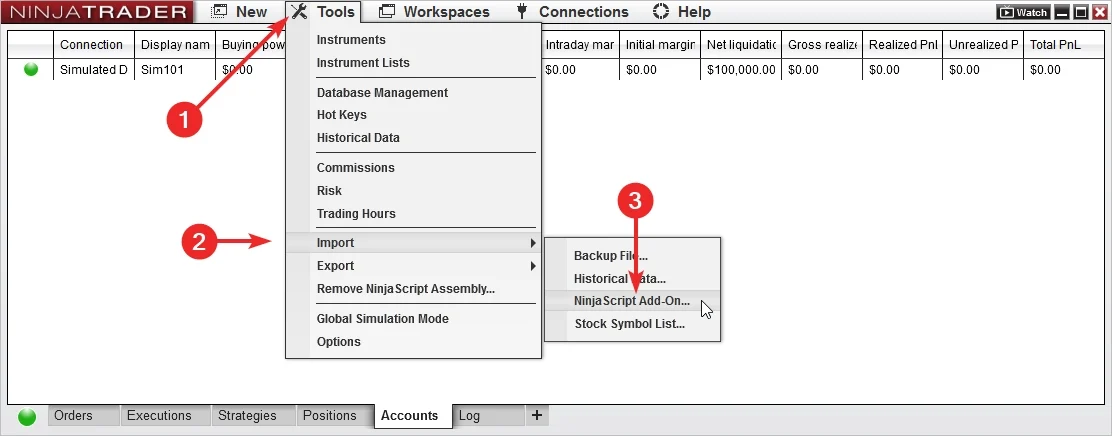
Import to NT8: In Control Center → Tools > Import > NinjaScript Add-On... → select the downloaded file.
Confirm prompts: If NinjaTrader asks to replace existing files, click Yes to All so your templates and logic stay in sync.
Restart NinjaTrader: After import completes, restart the platform to compile the new indicator.
Add to a chart: Open any chart → Indicators (Ctrl + I) → select Trade Analyzer PRO → OK.
Note: Always restart NinjaTrader 8 after any import or update to refresh compiled assemblies. This avoids missing buttons or “indicator not found” errors.
Trade Analyzer is a licensed indicator distributed through the NinjaTrader vendor system. If your copy requires activation, send your Machine ID to our support team:
To: team@mascapital.uk
Subject: Trade Analyzer Activation

Hi MAS Capital Team,
Requesting activation for Trade Analyzer (NT8).
Machine ID: <YOUR NT8 MACHINE ID>.
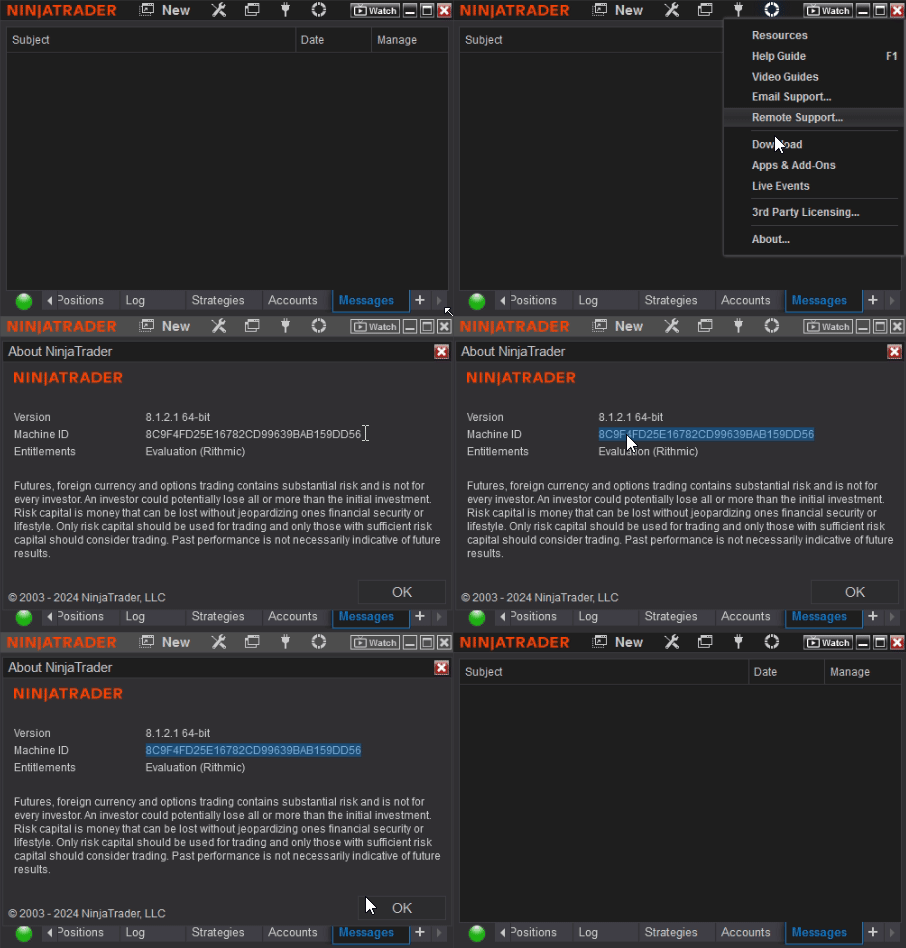
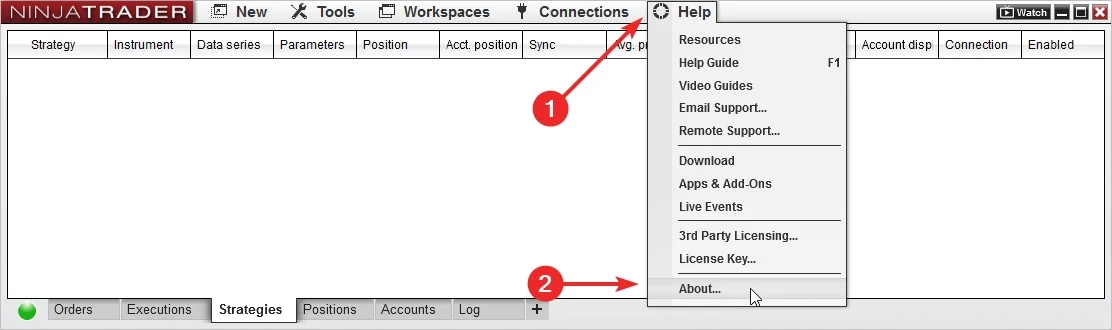
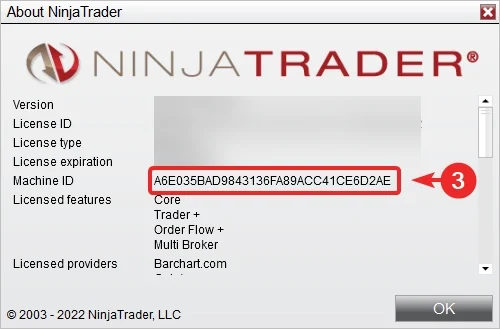
Find your Machine ID under Control Center > Help > About → right-click → Copy Machine ID.
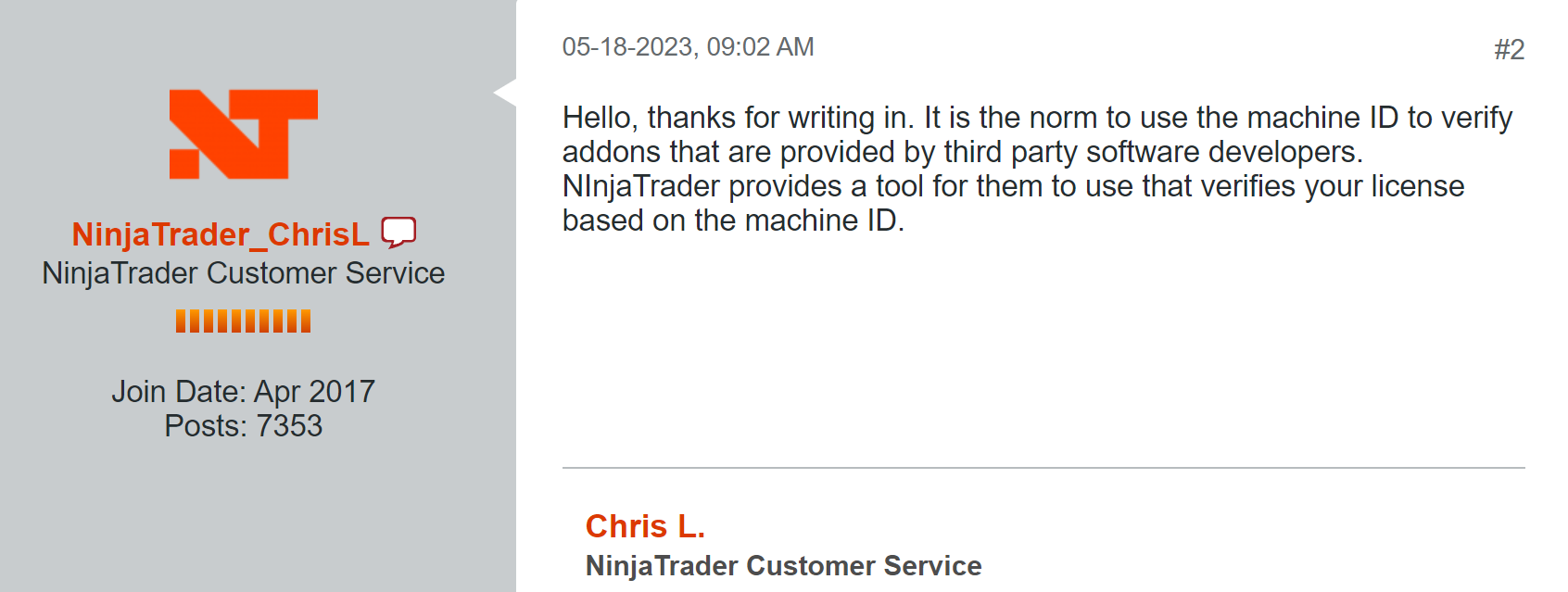
Tip: Machine IDs are safe to share—they only identify your NinjaTrader installation for licensing purposes and can’t access your broker account or computer.
Trade Analyzer is built around three simple actions: draw trades on chart, export to CSV, and review in the web report. Each part of the workflow is designed to keep your testing, journaling, and analysis effortless and visual.
Once Trade Analyzer is added to a chart, you can plot trades directly with a quick mouse and keyboard combo. Each trade ruler includes an entry, stop, and up to four reward targets (1R–999R).
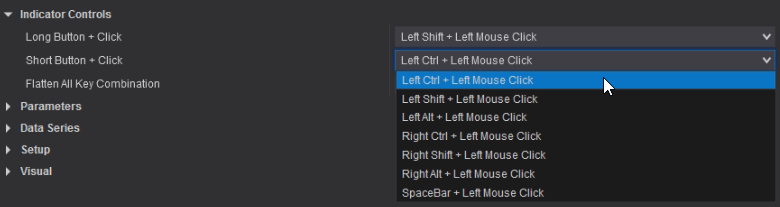
Hold your configured R/R Key Combination (e.g. Ctrl + Middle Click or only Middle Click by default) and click on the chart to create a new ruler.
The first click sets the entry and the second defines the stop.
Trade Analyzer instantly projects all reward targets, calculates risk, and labels each R level in ticks, points, or currency (based on your settings).
Click a ruler again to remove it — no need to open any menus.
Tip: Create multiple rulers to compare alternative trade ideas. Each marker tracks its own entry, stop, and R-targets independently.
Every trade you draw is automatically tracked. As historical bars load or replay runs, Trade Analyzer records whether each setup hit a target or stop and when it happened.
When finished reviewing or replaying, click the Report button on the chart panel.
The indicator exports all trade data to a .csv file located in Documents → NinjaTrader 8 → TradeAnalyzerReports.
Each record includes trade direction, entry/stop prices, R-multiple, tick/point distance, hit timestamps, and USD result.
Note: CSV files can be opened in Excel, Google Sheets, or directly uploaded to the Trade Analyzer web report for instant visualization.
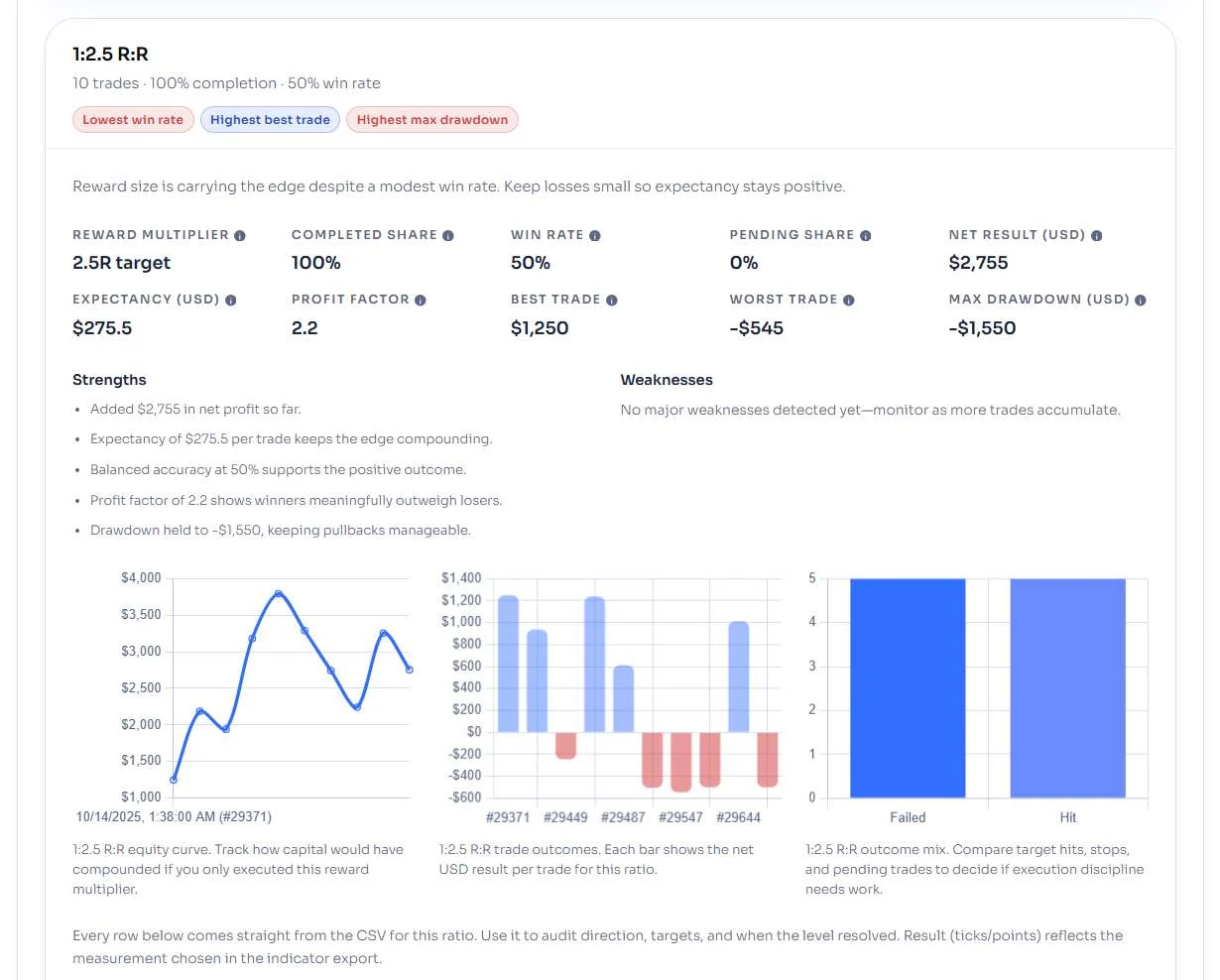
The companion Trade Analyzer Web Report turns raw CSV data into a structured performance dashboard. It provides summary cards, expectancy calculations, equity curves, and comparison tables across all tested R-multipliers.
Visit the Trade Analyzer Web Report link.
Drag your exported .csv file into the browser window.
The dashboard will load automatically — no installation or login required.
View overall results and per-R multiple panels.
Compare win rate, expectancy, and profit factor across each reward level.
Hover over metrics for quick definitions and visual highlights of strengths and weaknesses.
Tip: Save each CSV after a session to track performance over time — weekly or monthly comparisons reveal your consistency curve.
Trade Analyzer offers full control over behavior, appearance, and calculation style. These settings determine how trades are drawn, how they look on the chart, and what data is logged to your report.
The Trade Analyzer web report transforms your exported CSV into a structured dashboard of performance metrics. Every number helps you evaluate how each reward-to-risk setup behaves across trades, revealing where consistency and expectancy truly lie.
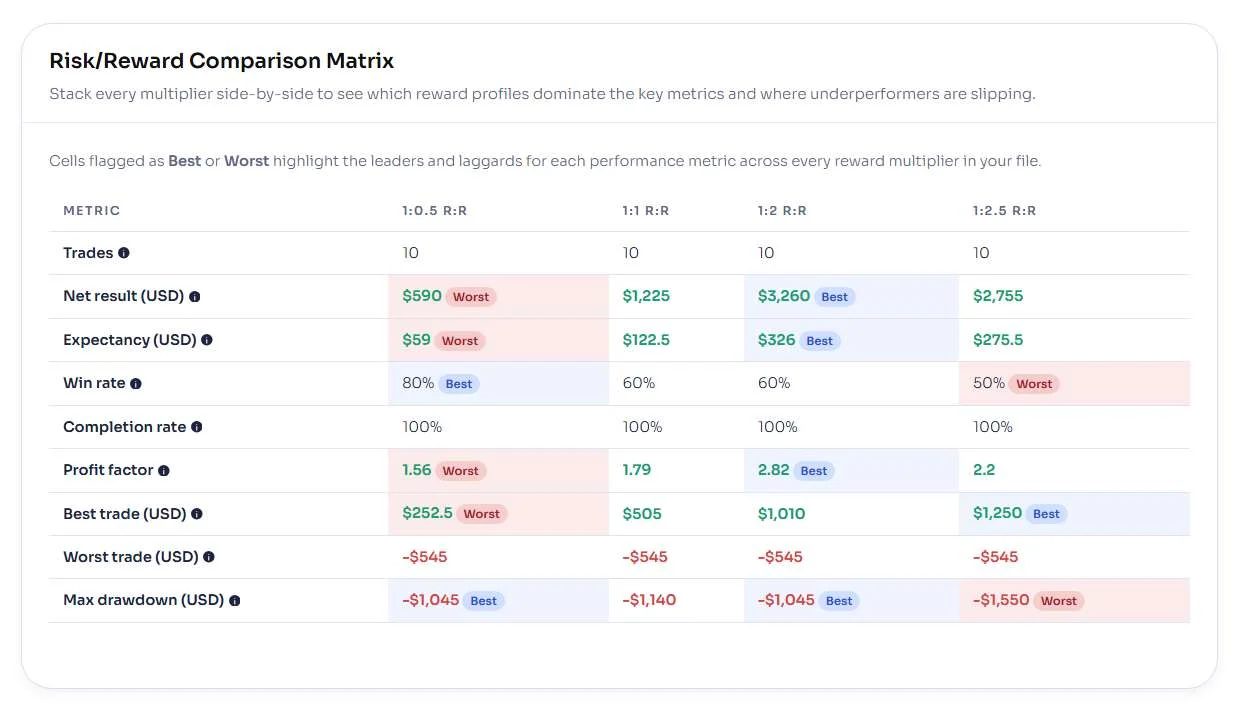
Below the panels, the report highlights the best and worst performers across all reward levels. The comparison matrix makes it easy to see where your edge is strongest and where it needs improvement.
Top / Lowest Net Performer — identifies which reward ratio produced the highest or lowest total profit.
Highest / Lowest Profit Factor — shows how efficiently each R multiple converts risk into reward.
Highest / Lowest Win Rate — which ratio wins most often.
Highest / Lowest Expectancy — reveals the most reliable average return per trade.
Highest Best Trade — the biggest single winner across all ladders.
Lowest Worst Trade — smallest single loss (a sign of good control).
Highest Worst Trade — largest single loss; use this to check risk boundaries.
Lowest / Highest Max Drawdown — how stable or volatile each equity curve feels.
Note: Each row compares one performance metric across all R columns. Scan horizontally to instantly spot your best-performing R-multiple and its weakest link.
Trade Analyzer is designed for reliability, but a few small configuration issues can cause missing drawings, empty reports, or data mismatches. Use this checklist to quickly identify and resolve the most common problems.
No drawings appear? Verify you’re holding the correct R/R Key Combination when clicking on the chart. If in doubt, open Indicators → Trade Analyzer → Parameters and re-assign a fresh shortcut.
Nothing exported to CSV? Ensure you’ve drawn at least one trade ruler, and let enough bars pass for a stop or target to trigger. Only completed trades are logged.
“Indicator not found” after update? Restart NinjaTrader 8 to recompile all assemblies. Imports without restarts often cause missing references.
Web report not loading? Check that your CSV file isn’t renamed or edited. The header row must remain unchanged. Re-export directly from the indicator if unsure.
All trades show pending? The indicator only finalizes outcomes when price revisits stop or target zones. Run Replay or allow live data to complete each setup.
Note: CSV files from older versions of the indicator may differ in structure. Always use the latest indicator and web report together.
Does Trade Analyzer work in both live and Replay mode? Yes. You can use it on live charts or NinjaTrader’s Replay feature. During Replay, it automatically records completed trades once a target or stop is hit.
Where are my exported CSV files saved? All exports are stored inside your Windows Documents folder under Documents → NinjaTrader 8 → TradeAnalyzerReports. Each file is timestamped for easy tracking.
Why is my web report empty or showing zero trades? Make sure the CSV file includes completed trades. The indicator logs only setups that have either hit a target or stop. Also confirm that you haven’t edited or renamed the CSV columns.
Do I need a license or Machine ID activation? Yes, Trade Analyzer uses the NinjaTrader vendor system for licensing. Email your Machine ID to team@mascapital.uk to activate or transfer a license.
Can I change the default key combination for drawing trades? Yes. Open the indicator settings and modify R/R Key Combination to any mouse and keyboard combo you prefer (e.g., Ctrl + Middle Click).
Can I compare Trade Analyzer results with my automated strategies? Absolutely. Many traders use Trade Analyzer to test manual setups before automating them with systems like M Trader or J Strategy.
The Free Indicators Pack by MAS Capital UK gives NinjaTrader 8 users a fast, reliable toolkit for execution, risk, and market context. This step‑by‑step guide covers installation, activation (licensing via Machine ID), and practical usage of every included indicator.
You’ll also find troubleshooting checklists, platform caveats, and pro tips gathered from real user support. If you’re new to NinjaScript imports or vendor licensing, don’t worry—follow the steps below and you’ll be set up in minutes.
We are a registered vendor for the NinjaTrader platform (vendor name: MASCapital). Distribution and licensing are handled through the platform’s standard vendor system and the NinjaTrader Ecosystem.
To activate your free license, email your NinjaTrader 8 Machine ID to team@mascapital.uk:
To: team@mascapital.uk
Subject: Free Indicators Pack Activation

Hi, my name is <Your Name>.
Request: Free Indicators Pack activation for this Machine ID: <YOUR NT8 MACHINE ID>.
Yes. A Machine ID is an identifier used by the vendor system to grant access to third‑party add‑ons. It cannot be used to access your brokerage or PC. NinjaTrader support confirms this usage.
Tip: If you change hardware or reinstall Windows, your Machine ID may change—just email us to re‑activate.
Overlay important moving averages (e.g., SMA200) from up to six different timeframes on your main chart. Quickly judge where price sits relative to higher‑TF structure.
Customize the MA type/period and the included timeframes to fit your playbook (e.g., SMA20 across six TFs for trend‑leg alignment).
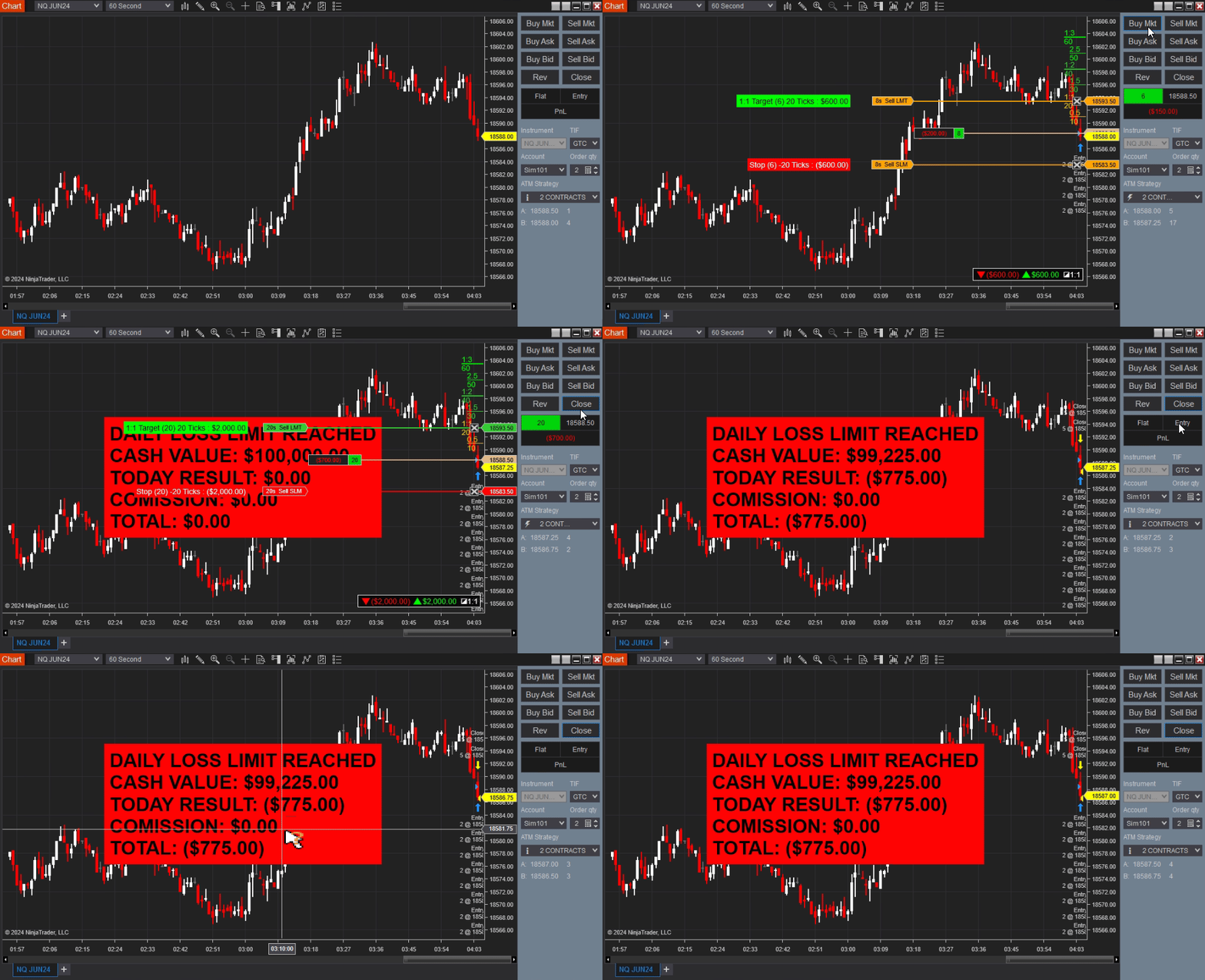
Enforce your session rules automatically. When daily Max Loss is hit—or an optional Profit Target is reached—the indicator can block new entries and even close open positions (optional).
Max Loss Limit — default $300. Blocks new entries once reached.
Profit Target Limit — default $600. Stop trading once met.
Close Open Position? — false by default; auto‑flatten when a limit triggers.
Include Unrealized PnL? — true by default; count open P/L toward limits.
Include Commission? — false by default; enable for net‑of‑fees accuracy.
Tip: To add commissions in NT8: Control Center → Accounts → right‑click your account → Edit → pick a commission template → OK. Then set Include Commission? to true in Trader Limit.
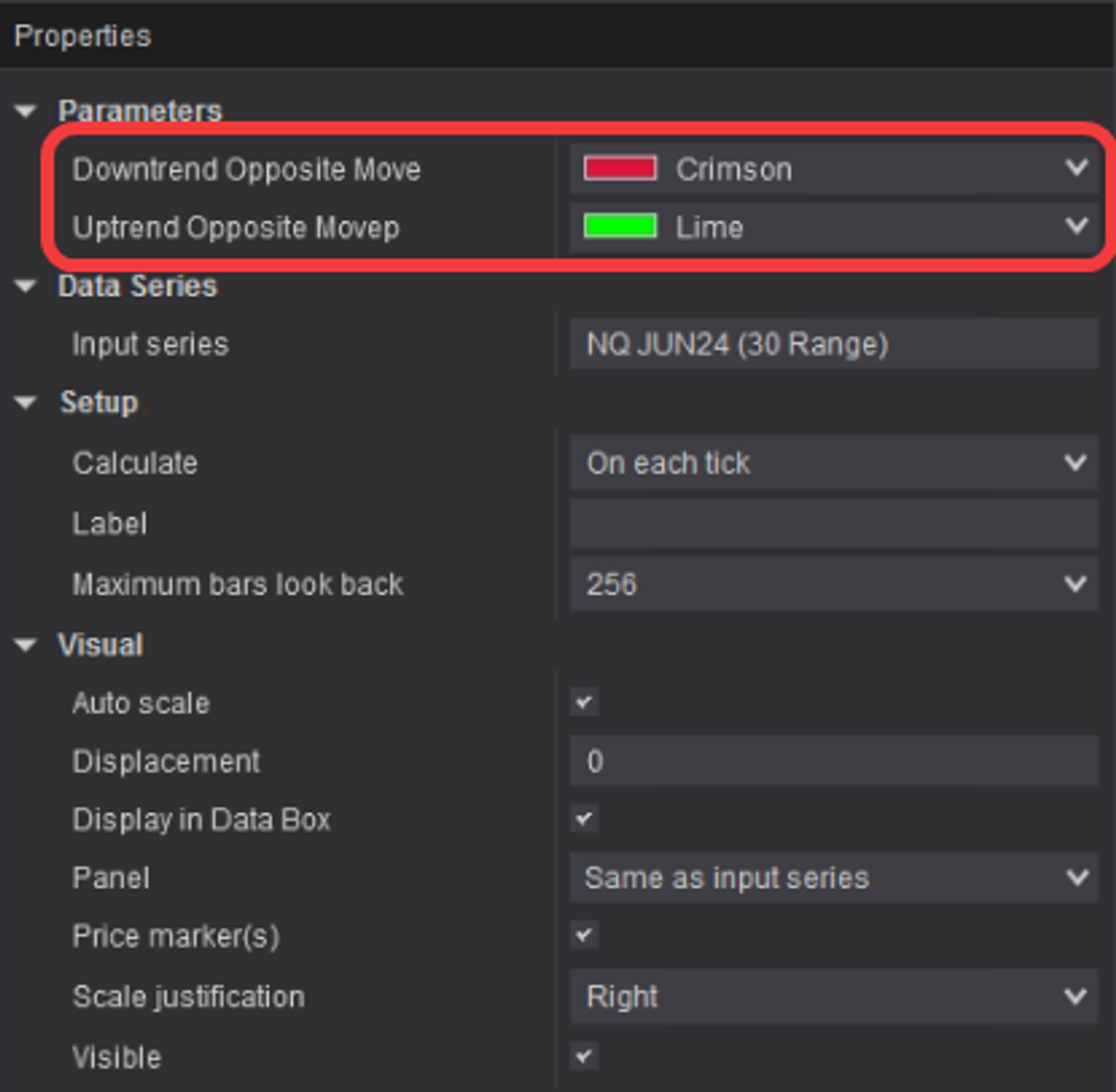
Designed for newer traders or anyone wanting a simple, consistent bias overlay. Match the indicator’s color scheme to your Data Series colors for visual cohesion.
Is the Free Indicators Pack compatible with NinjaTrader 7? No. The pack supports NinjaTrader 8 only.
Do I need Chart Trader for EasyTrade? Yes. EasyTrade requires Chart Trader to read the selected Account/ATM. The free NT8 license doesn’t include Chart Trader.
Do I have to restart after importing? Yes—always restart NinjaTrader after an import/update so assemblies reload cleanly.
Is sharing a Machine ID safe? Yes. It’s an identifier for licensing add‑ons and can’t access your broker or PC.
If you’re looking to streamline your trading and optimize your profits, automated trading using NinjaTrader 8 can be a game changer. With the right templates and strategies, you can leverage automation to execute trades consistently while you focus on risk and market context.
This guide walks you through a field-tested workflow to import, test, evaluate, and use templates. From setting up simulation accounts to rotating top performers, everything you need to get started is here.
Create simulation accounts that mirror your live conditions (balance, commissions, slippage). Group them by idea/timeframe so you can compare apples-to-apples.
Control Center → Accounts tab.
Right-click → Add Simulation Account.
Name them by use (e.g., SimReversal5min, SimTrend15min).
Configure starting balance and Commission template to reflect reality.
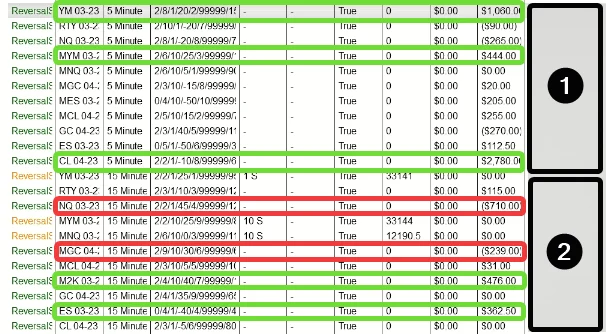
Attach all candidate templates to their designated sim account and run them at the same time. Leave the test uninterrupted for at least 3 trading days to capture a fair sample under the same market regime.
Open the Strategies tab and enable the templates you want to test.
Assign each template to the correct sim account (e.g., all 5-minute templates → SimReversal5min).
Group by timeframe to compare cleanly: account #1 = 5m, account #2 = 15m, etc.
Why batch-test? Running everything at once exposes relative strength immediately and avoids bias from changing conditions.
How long should I run template tests?
Run at least 2–3 full trading days for the first filter, then continue monitoring in Sim while promoting only clear winners.
Should I optimize parameters before going live?
Yes, but lightly—and always validate with out-of-sample data or walk-forward to avoid curve fitting.
Can I run multiple templates on the same account?
You can, but during testing keep them grouped by timeframe/idea on dedicated sim accounts. In production, ensure combined risk is within limits.
What commission/slippage settings should I use?
Use your broker’s schedule and typical slippage for your instrument/liquidity. Test a range to see sensitivity.
What if market regime changes quickly?
Bench laggards and promote fresh sim winners. That rotation keeps your basket aligned with current conditions.
Using templates for automated trading with NinjaTrader 8 is a practical way to systematize execution and compound small edges. Import your templates, run simultaneous tests for a few days, promote the consistent gainers, and rotate as conditions change. Keep risk controls tight and assumptions realistic (commissions, slippage, sessions) to ensure Sim-to-live continuity.
If your automated strategy in NinjaTrader 8 isn’t taking trades or won’t enable, the cause is usually simple: data series settings, template mismatch, insufficient history, or license/activation. This guide shows you exactly what to check and how to fix it fast.
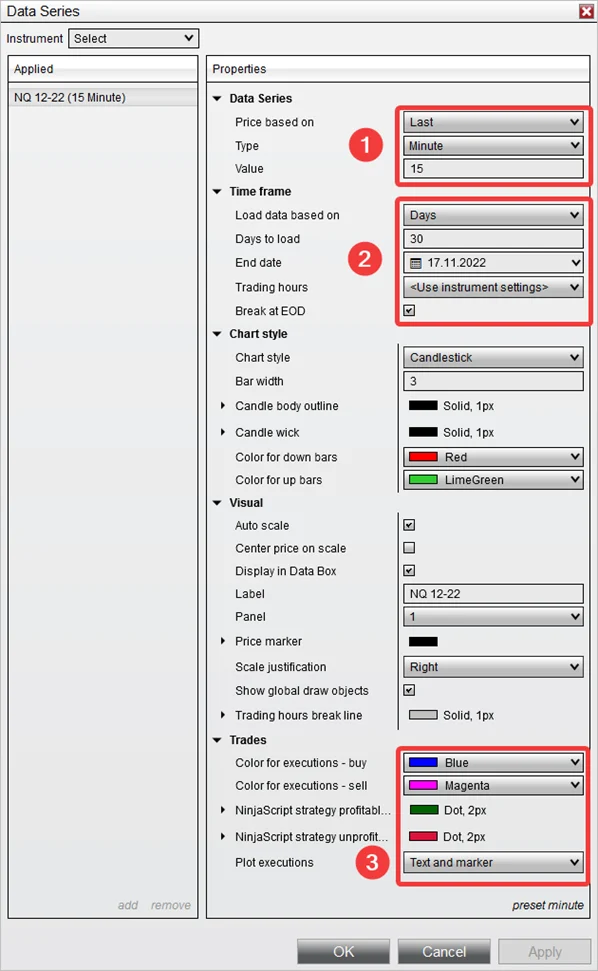
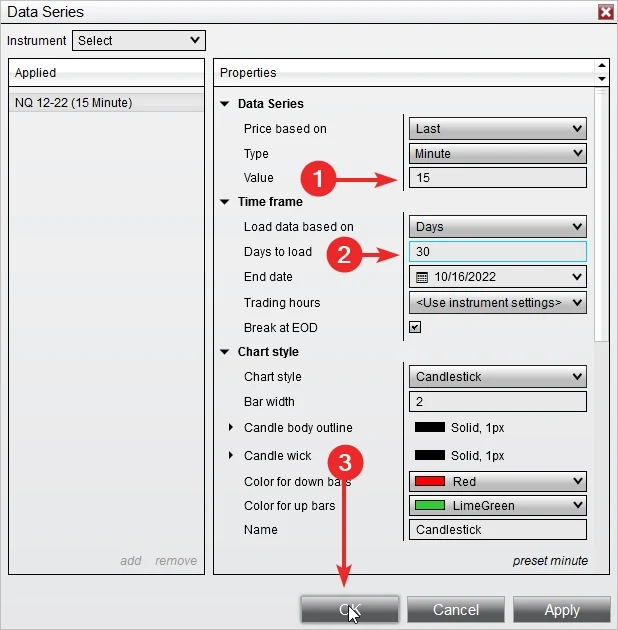
Incorrect Data Series settings are the #1 reason strategies don’t work. Each template defines a market and timeframe you must match on the chart or in the Strategies tab.
Value: 5–60 (we do not recommend below 5; signals can be unreliable)
Load data based on: Days
Days to load:30 (minimum 10–15 to initialize correctly)
Why it matters: If the chart timeframe doesn’t match the template (e.g., the template says MNQ 15 MIN BARS (#112) but your chart is 5 minutes or wrong instrument), the strategy won’t behave as intended and may not trade.
Strategies need a minimum data window to calculate indicators and filters. If you don’t load enough history, the strategy may not initialize or fire entries.
Set Days to load to at least 15 (we recommend 30).
Confirm data connection is live and historical data is available for your instrument.
4) Other Common Causes (Account, Hours, License) 🔗
Wrong account selected: Start in Sim and confirm orders route to the intended account.
Trading Hours mismatch: If your strategy/template expects RTH or ETH, use the matching Session template. A mismatch can prevent signals.
Commissions & slippage: For realistic performance (and some filters), set them in Tools → Options → Commissions.
License/activation: If NT8 shows the add‑on isn’t licensed, activate it first (see Support).
Why isn’t my strategy taking trades right after I enable it?
Entries are rule‑based. Even if historical signals show, live trades only occur when the setup happens in real time. Ensure instrument/timeframe and session match the template.
How many days of data do I need?
At least 15 days; we recommend 30 to initialize indicators and filters correctly.
Can I use Tick or Range bars instead of Minute?
Not for templates that specify Minute (e.g., Reversal). Use the bar type defined by the template.
Will the wrong instrument or timeframe break the strategy?
It won’t break NT8, but it can invalidate logic and prevent signals. Always mirror the template name (e.g., MNQ 15 MIN).
I see a license error—what now?
Contact team@mascapital.uk. We’ll activate or reissue your license and check your Machine ID if needed.
This step‑by‑step guide shows two reliable ways to add an automated trading strategy in NinjaTrader 8: via the Control Center (Strategies tab) and directly on a chart. We’ll use the Reversal automated strategy and its templates as an example, but the process is the same for most strategies.
Method #1: Add a Strategy from the Control Center (Strategies Tab) 🔗
Use this when you want a central view of all strategies across instruments and accounts.
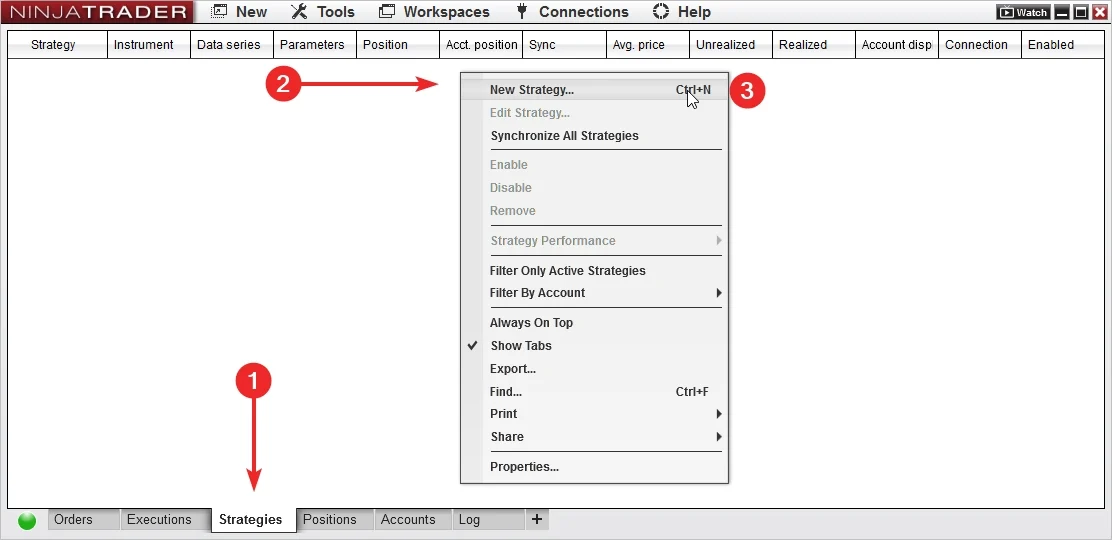
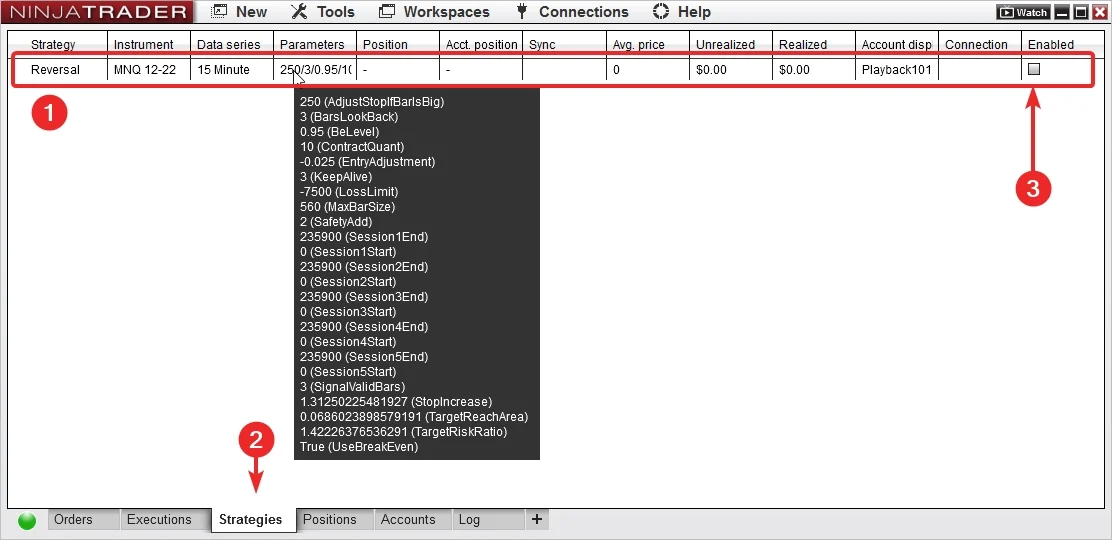
Open Control Center → go to the Strategies tab, then right‑click and choose New Strategy….
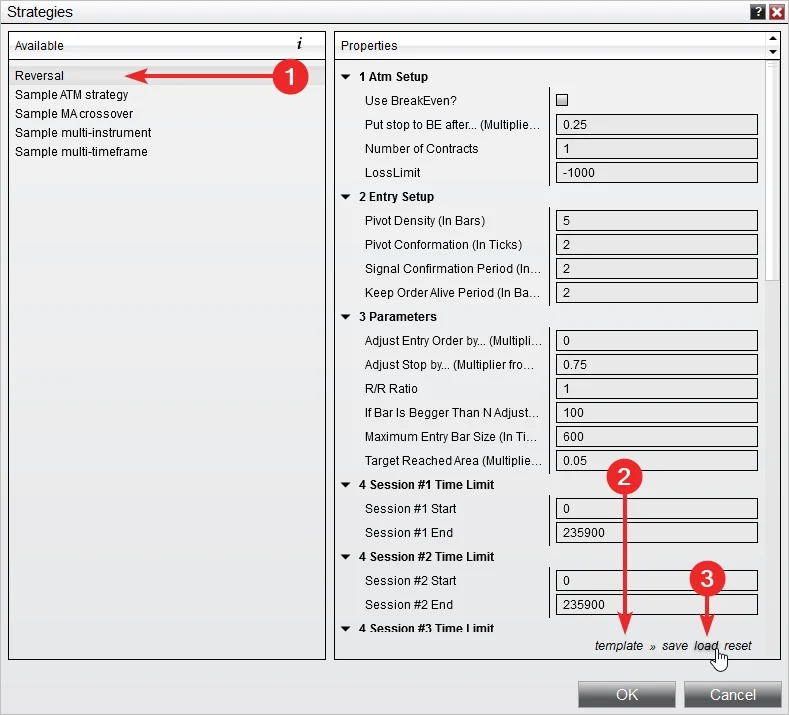
Select the Reversal automated trading strategy you previously imported, then click Load templates.
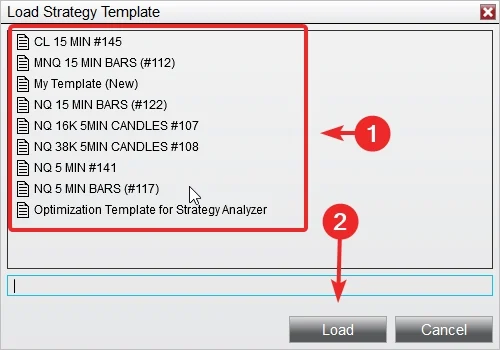
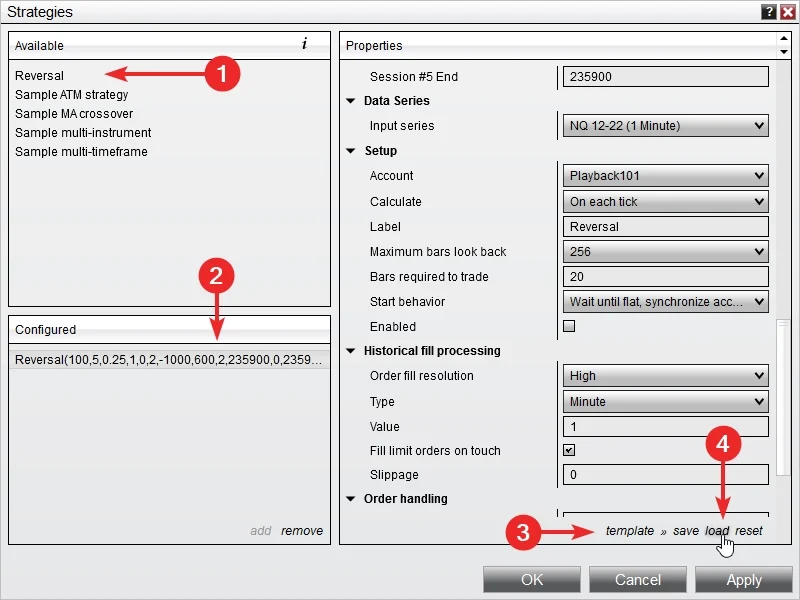
Choose the template you want to try. Templates auto‑fill the correct parameters for a specific market/timeframe.
Example template used here: MNQ 15 MIN BARS (#112).
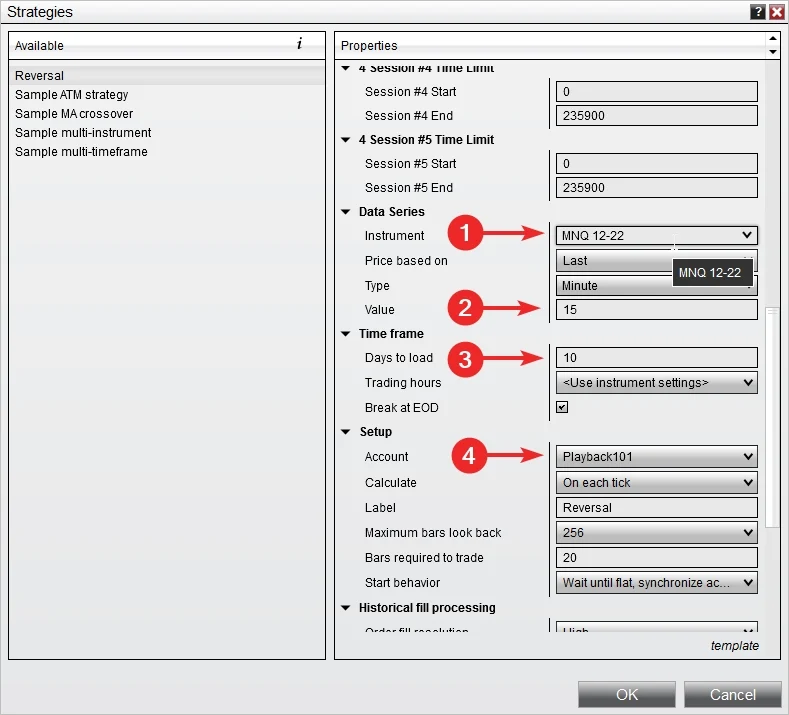
Confirm Data Series matches the template. For MNQ 15 MIN BARS (#112) set: Instrument: MNQ, Type: Minute, Value: 15, Days to load: at least 10. Select your Account, then click OK.
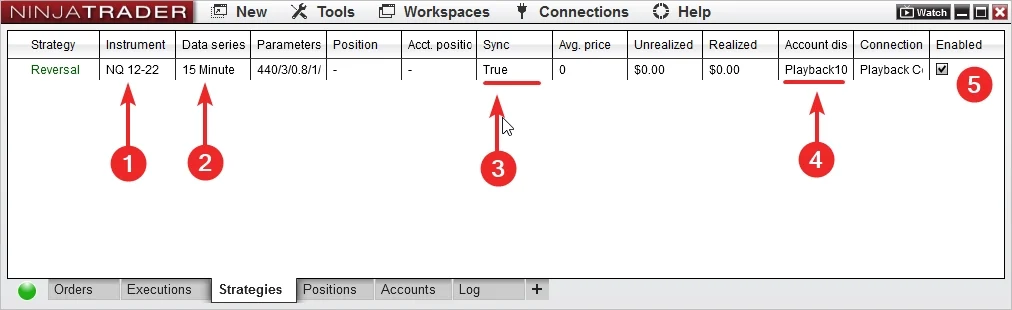
Your strategy is now added. You’ll see it listed in the Strategies tab.
How to add a strategy in NinjaTrader 8 Control Center (video)
Short walkthrough of adding a strategy from the Control Center.
Use this when you want to monitor signals, entries, and performance on the chart and manage the strategy visually.
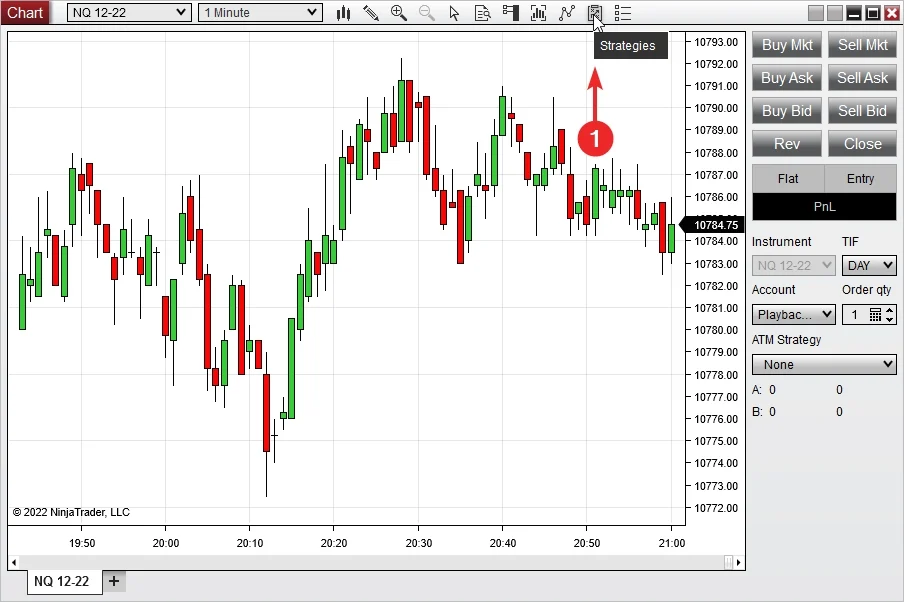
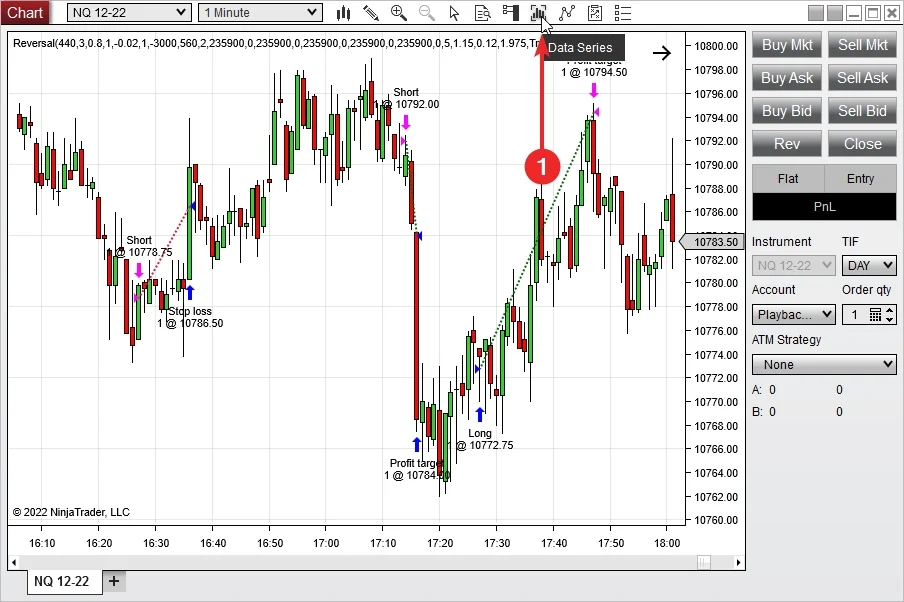
On your chart, open the Strategies panel by clicking the Strategies button.
Select Reversal and import/load your strategy templates.
Example template here: NQ 15 MIN BARS (#122).
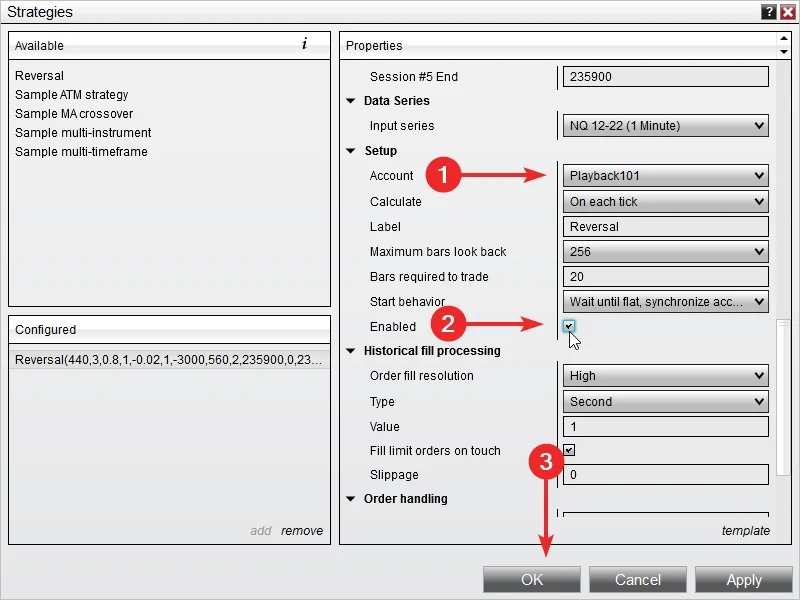
Choose your Account and click Enable to turn the strategy on.
Set the Data Series to match the template: for NQ 15 MIN BARS (#122) use Instrument: NQ, Type: Minute, Value: 15, Days to load: 30 (minimum 10).
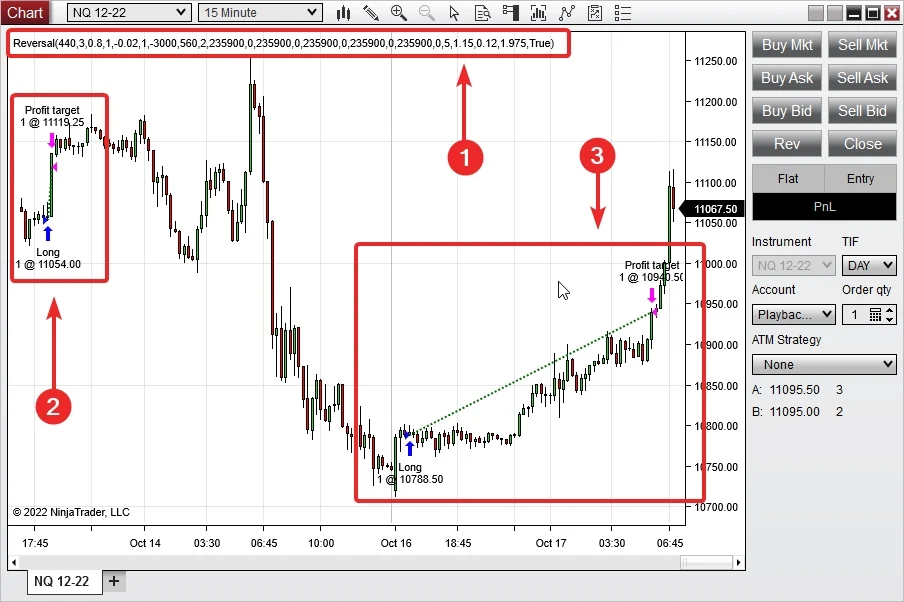
If the strategy is enabled and configured correctly, you’ll see the strategy label at the top of the chart and historical trades plotted.
The strategy also appears in your Control Center Strategies tab automatically.
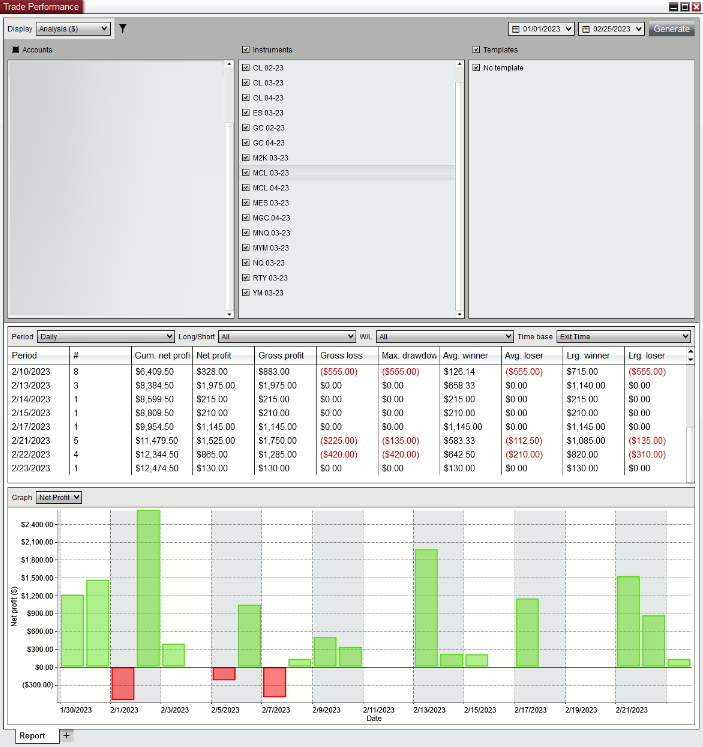
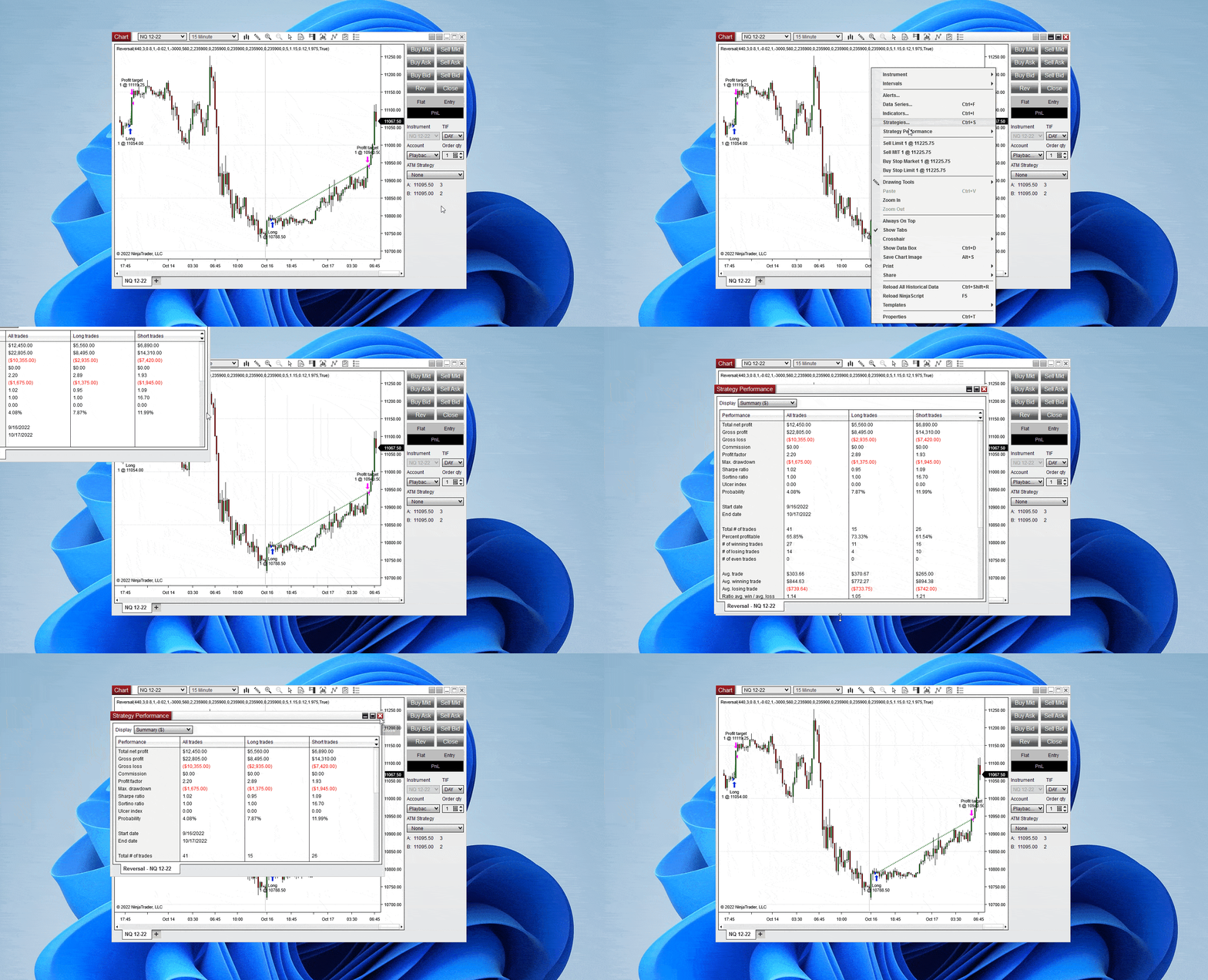
To verify the strategy is active and study its history, open the Trading Performance window from the Control Center, or use the chart’s performance tools. Here’s a quick clip on accessing historical performance:
Video: Add a Trading Strategy to a Chart in NinjaTrader 8
Where do I get the Reversal strategy and its templates? From the product page: Market Reversal Auto‑Trader (NT8). Install the strategy, then import templates.
Can I add multiple strategies to the same chart? Yes, but keep risk simple while testing—start with one per chart, then scale up.
How many days of data should I load? At least 10 days (30 recommended for 15‑minute templates) unless the template specifies otherwise.
Why don’t I see immediate entries after enabling? Entries are rule‑based; the strategy must see its setup. Historical plots appear instantly, but real‑time entries occur only when signals trigger.
Where do I change commissions? Control Center → Accounts Tab → Right Click → Edit Account → Commission (select commission template).
If you’re a NinjaTrader 8 user, you’ll often be asked for your Machine ID when purchasing or activating third-party add-ons, strategies, or indicators. This identifier links a license to your specific PC so vendors can enable access securely.
This guide explains what the Machine ID is, how to find it in seconds, when it changes, and best practices for sharing it safely. You’ll also get troubleshooting tips and vendor-friendly steps to avoid activation delays.
The Machine ID is a unique identifier tied to your computer (hardware + OS) and your NinjaTrader 8 installation. Vendors use it to bind a purchased license to your device, preventing unauthorized sharing while keeping activations simple for legitimate users.
Tip: Think of the Machine ID like a read-only “device fingerprint.” It lets a vendor grant or revoke access without needing your personal data.
Vendors use the Machine ID to attach a license to your device. This protects your purchase, ensures compliant usage, and simplifies support. When your Machine ID is known, vendors can activate (or deactivate) access quickly without remote login or screen sharing.
Prevents piracy: Licenses can’t be copy-pasted to other machines.
Faster support: Your vendor can instantly verify entitlement.
Device control: You can request a license move if you switch PCs.
Yes—when shared with trusted vendors. The Machine ID is not your Windows key or personal credential; it’s an alias used for licensing. A vendor can only use it to grant or revoke access to their product on your device.
Send it via the vendor’s secure channel (support portal or email on file).
Never post it publicly (forums/social) to avoid spam or unwanted contact.
If you suspect misuse, ask the vendor to reissue your license.
Is the Machine ID the same as my NinjaTrader license key? No. The license key unlocks the platform tier; the Machine ID is your device identifier for third-party add-on licensing.
Can I have one purchase licensed on two PCs? Typically no (one Machine ID per license). Ask the vendor about multi-seat or transfer options.
Will a Windows update change my Machine ID? Minor updates usually won’t. Major OS reinstalls or hardware swaps may.
How fast can activation happen? If you provide the correct Machine ID and order info, vendors can usually activate within their stated support window—often same day.
What if I use prop firm/eval accounts? That doesn’t affect the Machine ID. It’s tied to the device, not the brokerage connection.
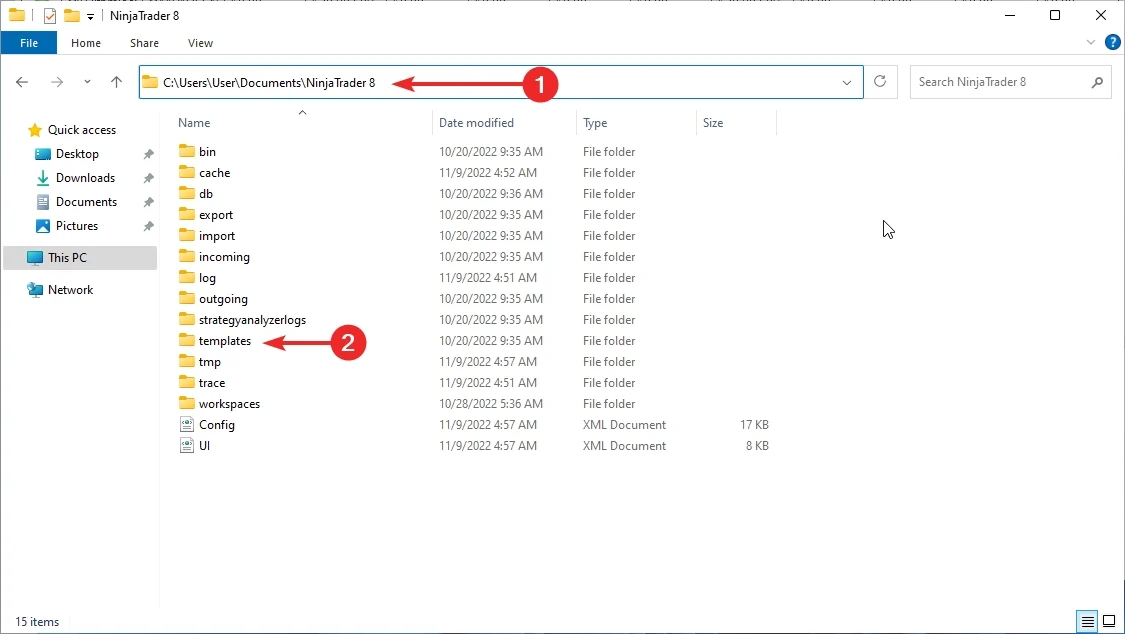
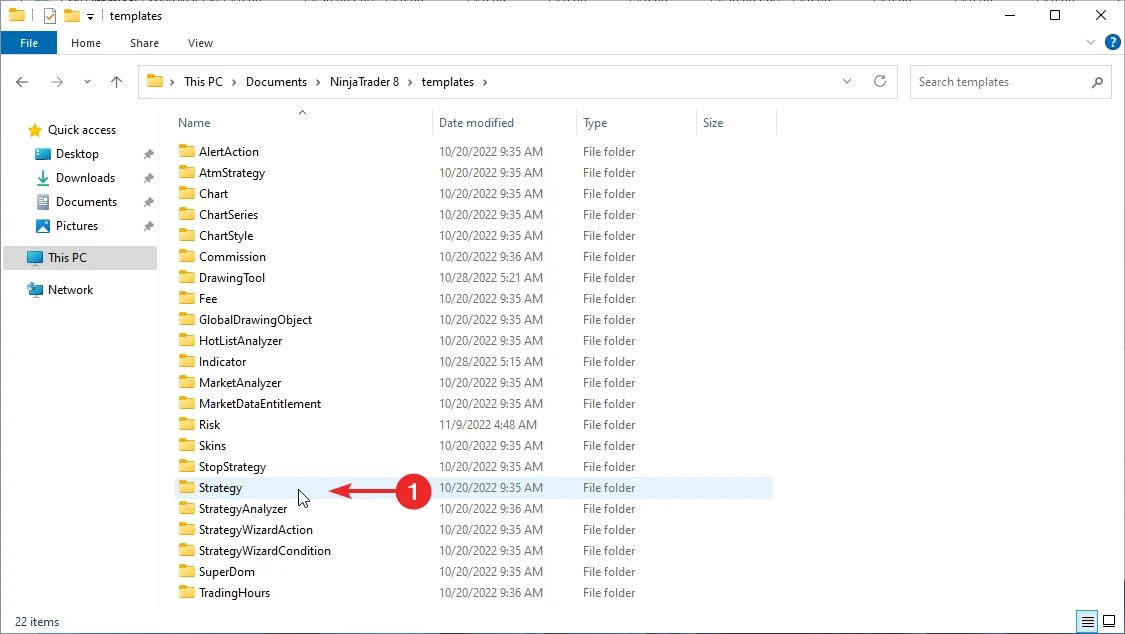
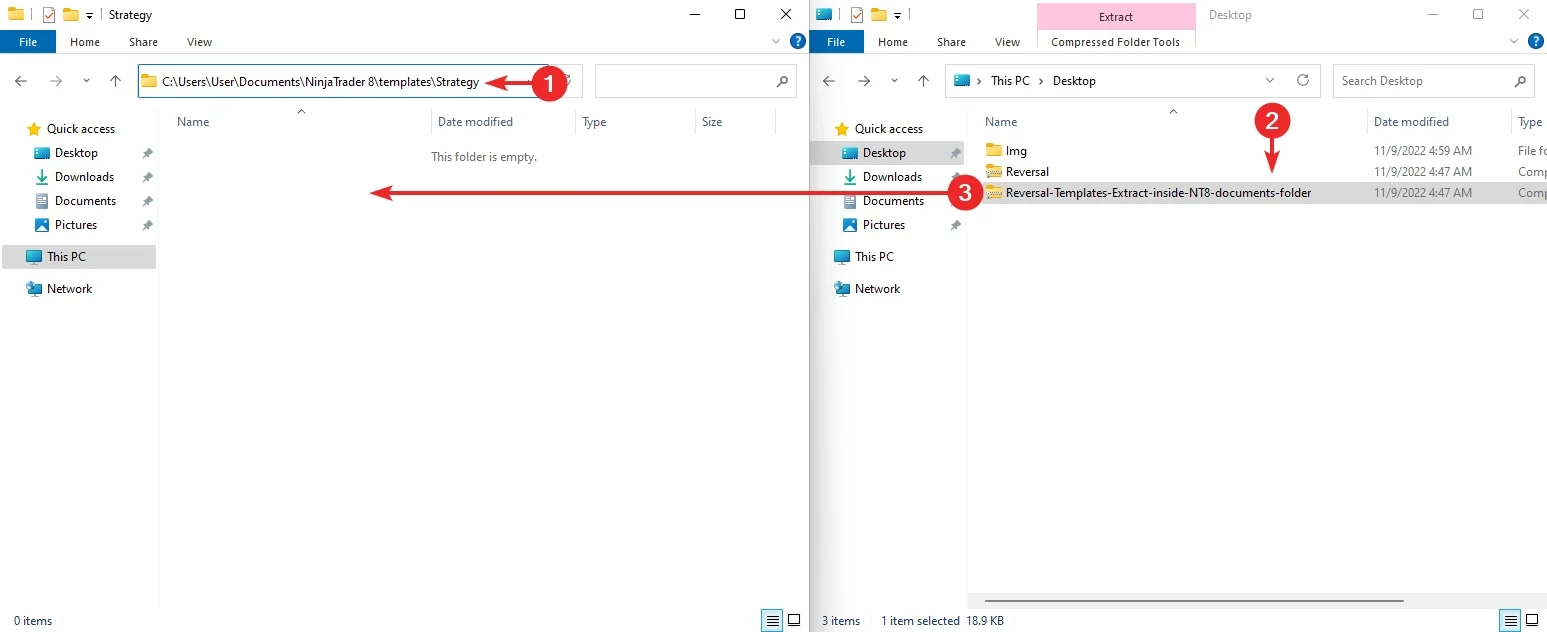
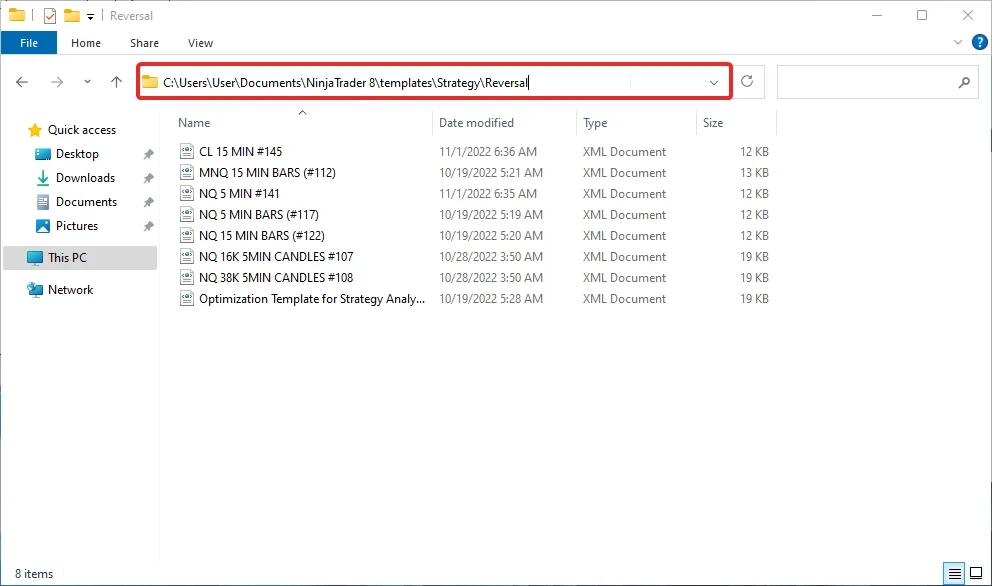
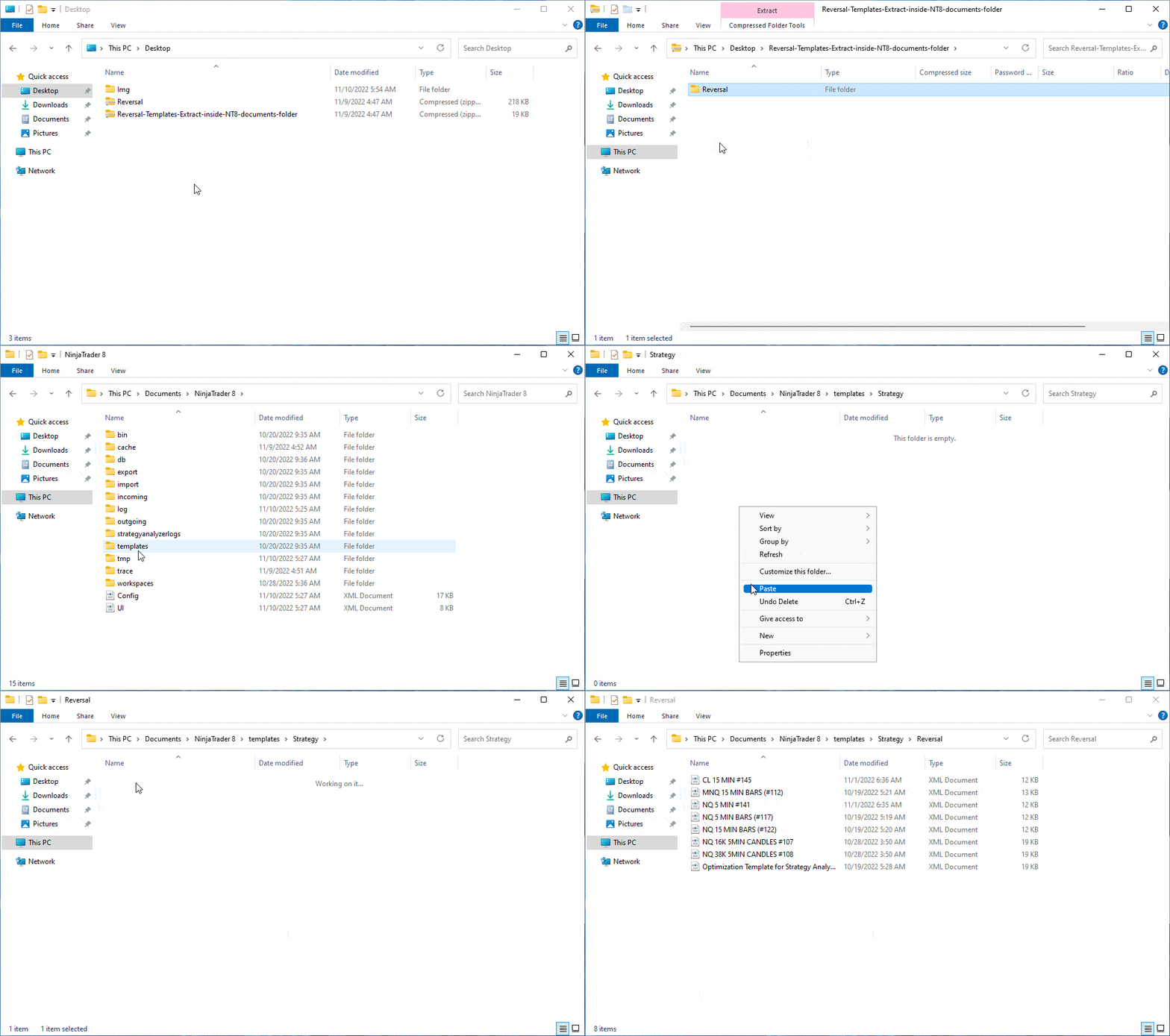
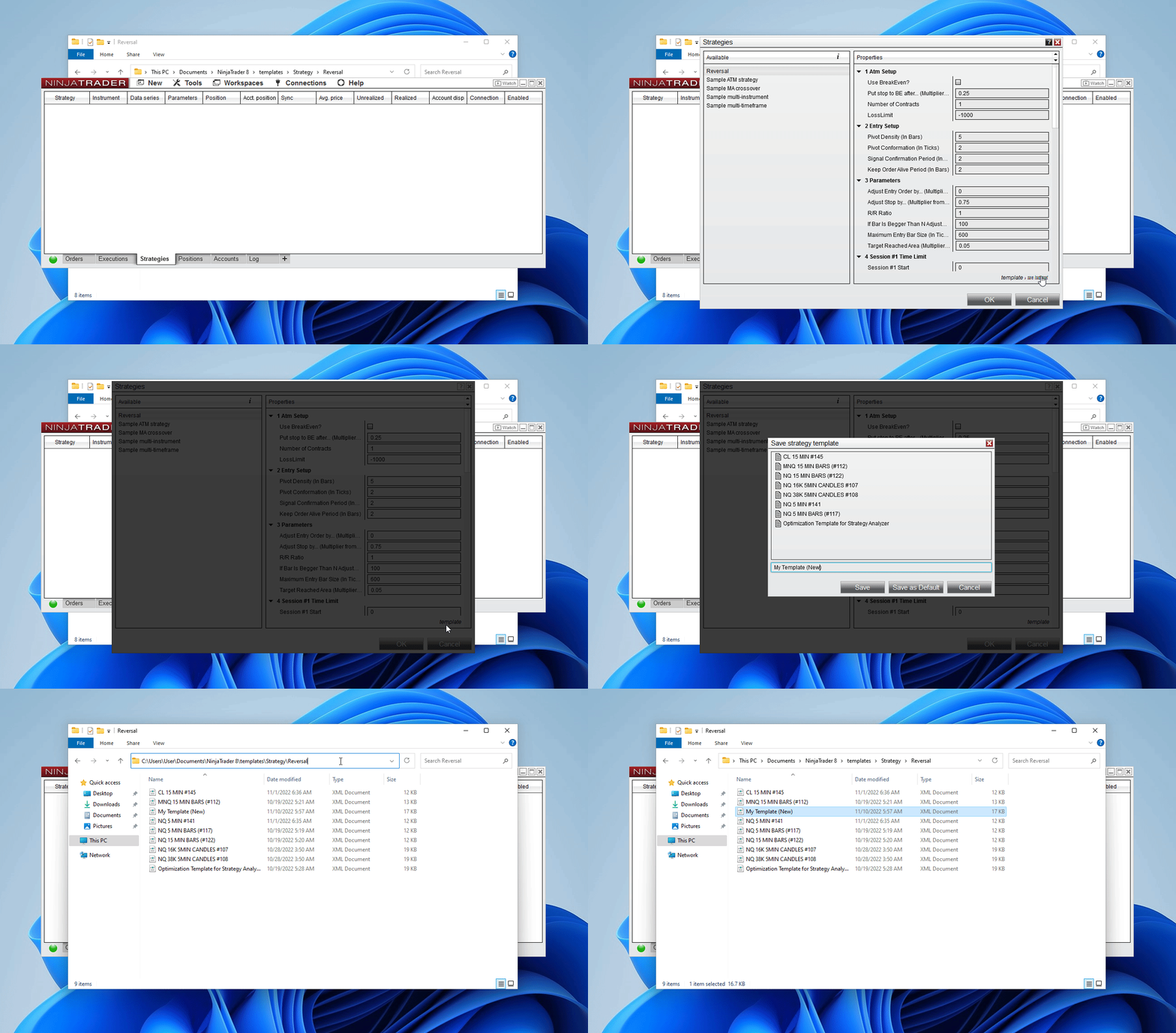
In order to import settings templates for strategies, you need to put them directly into the document’s folder of NinjaTrader 8. The strategy templates should be placed in a folder that has the name of the strategy you are using. For example, the folder with the strategy templates “Reversal” will be named “Reversal”. If you don’t see the folder, then NinjaTrader hasn’t created it yet. You can do it instead, as shown below. To do this, go to:
PC —> Documents —> NinjaTrader 8 —> Templates —> Strategy
Below is an example of how to import settings templates into the “Reversal” strategy from mascapital.uk:
Installing an automated trading strategy is the first step to running algorithmic systems on NinjaTrader 8. This guide shows you exactly how to import a strategy .zip, confirm the install, and get ready to load optimized templates for your markets. We also cover optimization basics, reliable testing workflow, troubleshooting, and a short FAQ.
Download the Reversal strategy .zip from the product page.
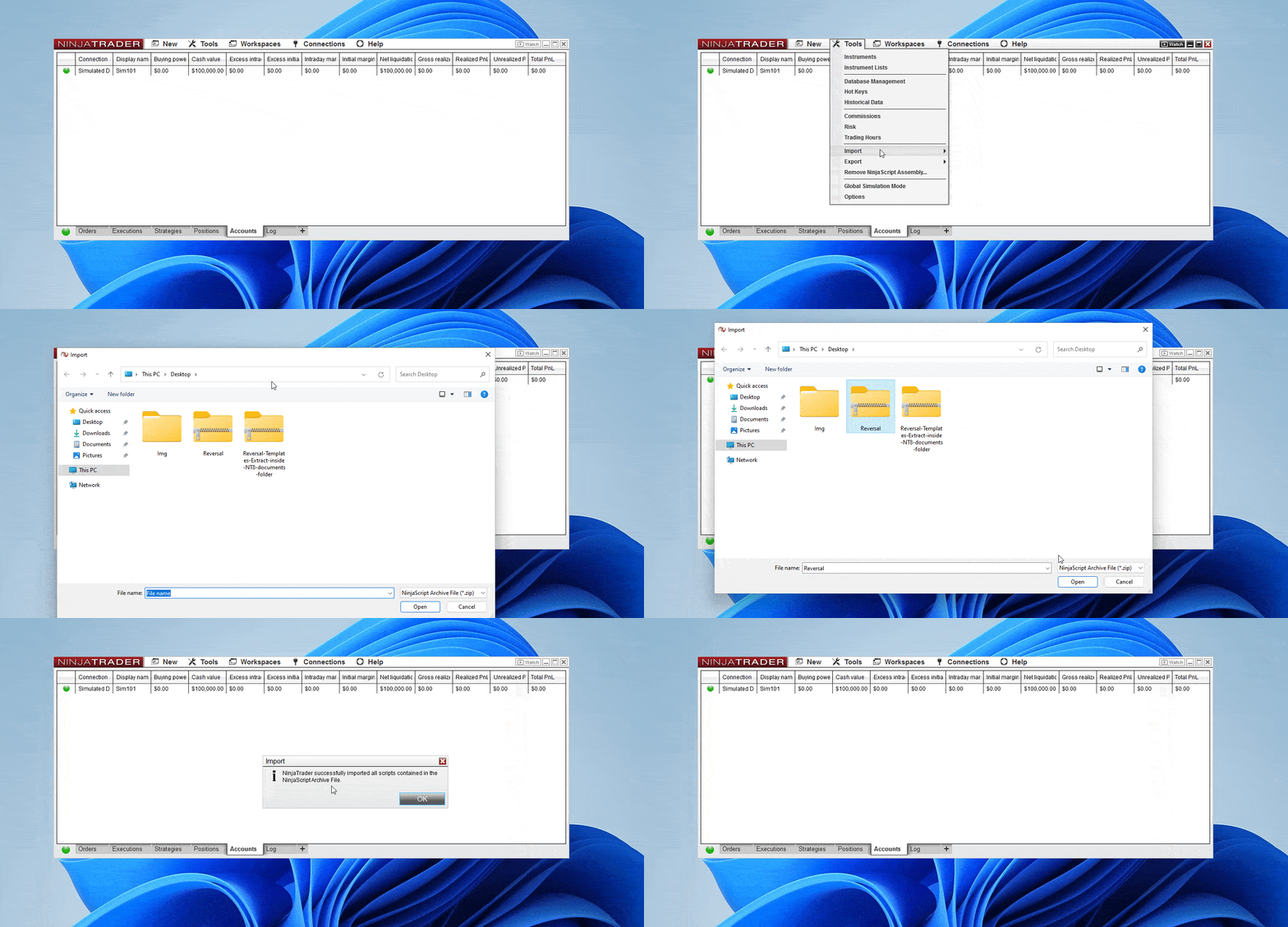
Control Center → Tools → Import → NinjaScript Add‑On…
Select the Reversal .zip and press Open.
Wait for the installer to finish (you’ll see a success message).
Open a chart or the Strategies tab, pick Reversal, and Load templates to apply market‑specific parameters.
Next steps: After install, load a template that matches your instrument/timeframe (e.g., NQ 15 MIN) and verify your Data Series, Trading Hours, and Commissions match the template notes.
Reliable results come from a solid workflow and diversified testing. We publish templates inside each strategy to reflect current market conditions—use them as your starting point.
Batch testing: create a separateSim account per template/timeframe and run them simultaneously for 2–3 days. Promote consistent winners.
Stay current: periodically re‑import updated templates aligned with the latest market regime.
Do I need to unzip the strategy file? No. Import the original .zip via Tools → Import → NinjaScript Add‑On.
Where do strategies appear after install? In the Strategies list (on the chart or in the Control Center’s Strategies tab), depending on where you enable them.
Can I uninstall a strategy? Yes. Use Tools → Remove NinjaScript Assembly and restart NT8.
How do I set commissions? Control Center → Accounts Tab → Right Click → Edit Account → Commission (select commission template).
Should I go live right away? No—start in Sim, run for several sessions, then size up gradually once results are consistent.